



Users & Roles
Creating an Example User with Microsoft Management Studio
The following steps show which settings need to be made via the Microsoft Management Studio of Microsoft SQL Server.
The goal is to create a user in Microsoft SQL Server that enables the use of Q-Matrix™.
Note that with this method, the fine-tuning of the minimal and necessary rights is strongly limited.
The next section then shows how the minimal rights can be set using a different method.
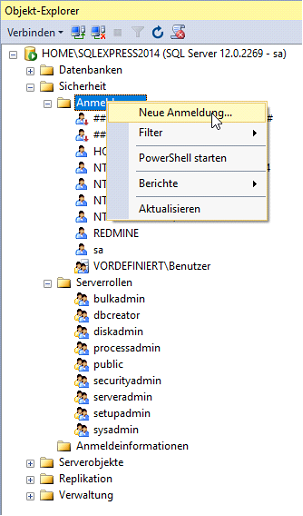 | After successfully logging in to an SQL Server via Microsoft Management Studio, a new user can be created via the Object Explorer, through the context menu under <SQL Server>\Security\Logins. |
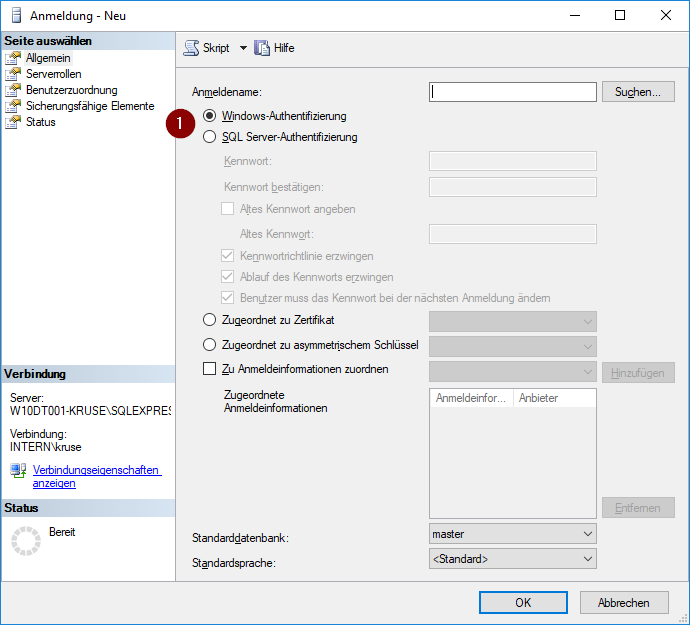 | This dialog box contains all the elements for creating a new user. Under (1), you can also choose between using an integrated Microsoft SQL Server user or a Microsoft Active Directory user. |
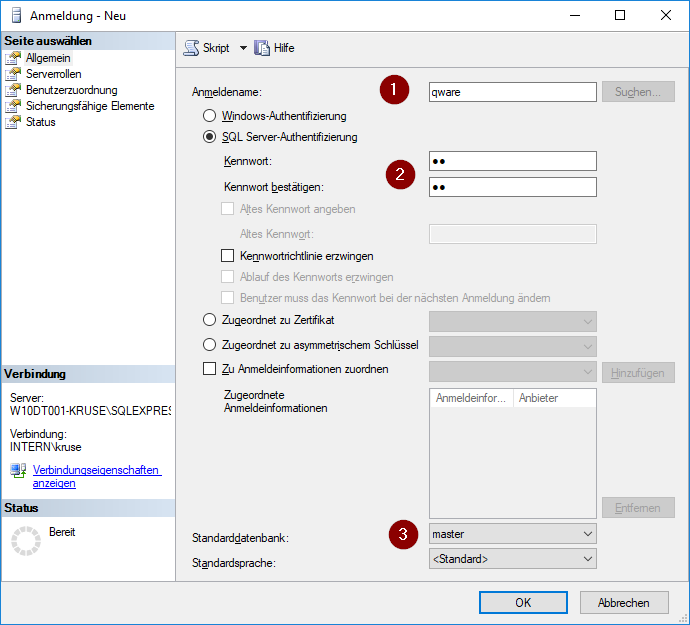 | For SQL Server integrated users, the recommended setting can be seen in the image on the left. For this, enter the login name or user ID under (1). In (2), enter the password for this new user identically twice. In (3), access can be restricted to a dedicated database, so that the user only has the configured rights for this database. In the context of Q-Matrix™, the created / to-be-used Q-Matrix™ database is set here. |
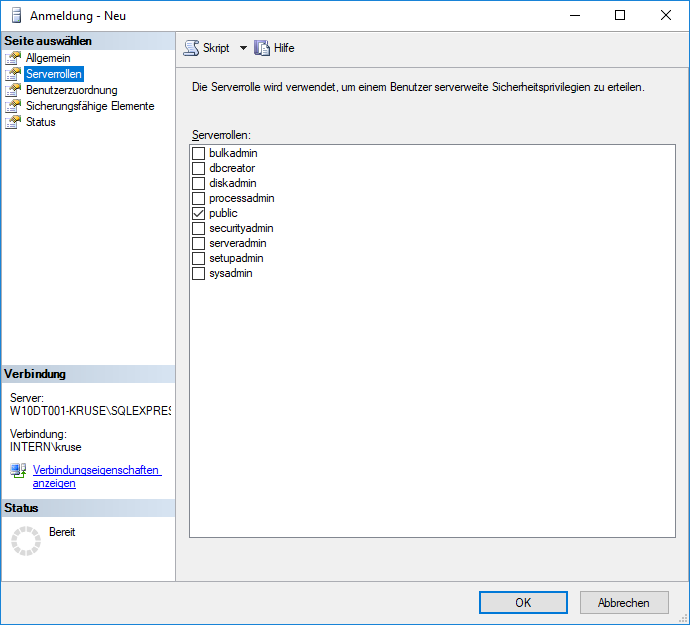 | On the "Server Roles" page, the standard roles described for server access can be set. The public role is always selected by default and should be kept at a minimum. If a user is to be created for the initial database creation of Q-Matrix™, the sysadmin role must also be selected here. |
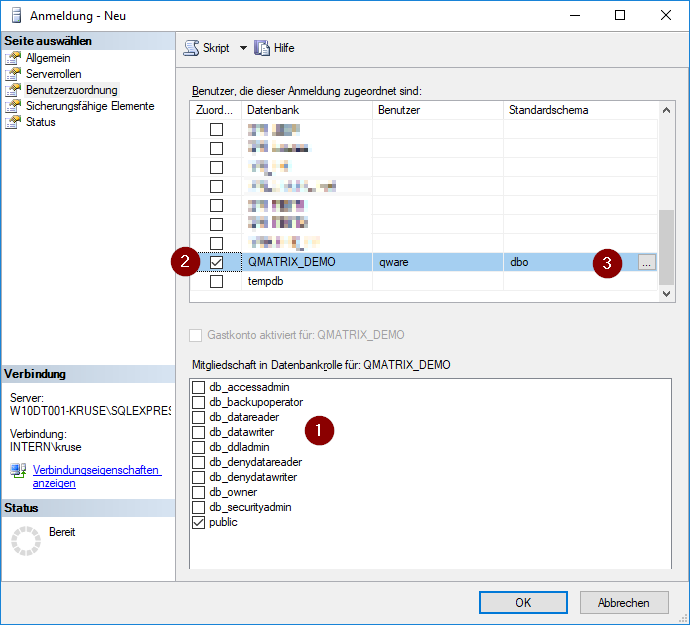 | Via User Mapping, the finer permissions can be set. To do this, first select the database to be used via (1). This then makes it possible to set the further rights via (2). In addition to the db_datawriter role, the db_owner role must also be set via this graphical setting/creation. Other minimal settings cannot be used with this method. Via (3), the schema can also be set. Q-Matrix™ currently does not use a schema, so the default (no input) should be used. |
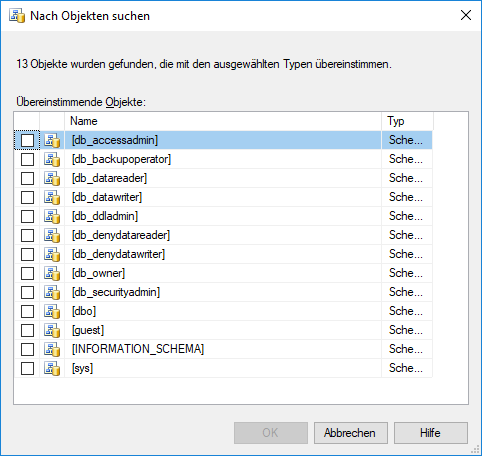 | The left window shows the various schemas in Microsoft SQL Server. Q-Matrix™ does not use an extra schema, and the default schema of the user dbo is used. |
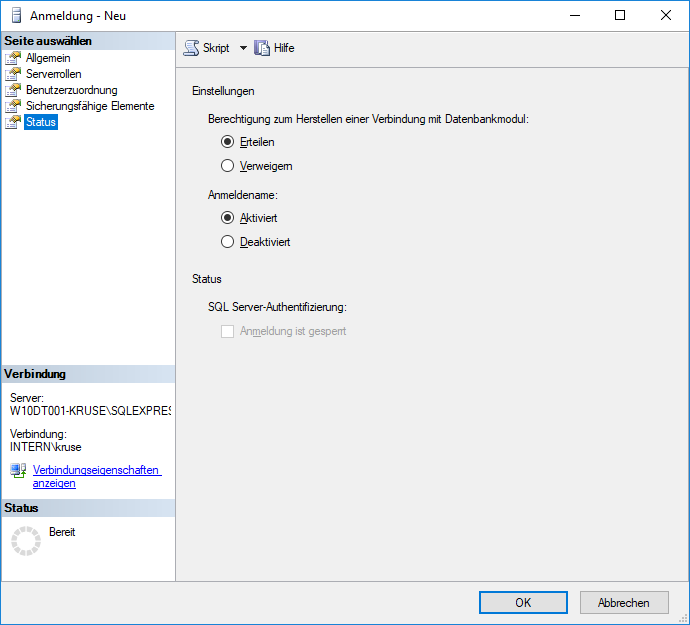 | The final setting must be checked on the "Status" page. There, it is set whether the new user is allowed to log in to the SQL Server and whether the user is active. If all these settings are correct, the creation of the new user can be initiated via the "OK" button. |
A more advanced way of creating a user is shown in the following section using Transact-SQL (T-SQL).
This is the only method to create a user with minimal rights for the various tasks and use of Q-Matrix™.
Transact SQL: Creating a User
Depending on requirements, separate users, or references to Microsoft Active Directory groups, can be set up for the different tasks (use/operation, update, and initial creation).
If not three (3) users, but only two (2) or even one user is to be used, the next-higher permission setting must be used.
The following user and permission hierarchy applies:
Standard user
The following script can be used to create a standard user via Management Studio in T-SQL:
USE [master]
GO
-- Create user Windows Authentication
-- CREATE LOGIN [YourDomainName] FROM WINDOWS WITH DEFAULT_DATABASE=[YourDB];
-- Create SQL Server Authentication
CREATE LOGIN [LoginName] WITH PASSWORD=N'qm', DEFAULT_DATABASE=[YourDB], CHECK_EXPIRATION=OFF, CHECK_POLICY=ON
GO
USE [YourDB]
GO
CREATE USER [LoginName] FOR LOGIN [LoginName]
GO
------------------------------
ALTER ROLE [db_datareader] ADD MEMBER [LoginName];
ALTER ROLE [db_datawriter] ADD MEMBER [LoginName];
GRANT ALTER ON SCHEMA::[dbo] TO [LoginName];
GRANT EXECUTE ON SCHEMA::[dbo] TO [LoginName];
GRANT SELECT ON SCHEMA::[dbo] TO [LoginName];
GO
A user is deleted using the following script:
DROP USER [LoginName]
GO
DROP LOGIN [LoginName]
GO
Update user (= db_ddladmin)
The following script can be used to create an update user via Management Studio in T-SQL:
USE [master]
GO
-- Create user Windows Authentication
-- CREATE LOGIN [YourDomainName] FROM WINDOWS WITH DEFAULT_DATABASE=[YourDB];
-- Create SQL Server Authentication
CREATE LOGIN [LoginName] WITH PASSWORD=N'qm', DEFAULT_DATABASE=[YourDB], CHECK_EXPIRATION=OFF, CHECK_POLICY=ON
GO
USE [YourDB]
GO
CREATE USER [LoginName] FOR LOGIN [LoginName]
GO
------------------------------
ALTER ROLE [db_datareader] ADD MEMBER [LoginName];
ALTER ROLE [db_datawriter] ADD MEMBER [LoginName];
ALTER ROLE [db_ddladmin] ADD MEMBER [LoginName];
GRANT ALTER ON SCHEMA::[dbo] TO [LoginName];
GRANT EXECUTE ON SCHEMA::[dbo] TO [LoginName];
GRANT SELECT ON SCHEMA::[dbo] TO [LoginName];
GO
A user is deleted using the following script:
DROP USER [LoginName]
GO
DROP LOGIN [LoginName]
GO
Initial user (= sysadmin)
The following script can be used to create an initial user via Management Studio in T-SQL:
USE [master]
GO
-- Create user Windows Authentication
-- CREATE LOGIN [YourDomainName] FROM WINDOWS WITH DEFAULT_DATABASE=[YourDB];
-- Create SQL Server Authentication
CREATE LOGIN [LoginName] WITH PASSWORD=N'qm', DEFAULT_DATABASE=[YourDB], CHECK_EXPIRATION=OFF, CHECK_POLICY=ON
GO
USE [YourDB]
GO
CREATE USER [LoginName] FOR LOGIN [LoginName]
GO
------------------------------
ALTER SERVER ROLE [sysadmin] ADD MEMBER [LoginName]
GO
A user is deleted using the following script:
DROP USER [LoginName]
GO
DROP LOGIN [LoginName]
GO