



Menu Item "Training Planning"
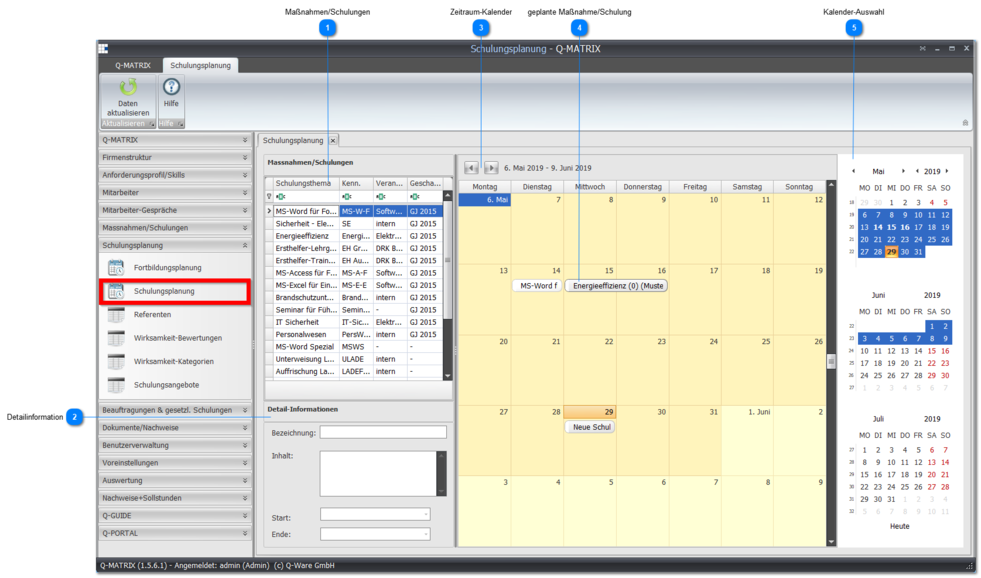
This menu item allows you to plan measures/training courses over time.
The standard view shows the current week and the following four (4) weeks.
Unlike continuing education planning, this planning lets you set the time view from one day up to N weeks/months.
Procedure for Planning a Measure/Training Course
- Make sure the desired measure/training course is selectable. If it is not, add the measure/training course to this selection via the measures catalog by making the desired measure/training course a standard measure.
- If you want to set one or more dates for a measure/training course, you can do this via the context menu of measures/training courses, or drag the desired measure/training course into the period calendar while holding down the left mouse button.
- Now schedule the participants by right-clicking the measure/training course in the period calendar.
- A process for the necessary steps is available to you, starting with Assign Employee through to Cancel Measure.
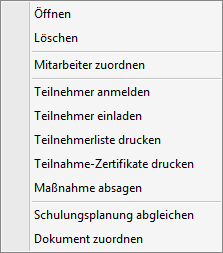
- Each of these steps is necessary and cannot be skipped.
- A process for the necessary steps is available to you, starting with Assign Employee through to Cancel Measure.
- Further information can be found in the training planning process.
 Measures/Training Courses
All standard measures are shown in this table and are available to you for training planning.
Via the context menu you can
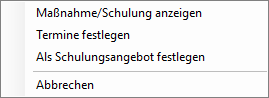
- View a measure/training course (can also be reached by double-clicking the measure/training course)
- Set dates for the selected/marked measure/training course
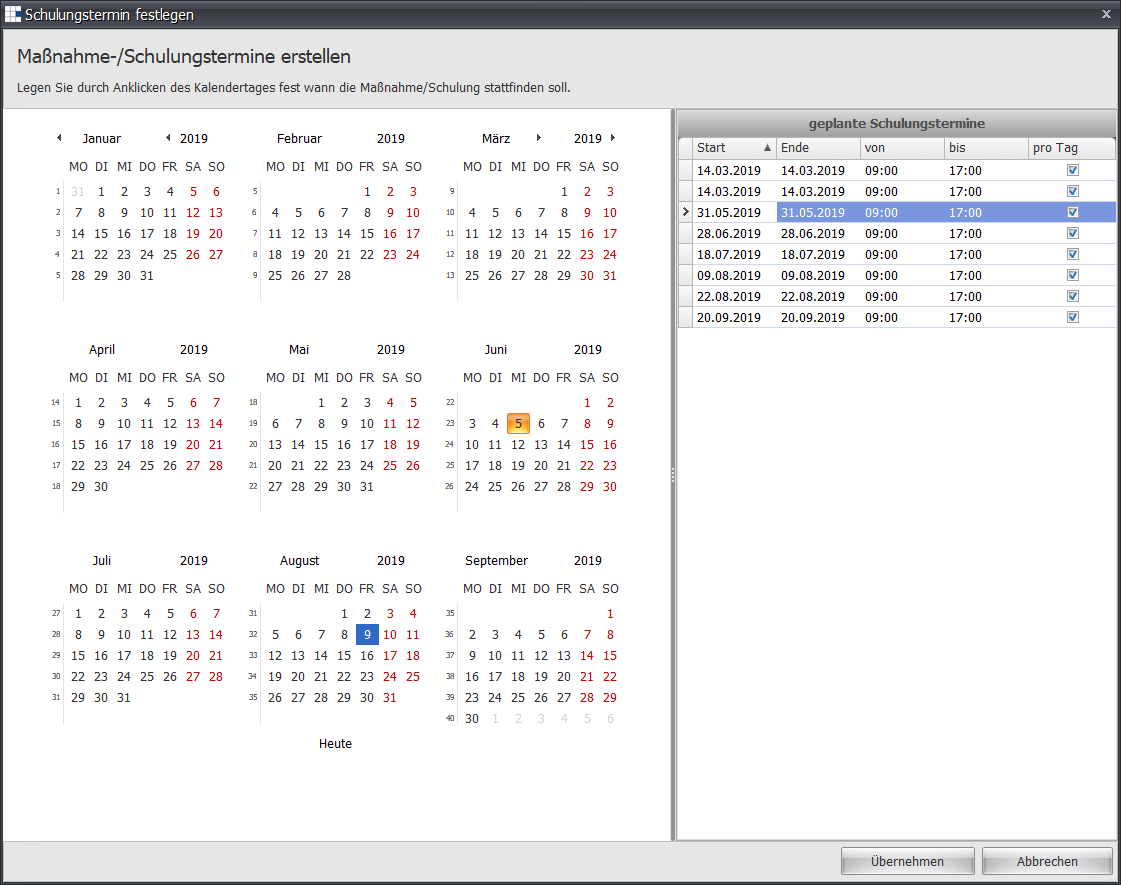
- Double-click a day in the calendar, and the day is added on the right side under scheduled training dates.
- All added dates are applied to the calendar period view and to the measure/training course via Apply.
- These dates can then be edited for the measure/training course.
- Set up training offers
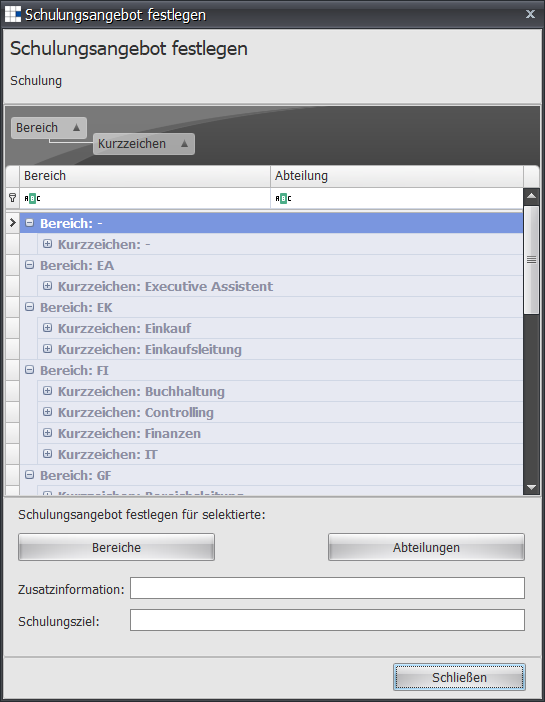
- This function allows you to add a measure/training course to the training offers.
- Use this wizard to select which areas/departments should receive the information that a new measure/training course is available.
- Once you have made your selection, you can use the Areas and Departments buttons to target this information precisely.
 Detail Information
Shows the essential information for a selected/marked measure/training course from the period calendar.
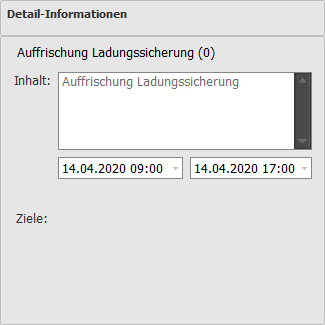
This essential information includes
- Name
- Content
- Start Date (incl. time)
- End Date (incl. time)
- Objectives
 Period Calendar
Shows the scheduled measures/training courses for a period.
You can page forward or backward through the period (by day or by week) using the arrow icons.

 Scheduled Measure/Training Course
Double-clicking or using Open in the context menu shows you the detail view of the measure/training course.
All information listed can be changed by you.
In particular, setting the instructor for this measure/training course is intended here.
Further information can be found in the measure details.
 Calendar Selection
This compact quick overview for a date selection gives you fast access to a period.
Simply click a day, and the associated day information will be displayed.
Hold down the left mouse button or the SHIFT key and select the period.
Days highlighted in bold ( ) have at least one measure/training course scheduled.
You can select today's date by clicking Today (below the compact calendar view).
In addition, the current time is shown in the day view by an orange horizontal line.
Additionally, today's date is marked with a special highlight ( ).
).
Above the compact calendar view, you can use the arrow buttons ( ) to switch between months and years.