



Menu Item "Assignments"
The "Assignments" menu item shows the assignments of employees in a horizontal, chronological sequence.
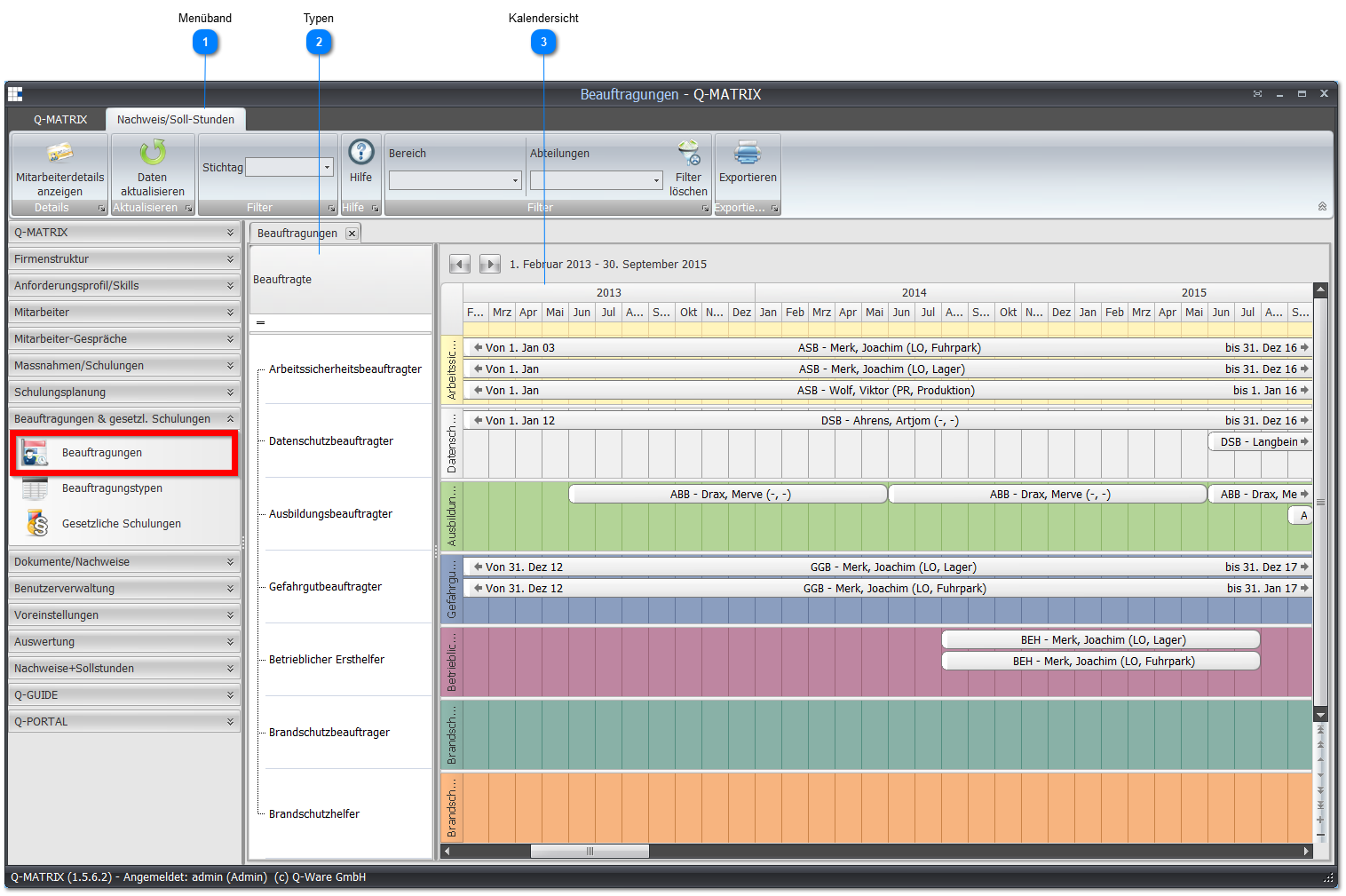
 Ribbon

| Show Employee Details | Shows the employee details with the Assignments tab for a marked/selected employee. You can achieve the same by double-clicking the employee's assignment in the calendar view. |
| Reference Date | Select a reference date to be applied as a filter (start date) for the display. |
| Area | Select an area from the dropdown list to be applied as a filter for the display. |
| Departments | Select a department from the dropdown list to be applied as a filter for the display. |
| Clear Filter | Clears and empties all set filters |
| Export | Exports the underlying data into a Microsoft Excel spreadsheet. The preset file is used as the template for this.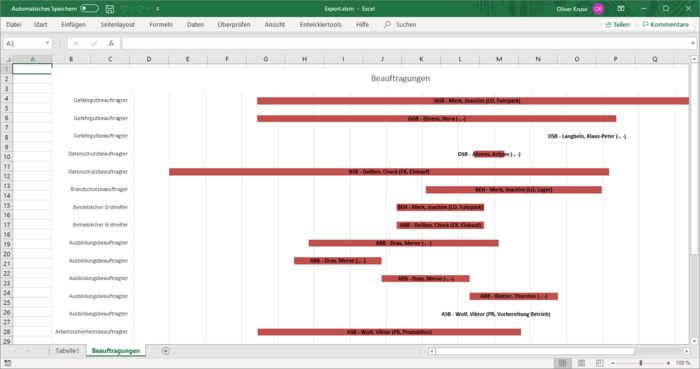 |
 Types
Types
All types listed are based on the assignment types, and all types are displayed.
These can be filtered via the column header Assigned (top right corner - icon  ).
).
 Calendar View
The assignments of employees are displayed in a horizontal, chronological sequence.
Double-clicking an employee's assignment opens the employee details with the Assignments tab.
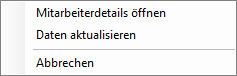
Right-clicking such an assignment opens a context menu that can be used to open the employee details with the Assignments tab.
You can page forward or backward through the period (by year) using the arrow icons.

The following navigation is available in the bottom right of the calendar view. This navigation is only active when the visible rows are changed:
 | First Row |
 | Previous Page |
 | Back/Previous Row |
 | Next Row |
 | Next Page |
 | Last Row |
 | Increase visible rows (works like a kind of zoom - minimal display of one assignment type) |
 | Decrease visible rows (works like a kind of zoom - maximum display of all assignment types) |
