Menu Item "Q-Guide Basic Data"
The Q-Guide basic data gives you a quick overview of all available learning topics and instructions.
You can also manage the user data for Q-Guide here.
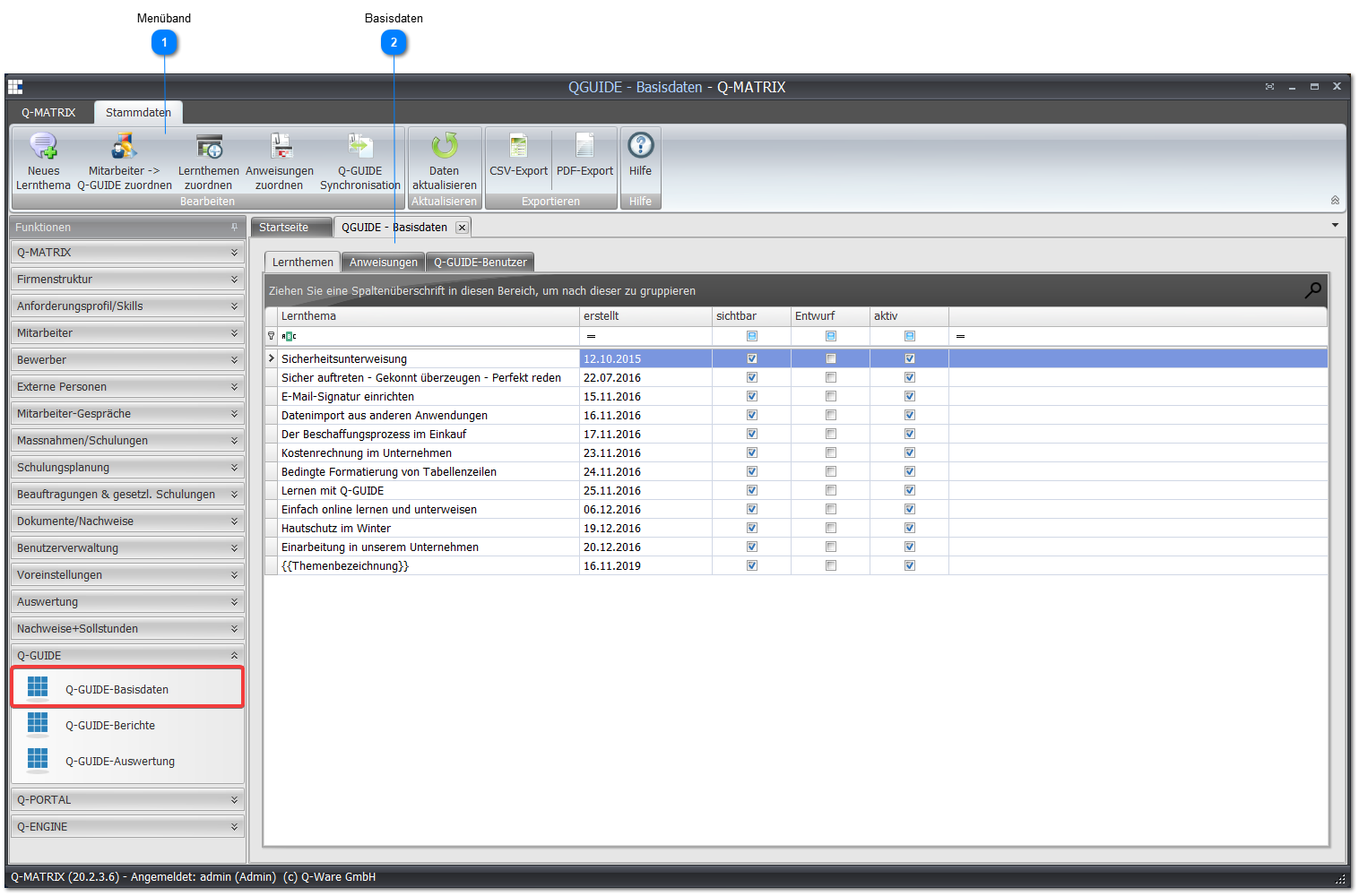
 Ribbon

| New Learning Topic | Opens a wizard for adding a new learning topic or instruction:
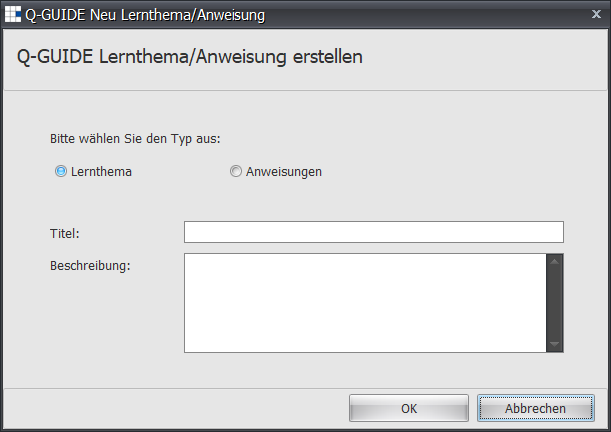
Note: An empty learning topic or instruction is created. You must create and/or assign the content in Q-Guide. |
| Employee ► Assign Q-Guide | This dialog lets you add employees as Q-Guide users |
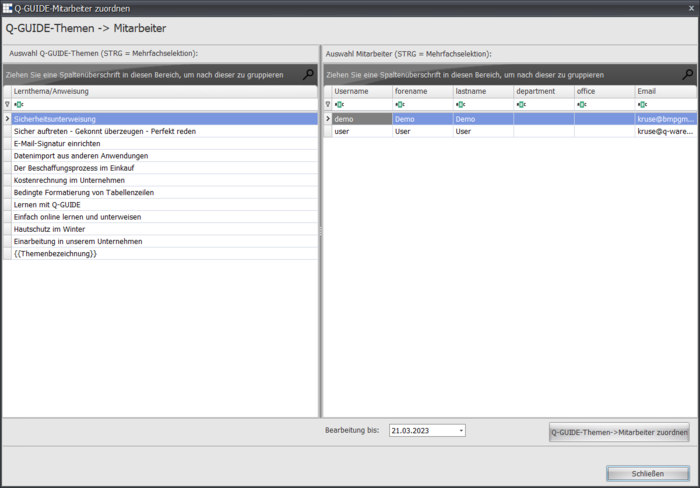
| Assign Learning Topics | Opens a wizard for assigning learning topics to employees:
|
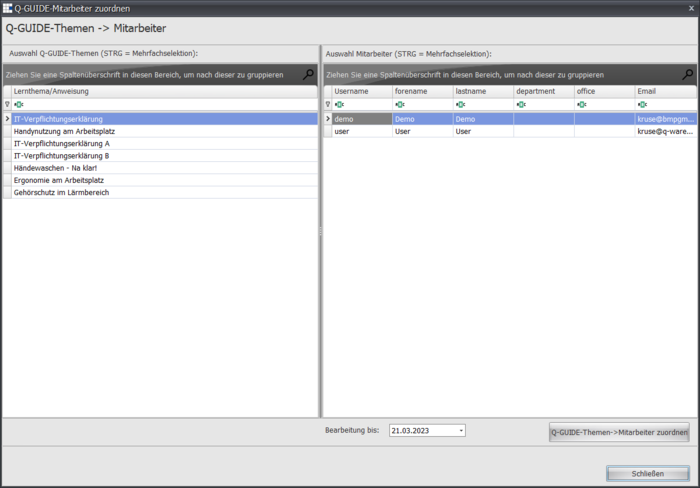
| Assign Instructions | Opens a wizard for assigning instructions to employees:
|
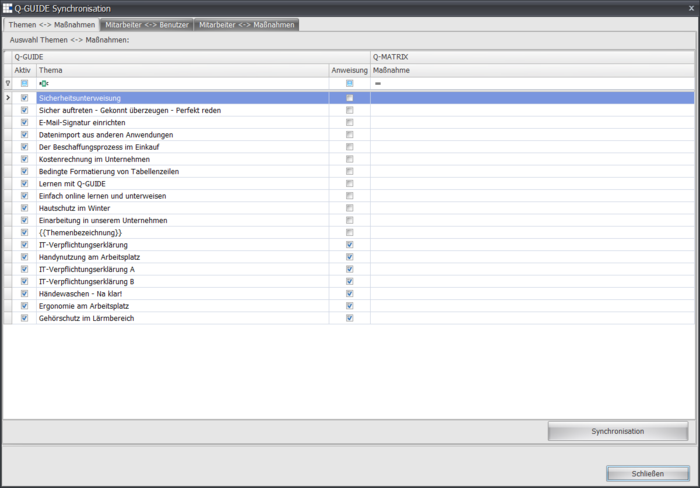
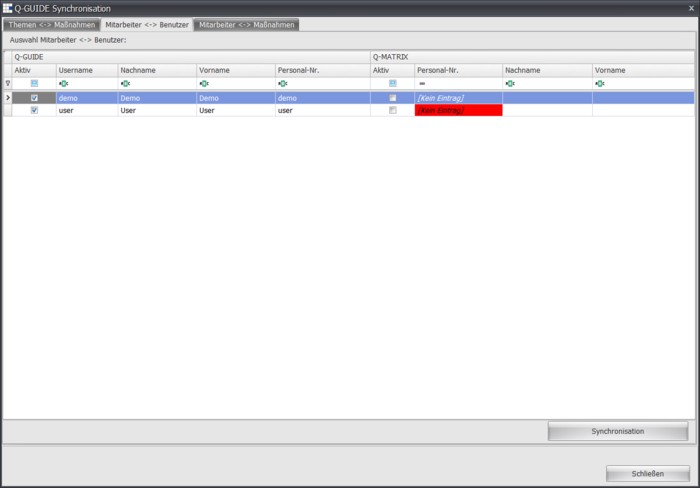
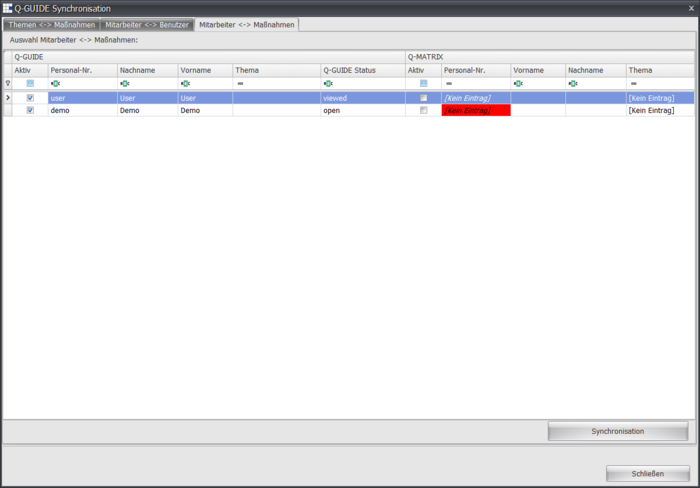
| Q-Guide Synchronization | Opens a wizard for assigning/synchronizing
|
 Basic Data
You can manage learning topics, instructions, and the users for Q-Guide via three (3) tabs.
"Learning Topics" Tab
| Learning Topic | The title of the learning topic |
| Created | The creation date of the learning topic |
| Visible | Whether the learning topic can be seen by Q-Guide users |
| Draft | Whether the learning topic is still in draft and not yet finished |
| Active | Whether the learning topic can be used by Q-Guide users |
"Instructions" Tab
| Learning Topic | The title of the instruction |
| Created | The creation date of the instruction |
| Visible | Whether the instruction can be seen by Q-Guide users |
| Draft | Whether the instruction is still in draft and not yet finished |
| Active | Whether the instruction can be used by Q-Guide users |
"Users" Tab
| Q-Guide Username | The username for logging in to the Q-Guide module |
| Last Name | The last name of the Q-Guide user |
| First Name | The first name of the Q-Guide user |
| The email address of the Q-Guide user | |
| Active | Is the Q-Guide user still active? Yes (small checkmark) |
| Last Q-Guide Login | The date of the last login of the Q-Guide user |
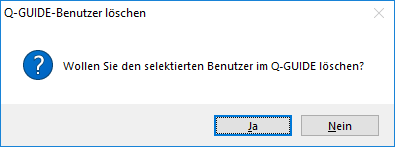
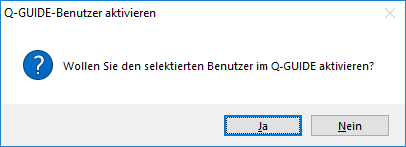
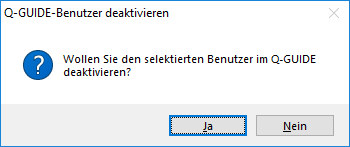
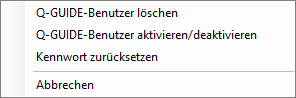
Via the context menu you can delete individual users, activate or deactivate them, and reset the password.
Some functions require confirmation via one of the following dialogs: