



Remove / Reactivate LT / IN
Opens a tabular overview of all learning topics / instructions that can be removed or reactivated.
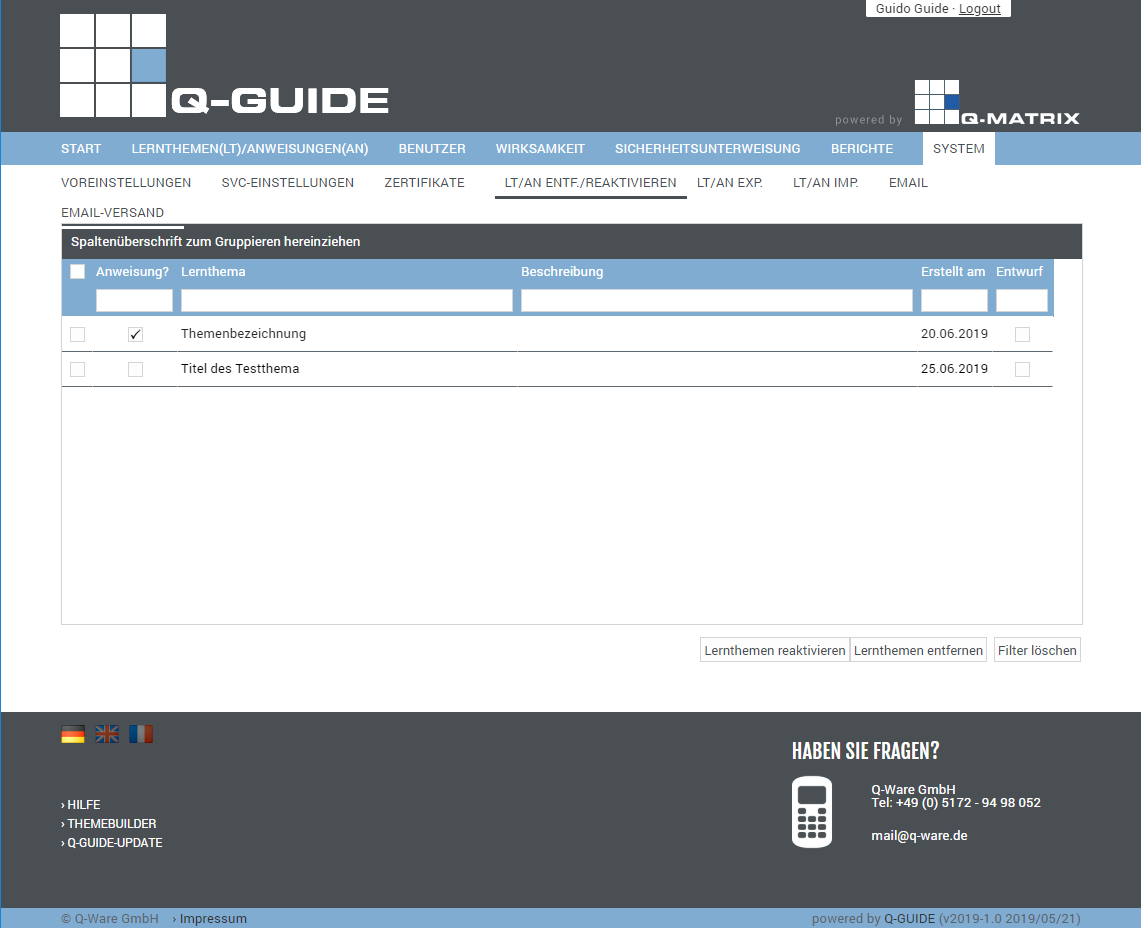
You can view the following information:
| Selection | In this column, you can specify whether an action should be performed for this user and the associated learning topic. Simply click this icon ( ), and the row is selected ( ), and the row is selected ( ). The selected row is also highlighted with a light blue background to indicate the selection. ). The selected row is also highlighted with a light blue background to indicate the selection. |
| Instruction | This column shows whether it is an instruction () or not () |
| Learning Topic | This column shows the title of the learning topic / instruction |
| Description | Shows the description of the learning topic / instruction |
| Created On | Shows the creation date |
| Draft | This column shows whether it is a draft () or not () |
You can use these functions:
| Reactivate Learning Topics | Upon confirming Execute Action, the learning topics / instructions you have selected are reactivated, meaning they become visible again in the learning topic overview or instruction overview.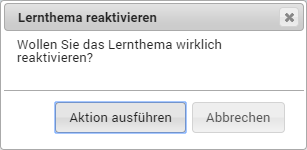 |
| Remove Learning Topics | Upon confirming Execute Action, the learning topics / instructions you have selected are permanently deleted, meaning they are removed from the database, and all associated files and directories are deleted.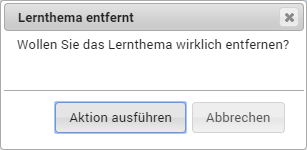 |
| Clear Filter | Clears all filters / settings for the data selection, and after clicking this button, all available records are displayed. |