



Open Returns
This wizard offers you, in a tabular overview, the option to save the results of the safety instruction returns for all users.
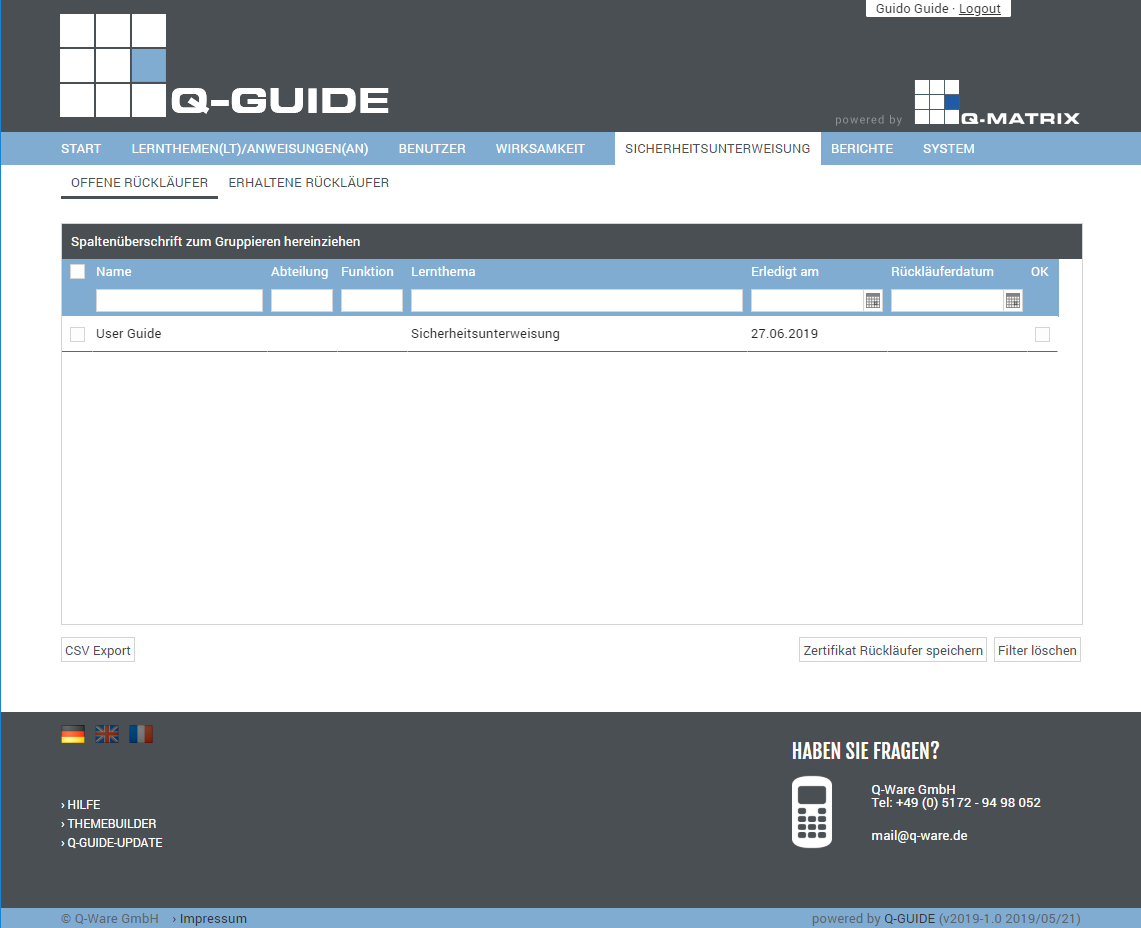
You can view and add the following information:
| Selection | In this column, you can specify whether an action should be performed for this user and the associated learning topic. Simply click this icon ( ), and the row is selected ( ), and the row is selected ( ). The selected row is also highlighted with a light blue background to indicate the selection. ). The selected row is also highlighted with a light blue background to indicate the selection. |
| Name | This column shows the name (first and last name) of a user |
| Department | This column shows the user's department |
| Function | This column shows the user's function |
| Learning Topic | This column shows the user's learning topic |
| Completed On | This column shows you when the user completed the learning topic. |
| Return Date |
Set the review date on which this effectiveness review was or will be carried out. Click in the text field to enter the date directly, for example day.month.year Click the small calendar icon on the far right to select the date in the dialog that opens. Simply click the desired date in the dialog, and it will be applied to the text field for the review date. 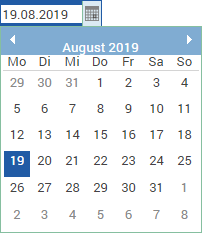
|
| OK | Click this icon (), and the status OK is recorded (). |
You can use these functions:
| CSV Export | Exports all user data shown in the table to the file "Benutzer Liste Stand vom <today>.csv" as a CSV file. The CSV file contains the fields listed in the table as columns. |
| Save | Click this button to save the return certificate of the settings and information you have entered. Upon confirming Execute Action, your review notes are saved.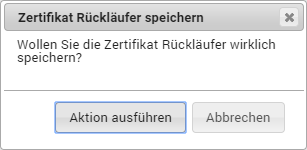 |
| Clear Filter | Clears all filters / settings for the data selection, and after clicking this button, all available records are displayed. |