



Menu Item "New Employee/Applicant"
The "New Employee/Applicant" menu item contains a wizard for entering new employees/applicants.
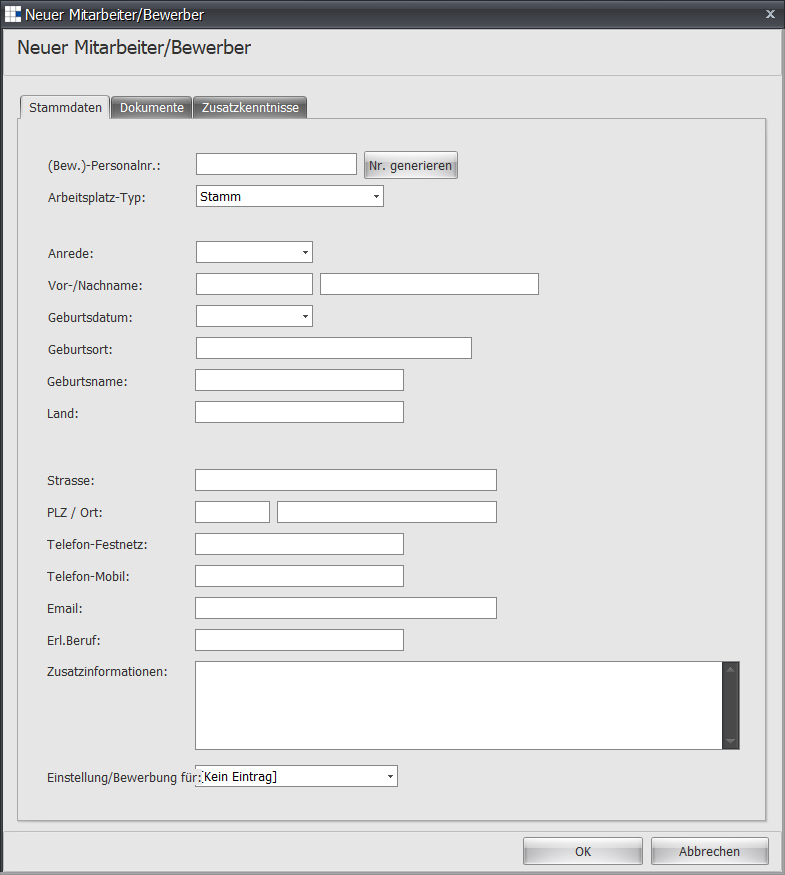
| Personnel Number | Required field - Enter the unique personnel number here |
| Generate No. | Click this button to automatically generate the next available personnel number based on the position type |
| Position Type | Select a type here before you can generate a number |
| Applicant | By default, this option is enabled for entering new employees/applicants. If an applicant becomes an employee, you can later disable this field and change it to an employee. |
| Salutation | Choose a salutation between Mr. and Ms. |
| First Name | Enter a first name |
| Last Name | Enter a last name |
| Date of Birth | Enter a date of birth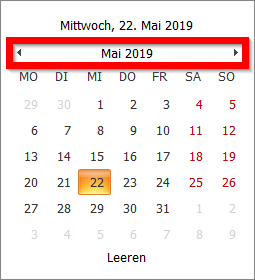 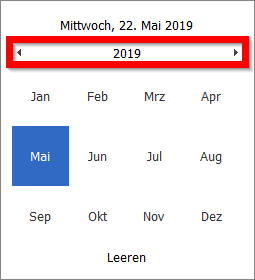 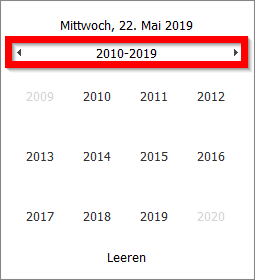 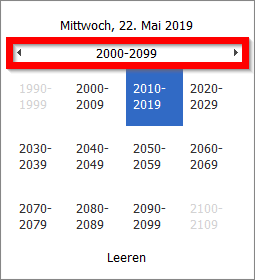 Click the month outlined in red to display the year. Clicking again shows the decade, and one more click shows the century. This lets you navigate very quickly to the desired date. Of course, you can also enter the date directly into the field. |
| Place of Birth | Enter the place of birth |
| Birth Name | Enter the birth name |
| Street | Enter a street |
| Postal Code | Enter a postal code |
| City | Enter a place of residence |
| Landline Phone | Enter a landline phone number |
| Mobile Phone | Enter a mobile phone number |
| Enter an email address. This email address is used to deliver emails to the employee. | |
| Trained Profession | If one or more trained professions are to be recorded, enter this information here |
| Additional Information | Here you can record additional information |
| Hire / Applying For | If you already know at initial entry which primary position the person is to work in, you can already set this here. |
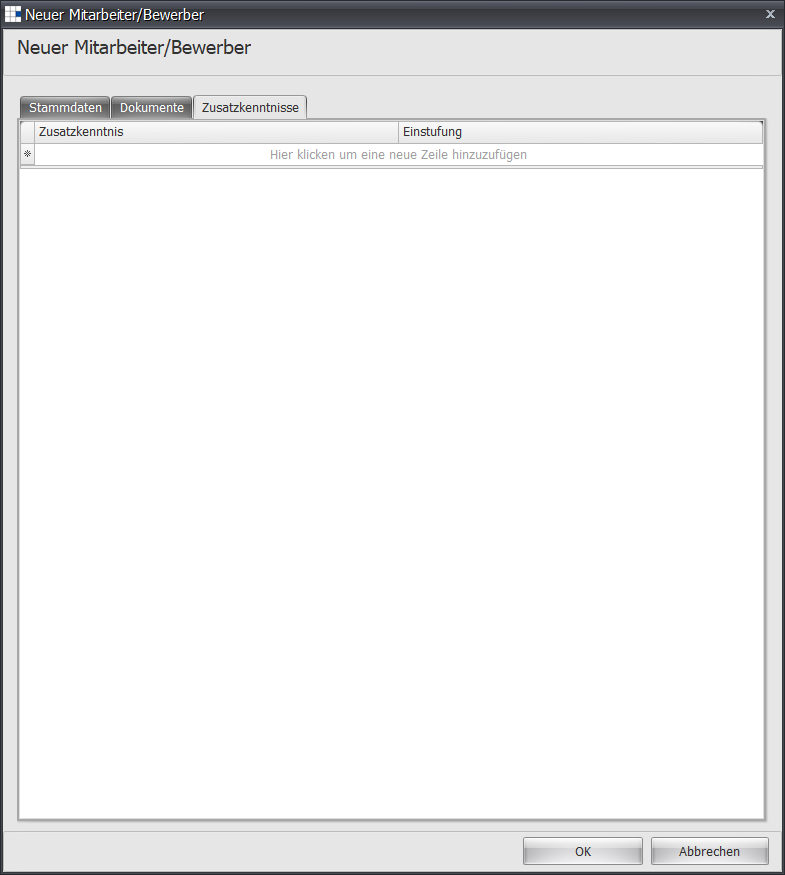
| Additional Skills | If you would like to set additional skills already at initial entry, you can set this information as described in the employee details. |