



Appraisal Details
The appraisal details help you document and track the results of your employee appraisals.
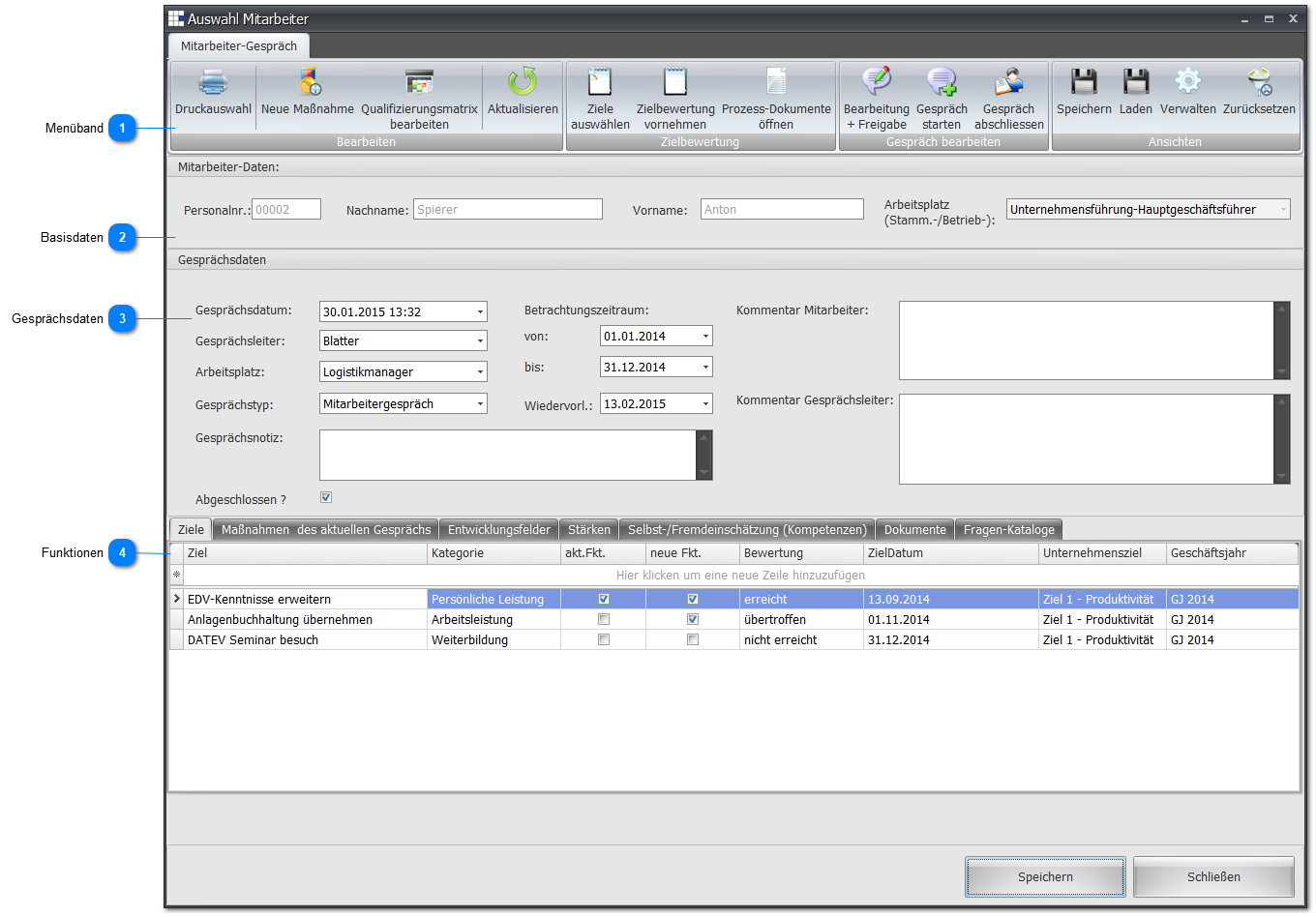
 Ribbon

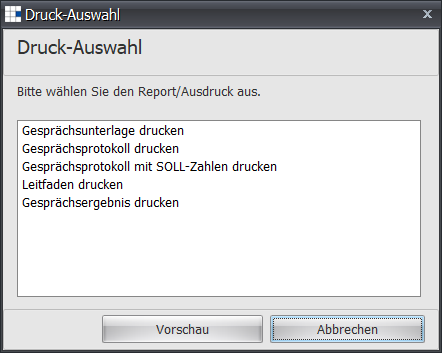
| Print selection | Clicking the printer icon opens the following print selection dialog:
You can see the results of the selection here. |
| New measure | Enter a measure discussed during the appraisal. |
| Edit qualification matrix | Update the assessments for the various tasks based on the appraisal. |
| Refresh | Refreshes the data for this function. |
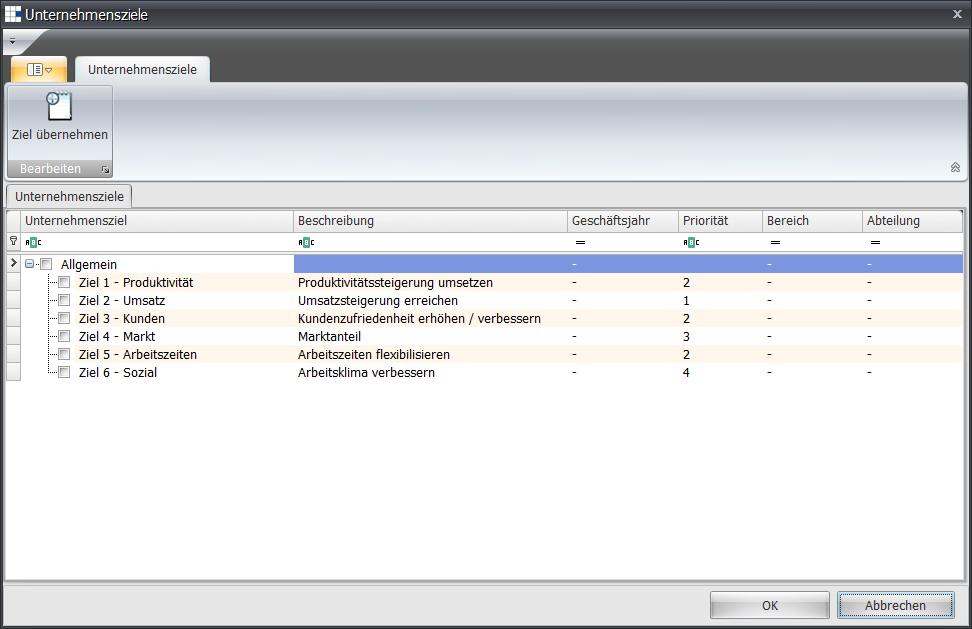
| Select goals | In a selection dialog, you can choose from the available goals. Confirming (OK or Apply goal) adopts the selected goals into this appraisal:
|
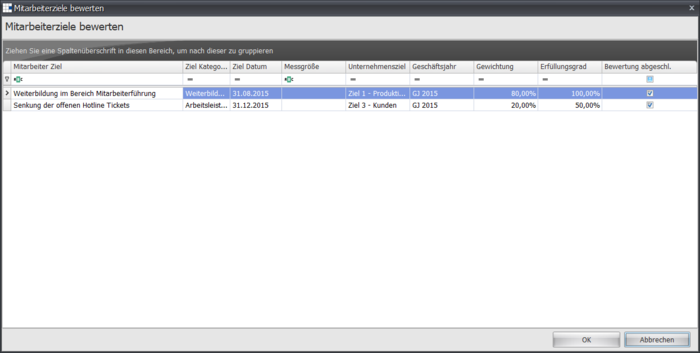
| Assess goals | Here you can assess the goals of the appraisal. Please note that an assessment is only complete once every goal is marked as completed:
|
| Open process documents | Opens a view of all process documents relevant to the workplace/role of the appraisal:
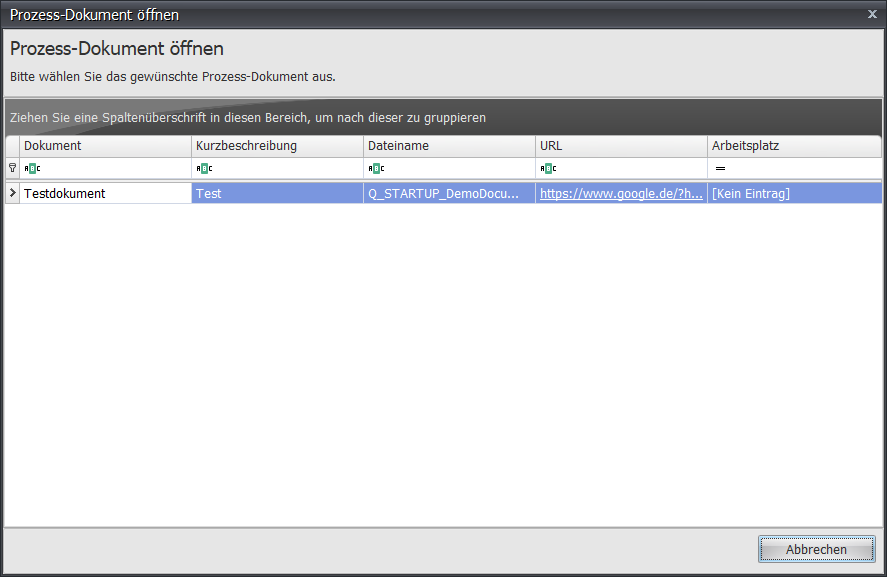
|
| Editing + release | Opens a wizard for editing the questions, measures, goals, and self-/other assessment.
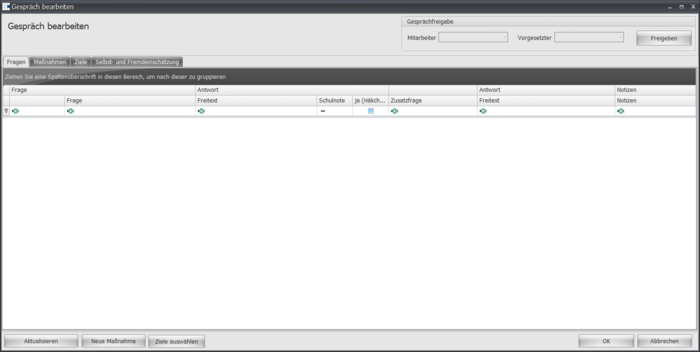
|
| Start appraisal | Once you have completed all preparations, you can use this button to start the appraisal. You can only make further changes once both parties (appraisal lead and employee) have activated (pressed) the start of the appraisal:
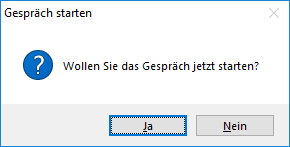
|
| Complete appraisal | Once all information for this appraisal has been entered and saved, you can use this to complete the appraisal:
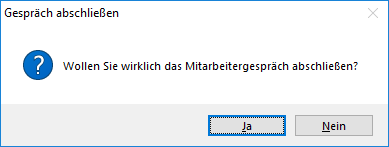
|
 Basic data

Here you can see the employee's basic data for this appraisal, i.e. personnel number, last name, first name, and primary workplace.
 Appraisal data
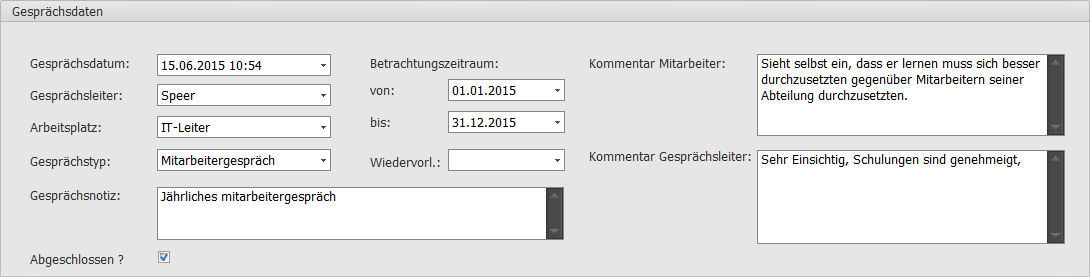
Define the appraisal data:
| Appraisal date | The date and start time of the appraisal. |
| Appraisal lead | Select the appraisal lead from all available employees. For appraisals with your employees, we recommend selecting yourself. The appraisal cannot be carried out/saved without an appraisal lead. |
| Workplace | If the employee has several workplaces/roles, select one for the appraisal.
The appraisal cannot be carried out/saved without a workplace/role. |
| Appraisal type | Select the appraisal type. The appraisal cannot be carried out/saved without an appraisal type. |
| Appraisal note | Enter the notes for an appraisal here. |
| Review period from | The appraisal can be carried out for a specific review period. Define the start date here. |
| Review period to | Define the end date for the review period here. |
| Follow-up | If the appraisal should be flagged for follow-up, define a follow-up date here. |
| Employee comment | Enter the employee's comments on an appraisal here. |
| Appraisal lead comment | Enter the appraisal lead's comments on an appraisal here. |
| Completed | Once everything is done for an appraisal, use this switch to mark it as completed. |
 Functions
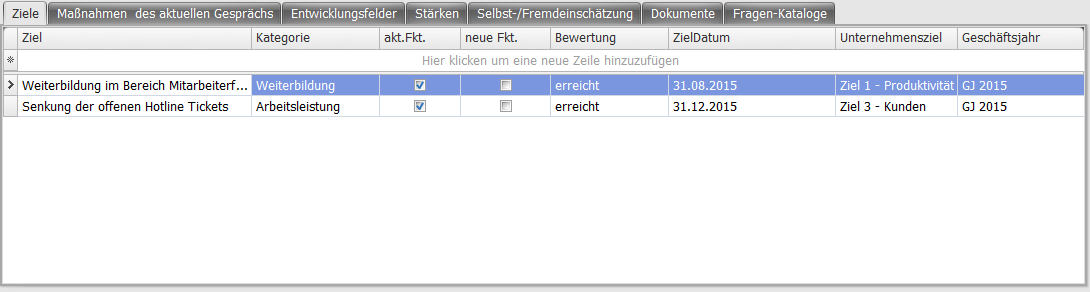
| Goals | Record goals for the employee identified during the appraisal. |
| Measures from the current appraisal | Opens an overview of the measures discussed during the employee appraisal.
You can also create new measures here via the context menu. |
| Development areas | Enter the employee's identified development areas. |
| Strengths | Enter the employee's identified strengths. |
| Self-/other assessment | Record the assessments for the employee's individual tasks here. Use the qualification levels in a drop-down dialog for this. The following mapping is used:
Self-assessment = employee assessment Other assessment = appraisal lead assessment |
| Documents | Store the documents needed for the appraisal. |
| Question catalogs | Define the question catalog to be used for the appraisal here. |