



Rules
The following settings allow you to manage the rules.
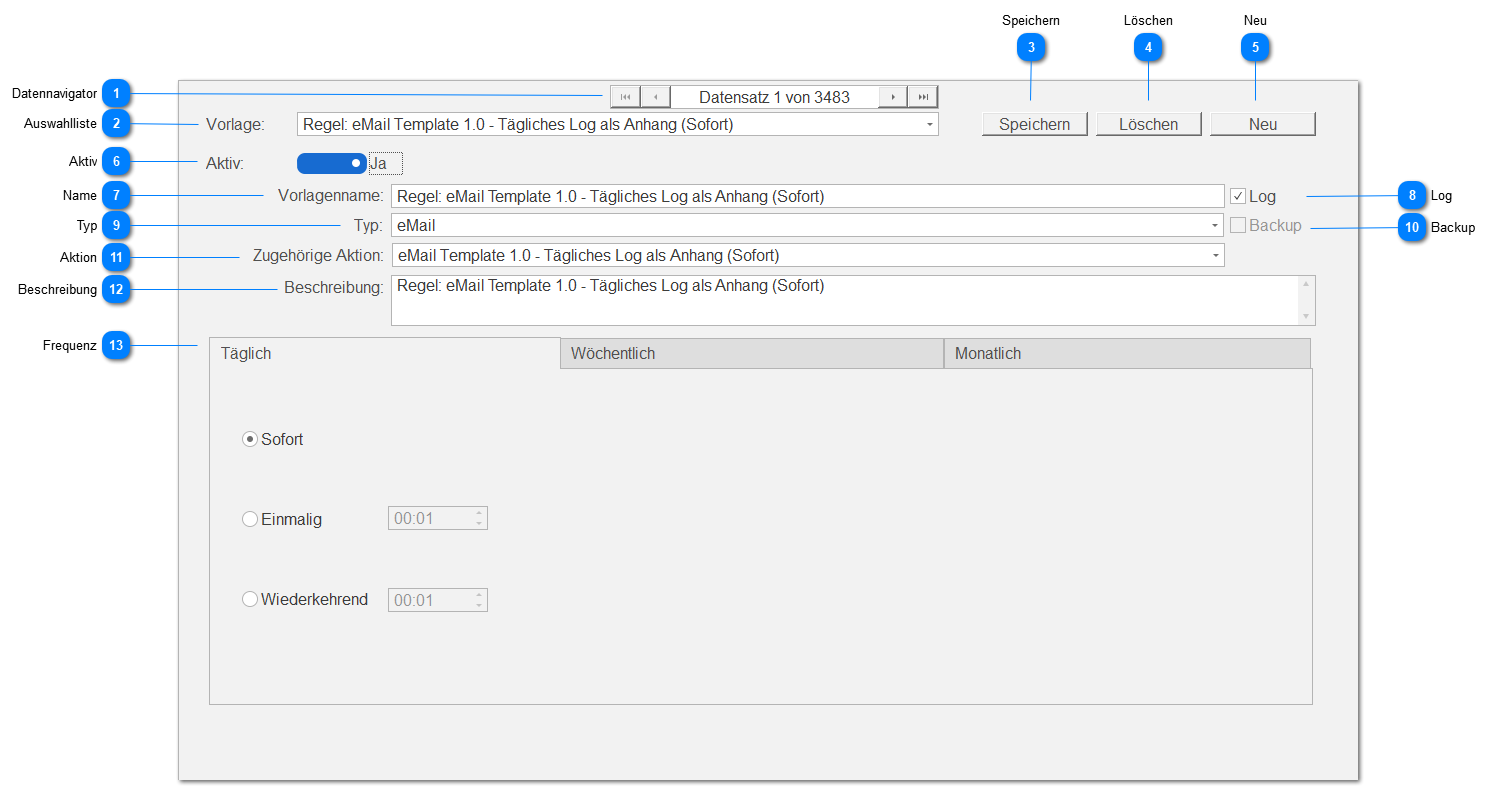
Data Navigator
Allows navigating between records using standard buttons:
 | First record |
 | Previous record |
 | Next record |
 | Last record |
Selection List
A rule can be selected from a drop-down list (rule name).
Save
Saves all settings visible in the content area.
Delete
Deletes the currently selected and visible rule and jumps to the first record after deletion.
New
Creates a new empty rule ("New empty template - <timestamp> -") at the end of the existing records.
Active
In the ON position ( ), the currently selected and visible rule is applied, and in the OFF position (
 ) it is not
Name
The name of the currently selected and visible rule. For example, Rule Template X.Y
Log
This setting determines whether this rule sends a log file as an attachment ( ) or not (
 ).
).
Type
Select an action type (currently available: Email, Database) for this rule, which is applied when it is executed.
Backup
This setting determines whether this rule sends a database backup as an attachment () or not ().
Action
Depending on the action type, you can select an action from the corresponding templates in this selection list.
For example, for the Email action type, you can specify an email to be sent.
Description
Here you can enter a description, for example describing the use of this rule.
Frequency
Set a frequency for running this rule.
You can choose between a daily, weekly, or monthly frequency.
Daily
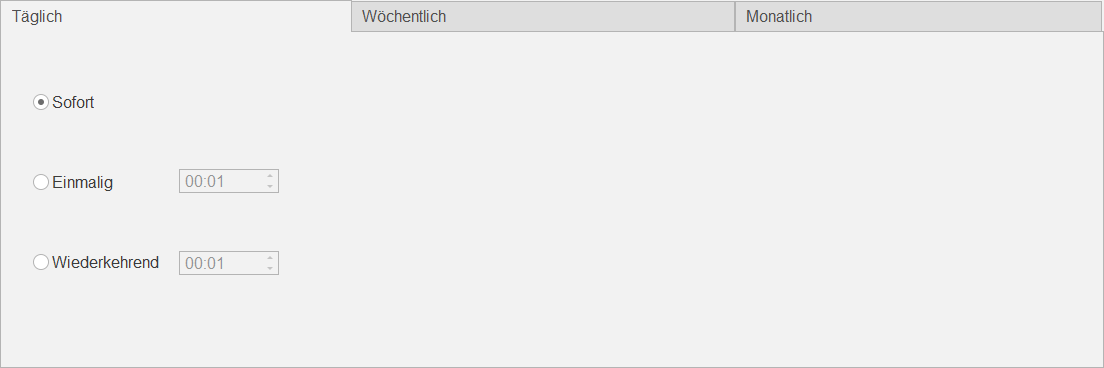
You can set the following:
| Immediately | The associated action is to be executed immediately (every 5-50 seconds) |
| Once | The associated action is to be executed once a day at this time |
| Recurring | The associated action is to be executed recurringly every X minutes and Y hours per day |
Weekly
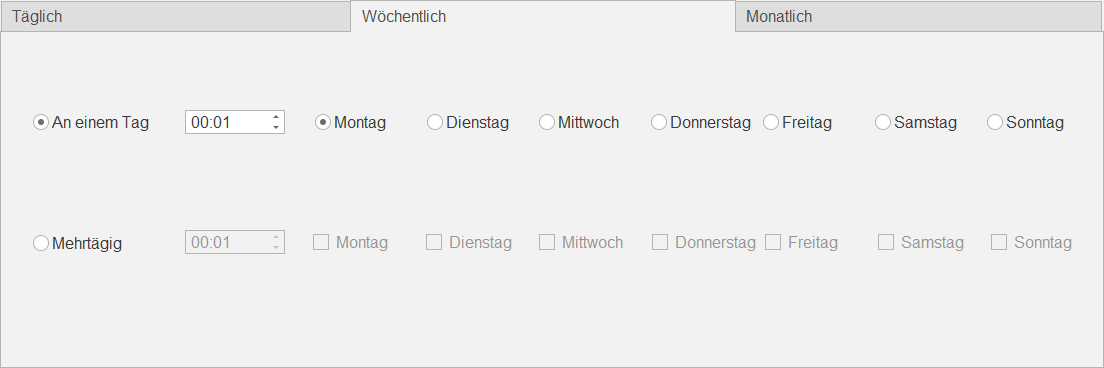
You can set the following:
| Single Day | The associated action is to be executed on this one day of the week at this time |
| Multiple Days | The associated action is to be executed on these days of the week at this time |
Monthly
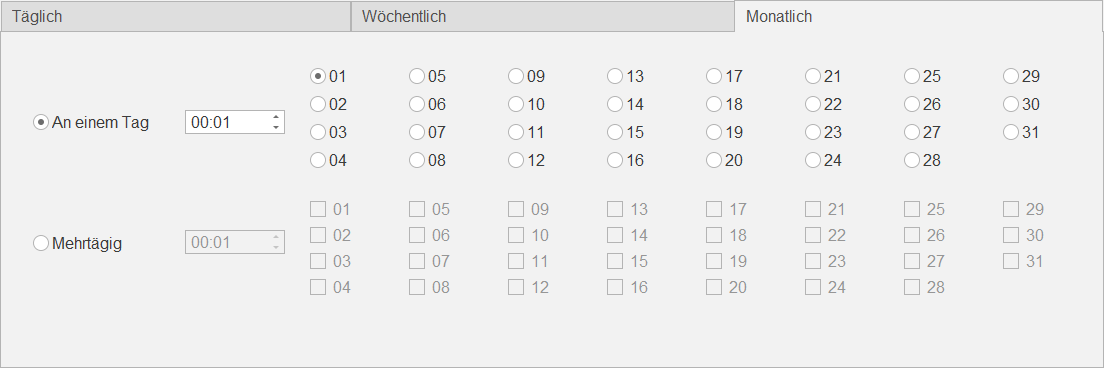
You can set the following:
| Single Day | The associated action is to be executed on this one day of the month at this time |
| Multiple Days | The associated action is to be executed on these days of the month at this time |