



"Measure Management" Menu Item
Measure management is the core function for organizing and managing measures in your company.
In this area, you create your own measures or record external ones, edit them, and monitor their status.
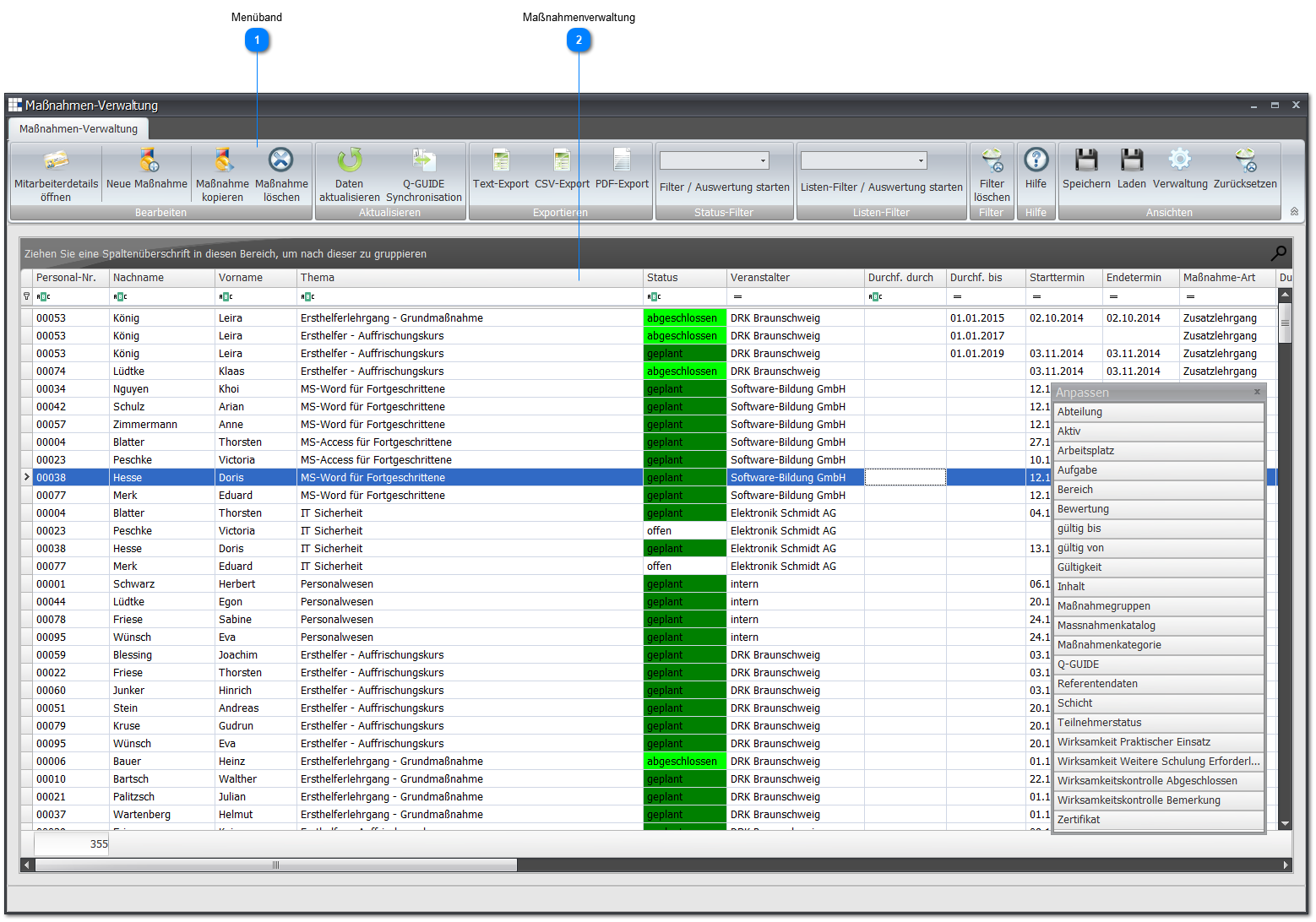
The status in the tabular view is influenced by setting various date values within a measure.
Setting the following date in the measure details results in:
| Start/end date undefined | 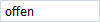 These two date values are not set, so the measure is not yet scheduled. |
| Start/end date defined | 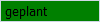 This status is reached once both date values are defined. |
| Carried out on defined | 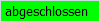 This date is defined (should not be before the start/end date). |
| Due by defined & less than (<) today | 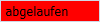 This date is defined, and today's date is earlier than the defined date. |
| Effectiveness check needed | 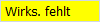 The measure is completed, but the required effectiveness check is missing. |
| Measure completed/archived enabled | 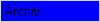 This option is enabled in the measure details, or this status is assigned to a measure via the context menu. |
 Ribbon

| New measure | Creates a new measure. |
| Copy measure | Copy an existing measure. To do this, select the desired measure and, in the dialog window that appears, select the employees to whom the measure should be assigned. |
| Delete measure | Removes/deletes the measure. |
| Start filter/report | Here you can filter the table by the status of the measures. |
| Start status filter/report | Filter the table here by one of six (6) options:
|
| Start list filter/report | Filter the table here by one of six (6) options:
|
| Clear filter | Clears the configured filter and shows the default view with all default columns and all measures. |
 Measure management
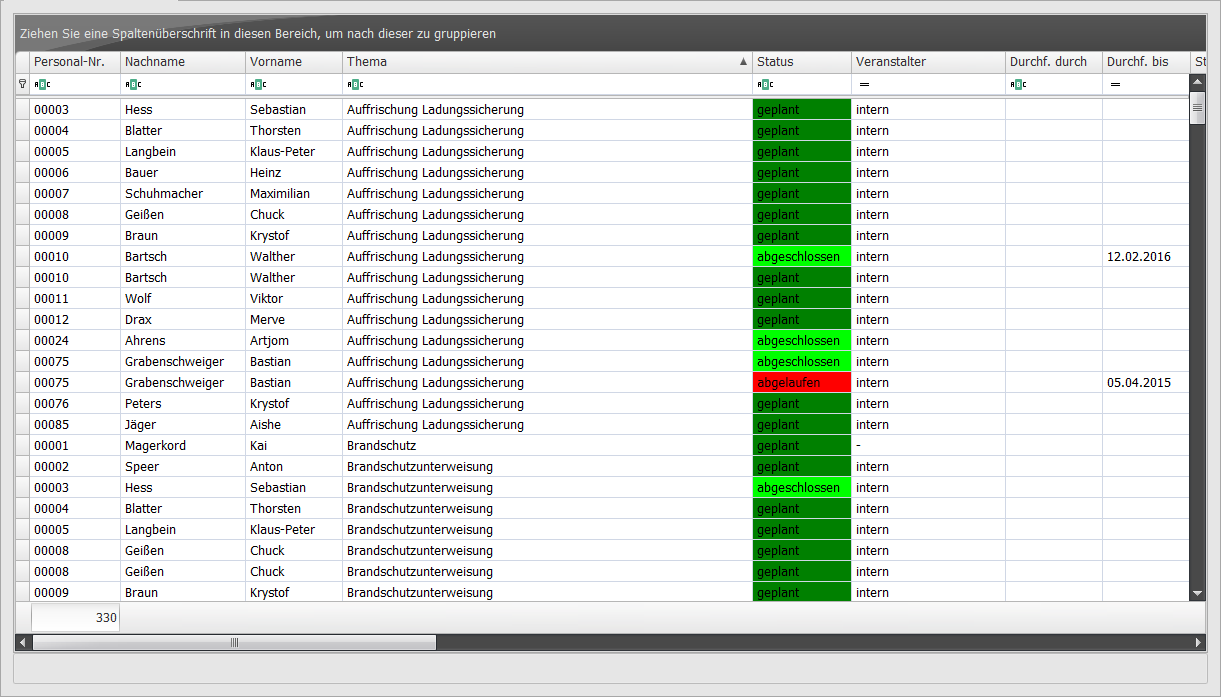
Double-clicking an individual value in the table opens the measure details.
| Status | A measure always has one of these states:
|
The context menu of a row/measure allows direct access to:
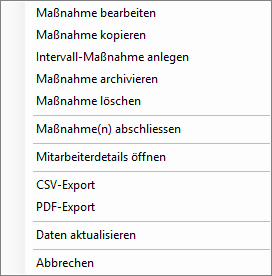
| Edit measure | Opens the measure details of the selected measure. |
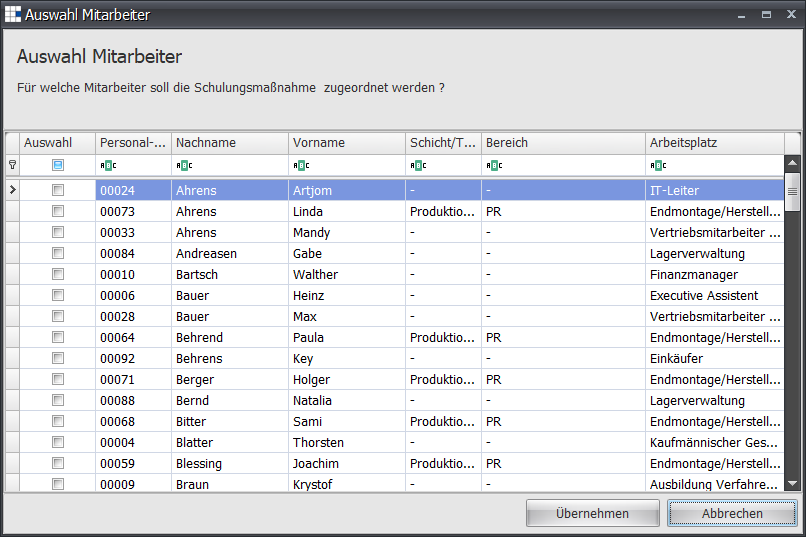
| Copy measure | Opens an employee selection dialog and "copies" the selected measure for the chosen employees when you click "Apply".
|
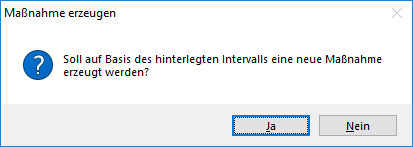
| Create interval measure | Opens a dialog to confirm creating a new measure for the associated employee:
|
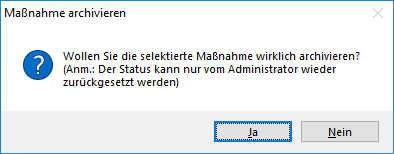
| Archive measure | Opens a dialog to confirm the action:
|
| Delete measure | Opens a dialog to confirm the action:
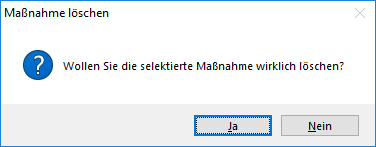
|
| Complete measure(s) | Opens a dialog for completing the measure. In this dialog, you can add necessary documents, enter the associated required/actual hours, and set validity periods. Fees can also be assigned.
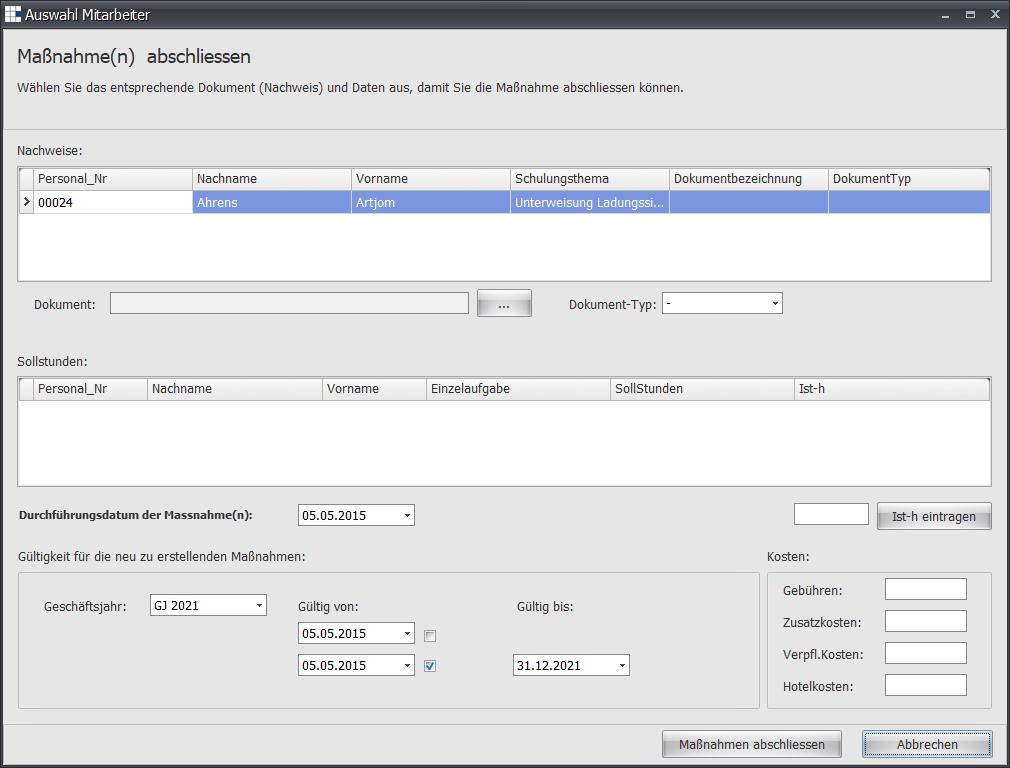
|
| Open employee details | Opens the employee details of a measure. |
| CSV export | Exports the current table (including sorting, filters and columns) as a CSV file. |
| PDF export | Exports the current table (including sorting, filters and columns) as a PDF file. |
| Refresh data | Refreshes all data for the table. |