



Menu Item "Employee Overview"
Here you get an overview of all employees and the corresponding information.
This view and its functions are nearly identical to the "Employees" menu item for managers.
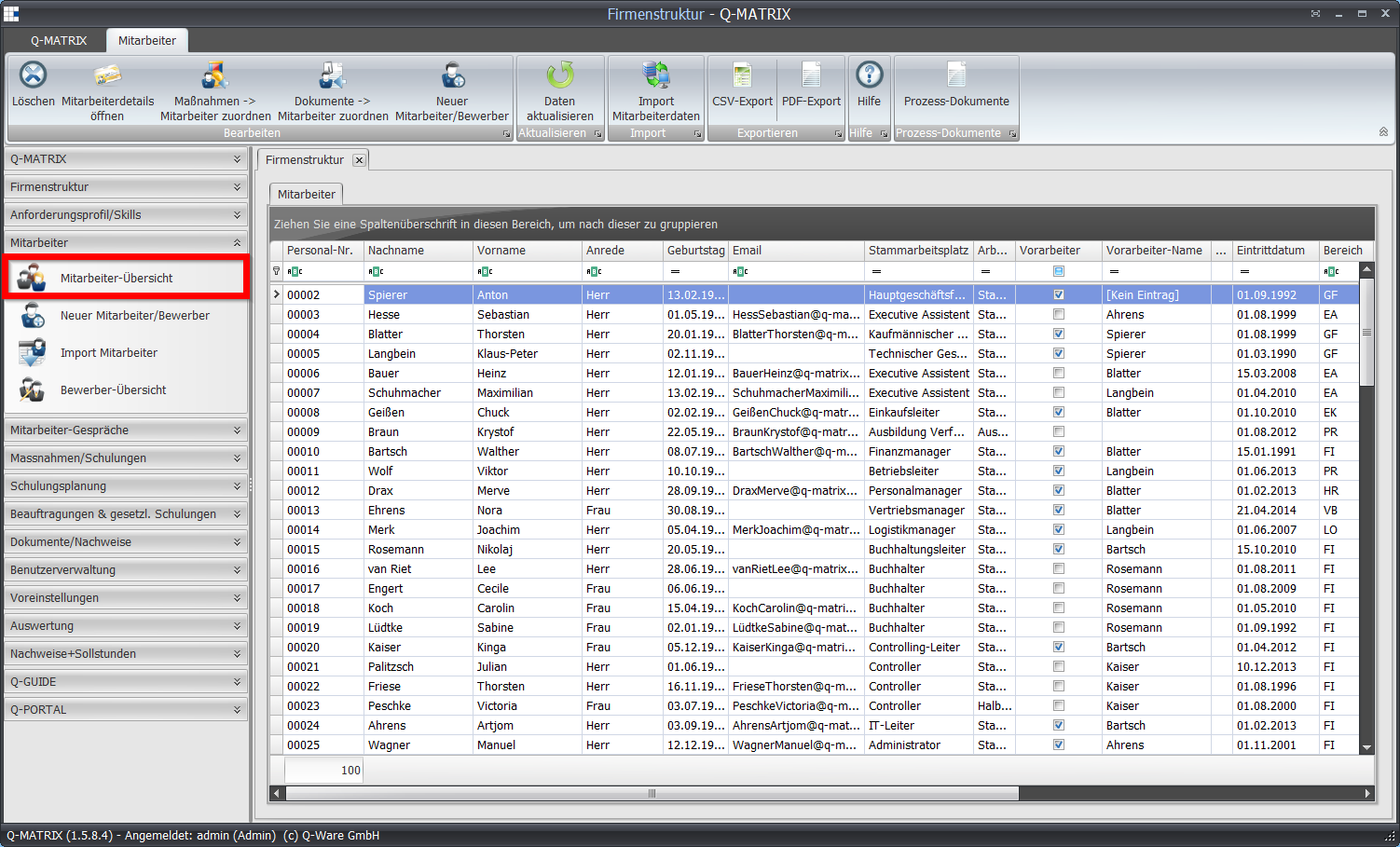
Only the differences are therefore shown here. All other functions and details are described here.
Ribbon

| Delete | Deletes an employee and their data. This is only possible if no dependent data (e.g. measures, documents, positions, employee conversations) exists for this employee. |
| Open Employee Details | Opens the employee details |
| Measures ► Assign Employee | Executes the functionality of this menu item |
| Documents ► Assign Employee | Executes the functionality of this menu item |
| New Employee/Applicant | Opens the entry form for new employees |
| Refresh Data | Refreshes all data for this function |
| Import Employee Data | Opens the import dialog |
| CSV Export | Exports the current table (incl. sorting, filters, and columns) as a CSV file |
| PDF Export | Exports the current table (incl. sorting, filters, and columns) as a PDF file |
| Positions | Lists in a table all process documents for a selected employee and the corresponding position. |
Table Editing
In the tabular view, Administrators and HR can change all data.
This also includes the personnel number, should it have changed.
Important:
Changes to the personnel number should be avoided, as this string is a fundamental value throughout the entire program.
This fundamental value must be unique. Duplicate entries are not allowed.
If you violate this basic rule, you will receive the following message:
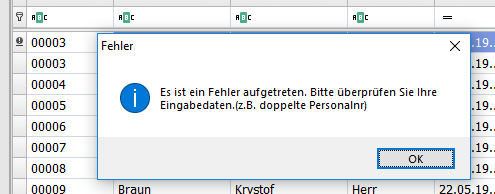
In this case, the incorrect personnel number must be corrected so that uniqueness for this fundamental value is restored.
Employee Details Ribbon Tabs

As with assigning further positions, Administrators and HR can change the primary position.
The procedure is the same, except that the "Primary Position" ribbon tab is used for this change.