



User - Profile

Via the Profile main menu item, you can review your user data and create a new password for your account.
Changing Your Password
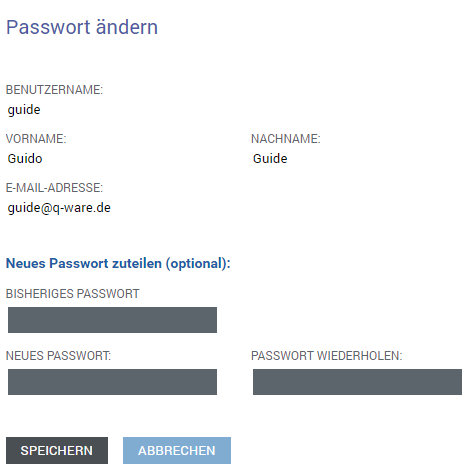
The user information shown in the upper area can only be adjusted by an administrator.
For you, it is purely informational.
To create a new password for your account, proceed as follows:
1. First, the Current Password field must be filled in.
2. Then, enter your new password in the New Password field.
3. The new password must be entered again in the Repeat Password field.
Note:
The new password should meet the following security criteria:
- The password must be at least 6 and at most 12 characters long.
- It should contain at least 2 special characters, a number, a lowercase letter, and an uppercase letter.
The following characters are allowed in the password:
- Lowercase letters ( a - z )
- Uppercase letters ( A - Z )
- Digits ( 0 - 9 )
- The special characters ( ) [ ] { } ? ! $ % & / = * + ~ , . ; : < > - _

Clicking Save saves the new password.
From now on, you can only log in with the new password.
Clicking Cancel does not save the new password.
You can continue to log in with your old password.
Important:
When a user logs in to their Q-Guide for the first time, they are taken directly to the PROFILE main menu item to create an individual password.