



Floating Windows
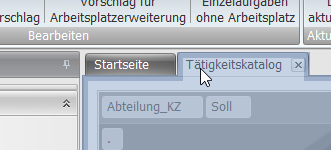
The detail area of the main application supports detaching tabs as separate floating windows.
To do this, hold down the left mouse button on the tab header and then move the mouse while keeping the left button pressed, until the tab becomes its own window.
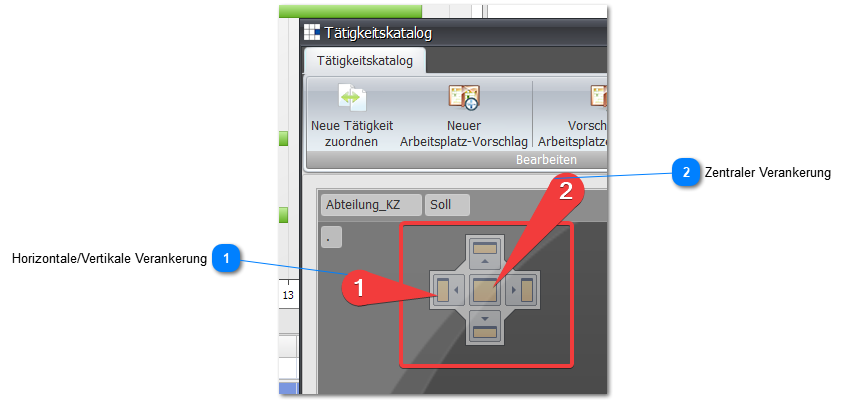
If you want to dock a floating window back into the detail area, you can use a special docking menu in the detail area of the main application to turn the window back into a docked tab.
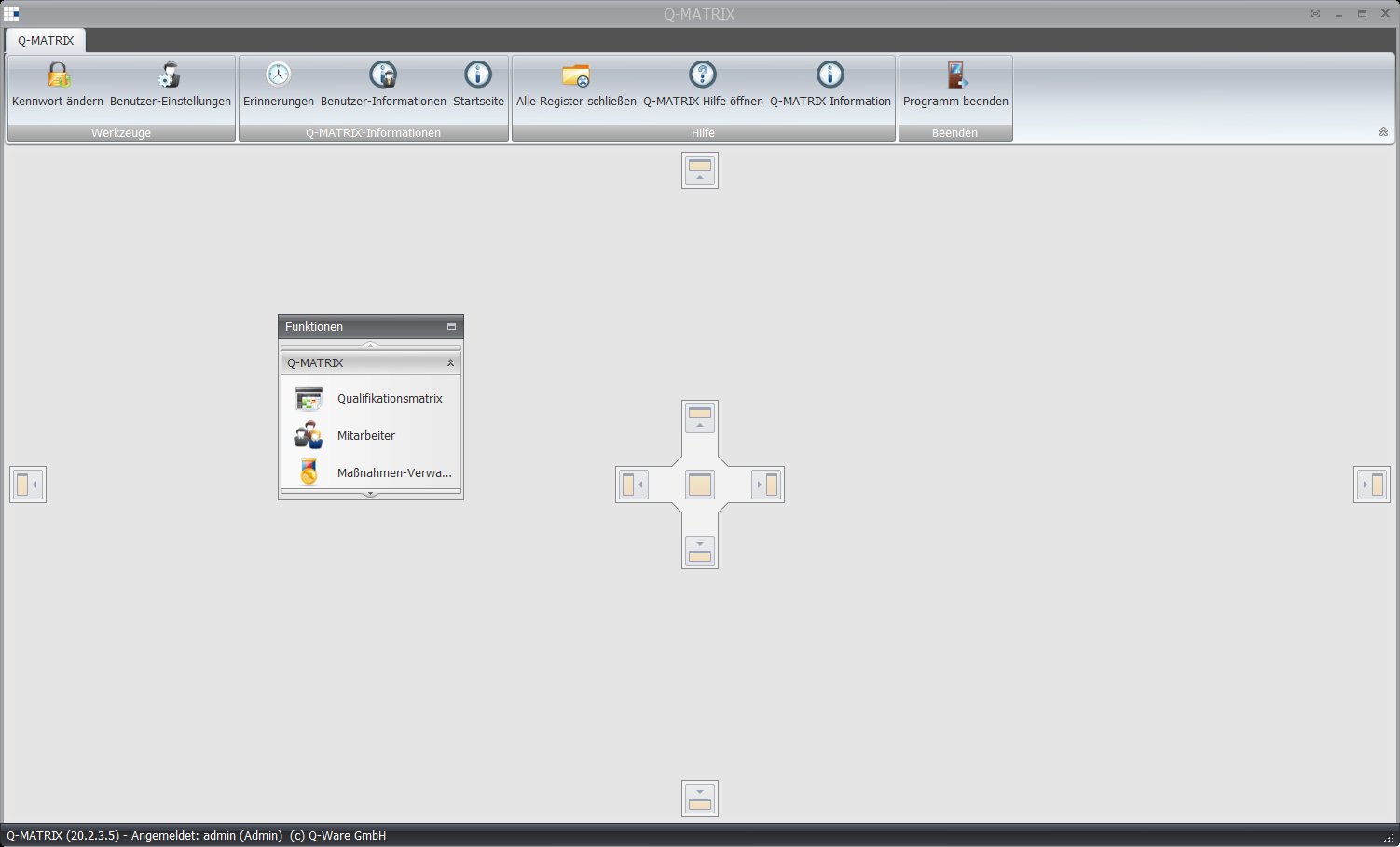
You can likewise turn the function menu into a floating window, or dock it elsewhere in the main application.
To do this, hold down the left mouse button on the function menu header "Functions" and drag the menu, with the left button held down, to the desired location in the program or out as its own floating window.
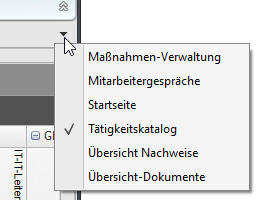
On the right-hand side of the detail area of the main application, a menu is built up as you use the program.
It lists all windows/function blocks used during the program session.
Clicking an entry in this list activates the corresponding tab/window.
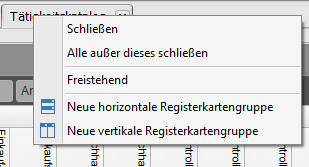
Right-clicking a tab header in the detail area of the main application shows a context menu for docking the tabs. You can use the "Floating" menu item to turn the tab into a free-floating window.
1. Horizontal/vertical docking
Drag the mouse pointer, with the left button held down, onto one of these areas; releasing the mouse button docks the window as a tab in the detail area of the main application.
2. Central docking
Drag the mouse pointer, with the left button held down, onto this central area; releasing the mouse button docks the window as a tab in the detail area of the main application.