



Assignment Wizard
The assignment wizard for training planning helps you add a document to the currently selected measure/training course.
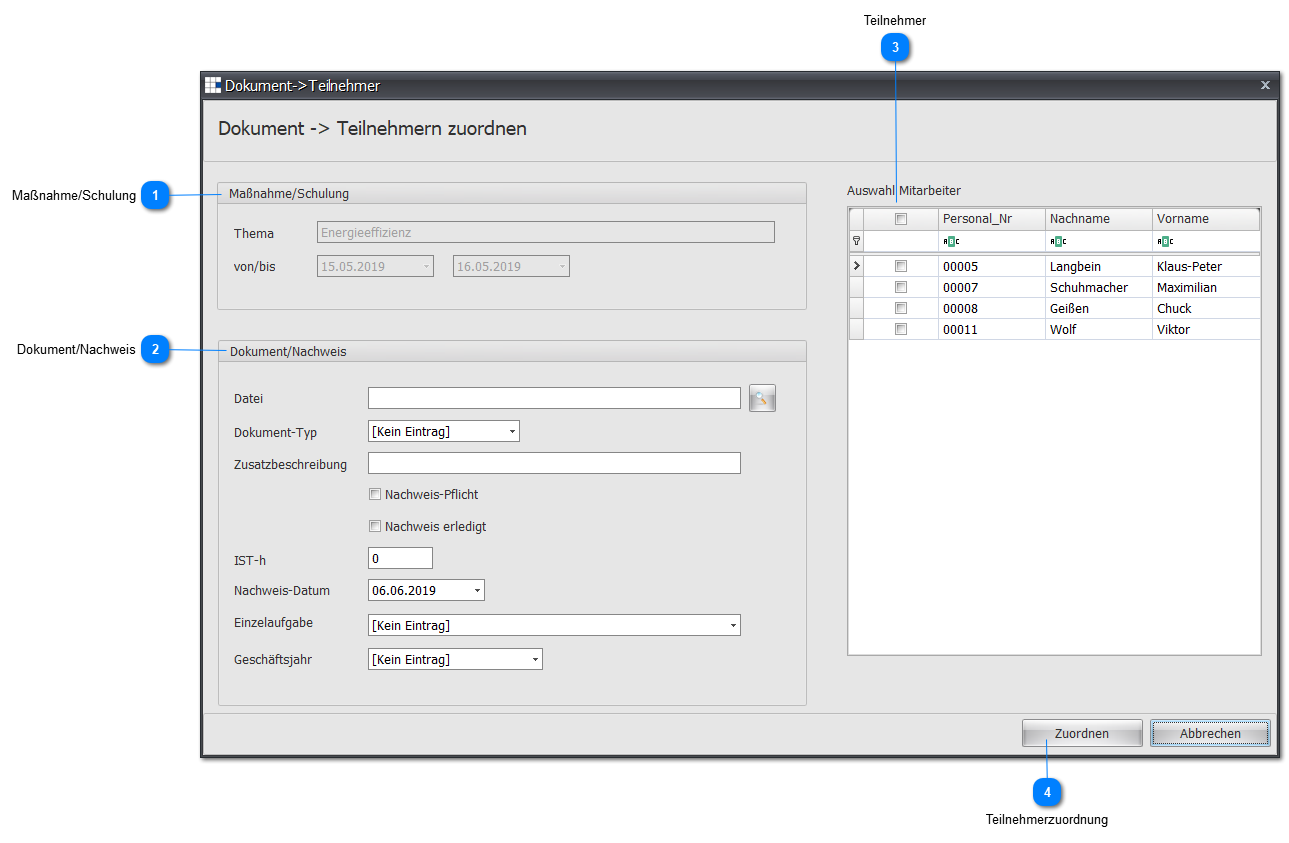
 Measure/Training Course
Shows you which measure/training course a document is to be added to.
| Topic | The topic of the underlying measure/training course |
| From/To | The start and end date of the underlying measure/training course |
 Document/Proof
Here you set which elements you want to assign/set when you assign a document to the participants.
| File | Use the icon  to select the file to add. Once selected, the file path and file name are inserted into the text field. to select the file to add. Once selected, the file path and file name are inserted into the text field. |
| Document Type | You can select a document type to set for this document. |
| Additional Description | If you want to give this document a description, you can set the information here. |
| Proof Required | If this document fulfills a required proof obligation for the measure/training course, you can set this here. |
| Proof Completed | If a required proof obligation is to be seen as completed with this document, you can set this here. |
| Actual Hours | If a specific number of measure/training hours can be achieved with this document, enter the corresponding hours here. |
| Proof Date | Today's date is set by default. If this is not correct, you can set the desired date for adding the document. |
| Individual Task | If this document provides proof of a specific individual task, you can optionally assign this direct link here. |
| Fiscal Year | If the document is for a specific fiscal year, set this here from the dropdown list. |
 Participants
Lists all participants (excluding waiting list) involved in this measure/training course in a table.
| Selection | Mark (small checkmark) a participant here to assign the document to this participant. If a participant is unmarked, the document will not be assigned to this participant either. |
| Employee No. | The employee number of the participant |
| Last Name | The last name of the participant |
| First Name | The first name of the participant |
 Participant Assignment
Pressing this Assign button uses the settings in the other areas of the wizard to assign the configured document to every desired participant.
Note:
In the background, the document is copied into the archive folder for each selected participant of the measure/training course.