
Users
Allows you to manage all users for Q-Matrix™.
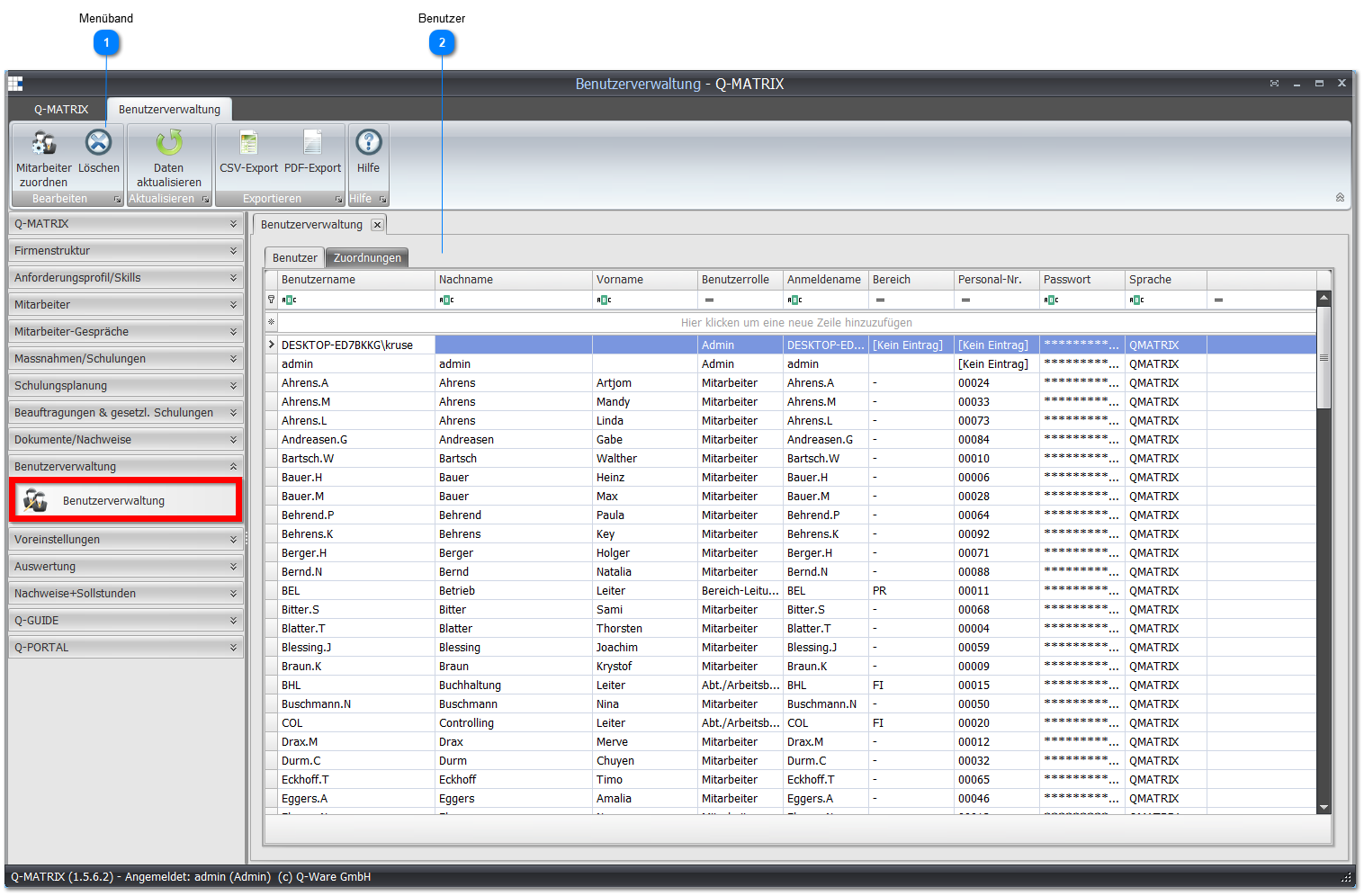
 Ribbon
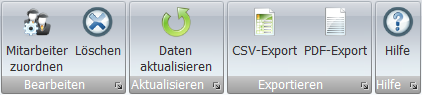
| Assign Employee | Opens a wizard for bulk-creating users based on existing employees:
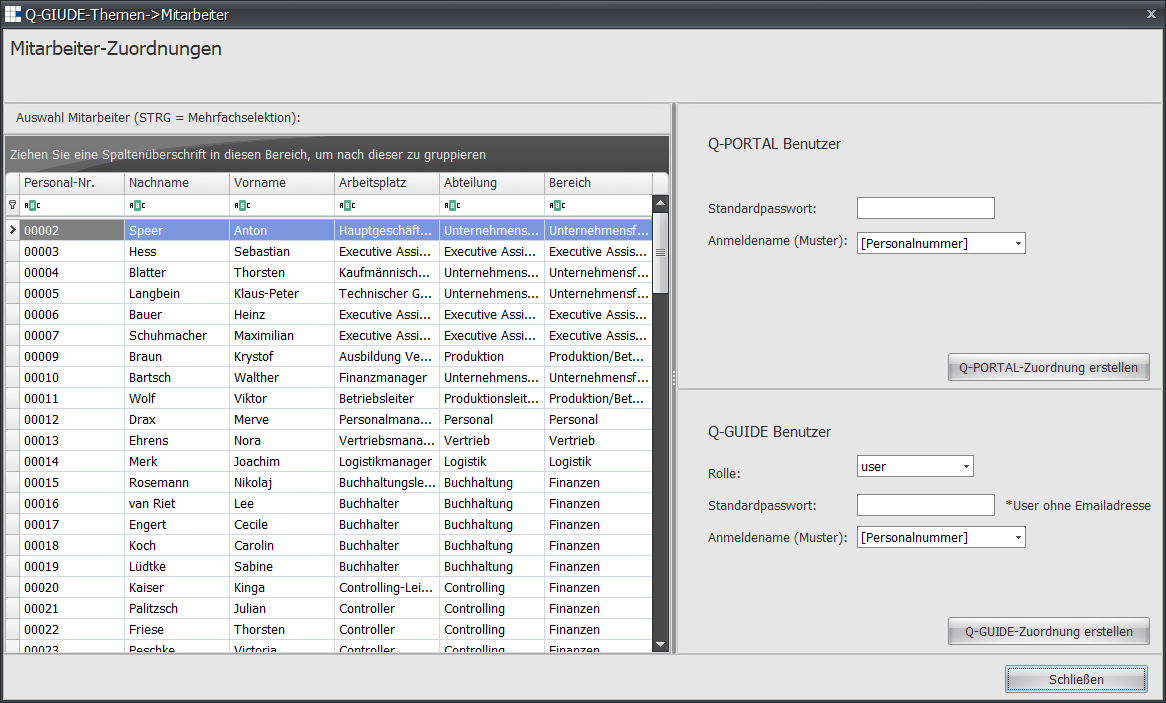
- Select an employee, and your selection is highlighted in blue. If you want to select several employees, hold down the CTRL key (CTRL+A selects all) and mark further employees with the left mouse button. Each selected employee is displayed highlighted in blue.
- Now assign an initial password (e.g. "start") for Q-Portal or Q-Guide users.
- Complete the user creation with Create Q-Portal Assignment or Create Q-Guide Assignment. The first and last names are transferred into the user table.
- If you want to make further assignments, start again from step 1.
| Q-Portal Users | For creating Q-Portal users, you can choose from the following username patterns:
| Employee Number | The employee number, as shown in the employee table, is used.
For example 00012, E001, 12, 884 |
| LastName.FirstName | The last name and first name, as shown in the employee table, are used.
For example Speer.Anton, Blatter.Thorsten, Geißen.Chuck, Geißen.Edgar |
| LastName.F | The last name and first letter of the first name, as shown in the employee table, are used.
For example Speer.A, Blatter.T, Geißen.C, Geißen.E |
| LastName | Only the last name, as shown in the employee table, is used.
For example Speer, Blatter, Geißen, Geißen |
|
| Q-Guide Users | For creating Q-Guide users, you can choose from the following roles:
| user | Corresponds to the Employee role for Q-Matrix™ |
| admin | Corresponds to the Area, Team, Department Manager role for Q-Matrix™ |
| root | Corresponds to the Administrator role for Q-Matrix™ |
For creating Q-Guide users, you can choose from the following username patterns:
| Employee Number | The employee number, as shown in the employee table, is used.
For example 00012, E001, 12, 884 |
| LastName.FirstName | The last name and first name, as shown in the employee table, are used.
For example Speer.Anton, Blatter.Thorsten, Geißen.Chuck, Geißen.Edgar |
| LastName.F | The last name and first letter of the first name, as shown in the employee table, are used.
For example Speer.A, Blatter.T, Geißen.C, Geißen.E |
| LastName | Only the last name, as shown in the employee table, is used.
Note: username collisions can occur
For example Speer, Blatter, Geißen, Geißen |
| FiLastName | The first two letters of the first name and the last name, as shown in the employee table, are used.
For example AnSpeer, ThBlatter, ChGeißen, EdGeißen |
|
|
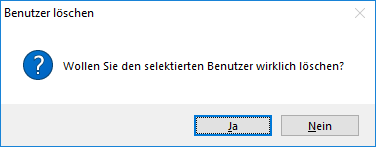
| Delete | Deletes the marked/selected user after confirming the prompt:
 |
 User
User
When you create a new user, the password is set to "start" by default.
| Username | Enter the name the user must enter when logging in |
| Last Name | Enter the user's last name here |
| First Name | Enter the user's first name here |
| User Role | Assign the user's role here
The user role determines the user's permissions. The following are distinguished:
| Administrator | The Administrator can access all areas and functions in the program |
| HR Department | In the HR Department user role, you have access to all menu items except User Management. |
| Training Center | Based on the HR Department role and can see some additional menu bars and thus menu items compared to the manager role. These are Measures/Training Courses, Training Planning, and Assignments & Statutory Training. |
| Area, Team, Department Manager | In these roles (managers), you have no access to master and basic data or the administration area. In the evaluation and qualification area, only the employees from the respective area, team, or department of the user are shown. |
| Employee | Employees are all users and can only log in to a few modules (Q-Portal, Q-Guide) of Q-Matrix™. |
| Coaches | Based on the HR Department role and can see some additional menu bars and thus menu items compared to the manager role. These are Measures/Training Courses, Training Planning, and Assignments & Statutory Training. |
| Dispatcher | Based on the Department Manager role but can only view measures management. Furthermore, many menu bars and menu items are function-reduced, and personal data cannot be viewed. |
| Moderator | Based on the Department Manager role but can only view measures management, training planning, and external persons. Furthermore, many menu bars and menu items are function-reduced, and personal data (except external persons) cannot be viewed. |
CAUTION:
The full permissions overview shows you the detailed and precise access overview.
|
| Login Name | Enter the Windows login name here if you want to access the database via Windows login |
| Area | Select the area the user should be assigned to here |
| Employee No. | Select the employee number to be assigned to the user here |
| Password | Always displayed as *********.... It is not possible to display the current password for the user. |
| Language | Assign a language (Q-Matrix™ [Default], CUSTOM [based on Q-Matrix™], EN [English], FR [French], ES [Spanish], PL [Polish], PT [Portuguese], IT [Italian]) to the user |
| Applicant Management | Shows ( ) whether a user belongs to the group of people for the applicant process. When enabled, you are asked whether the user should see all applications or not. ) whether a user belongs to the group of people for the applicant process. When enabled, you are asked whether the user should see all applications or not.
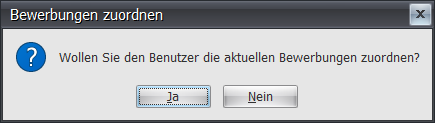
If this is declined, the user only sees applicants added from that point onward, not already ongoing applications. If confirmed, the user sees all applications. |
You can reset a user's password via the context menu:
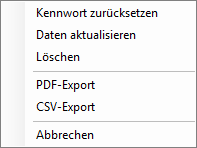
To do this, select a user (a row) and right-click it.
Then select the first menu item Reset Password in the context menu.
The user then has the initial password "start" again.


