



Basic Settings for an Instruction (AN)
The following tabs are offered for the basic settings
"Topic" Tab
Allows editing of the title and background
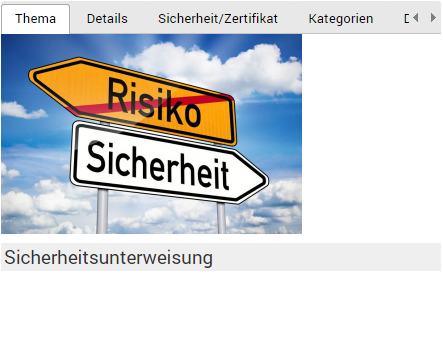
| Title | Set the title of the instruction here. This title is used in all parts of the program (e.g. overviews, reports). |
| Background | If you want to use a special background image for the title page of the instruction, you can add the desired image here. Simply drag and drop the desired image here, or use the file selection dialog. The file selection dialog opens as soon as you press click here. |
"Details" Tab
Define behavior settings and content
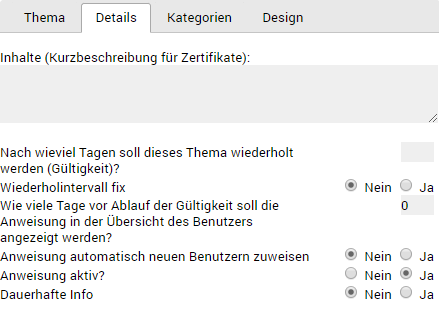
| Content | Enter everything that should be included on the certificates for the instruction |
| Validity | An empty field (default) indicates that no repetition takes place. If you enter a numeric value, the instruction is automatically displayed again to the assigned users for reprocessing after this period has elapsed. |
| Repeat Interval | If the repetition should not take the processing period into account, you can fix the repetition to the day of assignment |
| Visibility | If you enter a numeric value (default: zero [0]), the instruction becomes visible to the user for repetition this many days in advance |
| Test Result | Specify what percentage (default: seventy [70]) must be achieved, if the instruction has a knowledge test. |
| Assignment | If you want this instruction to be automatically assigned to new users, you can set this here |
| Active | If you want to deactivate this instruction (editing and reassigning to users is no longer possible), you can set this here |
| Permanent Info | If you want to display this instruction visibly on the login page (processing/completion without logging in is possible), you can set this here |
"Categories" Tab
Manage category membership
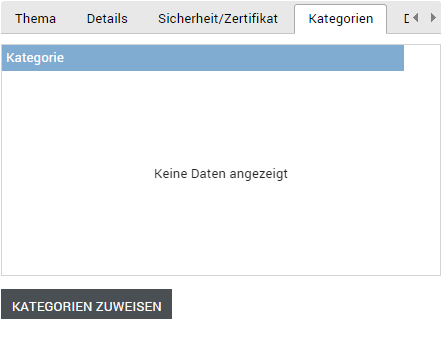
| Category | Lists all available categories (default: not assigned to any category). |
| Selection | This column lets you select a category ( ) or not ( ) or not ( ). The selected row is also highlighted with a light blue background to indicate the selection. ). The selected row is also highlighted with a light blue background to indicate the selection. |
| Assignment | Assigns all selected categories to this learning topic. |
"Design" Tab
Set the color scheme for the content
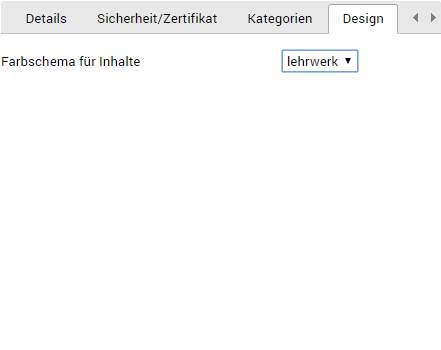
| Color Scheme | Select one of the available color schemes from the dropdown menu. By default, lehrwerk is always selected. |