
Editing Slides
In the editing view, you can edit and manage all slides.
As in the user processing mode, you can navigate between the individual slides via  and
and  .
.
A learning topic / instruction always requires at least two (2) slides. These are
- Title slide
- Content slide
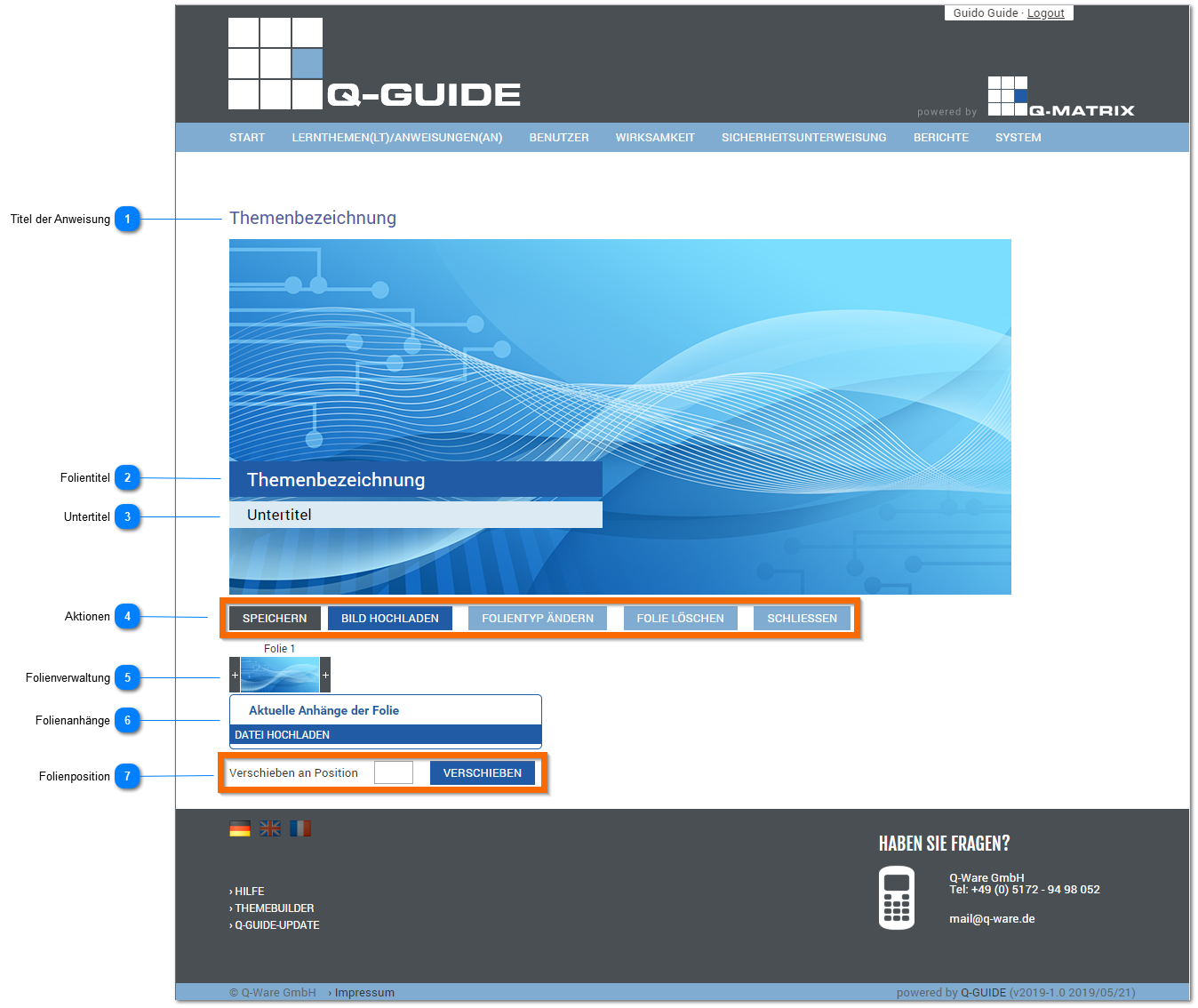
Title of the Instruction
Shows you the title of the instruction.
The title can be changed in the basic settings.
Slide Title
Assign a slide title (33 characters can be displayed on the dark blue bar) for the title slide.
Subtitle
Assign a slide subtitle (40 characters can be displayed on the light blue bar) for the title slide.
Actions
The following actions are available to you for editing each slide:
| Save | Saves the current slide with all settings and content.
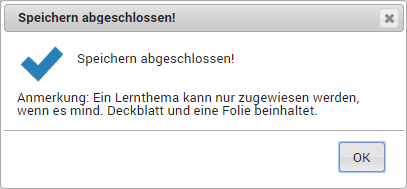
This also happens the first time the new instruction is opened. |
| Upload Image | Opens a file selection dialog for uploading an image.
The image is used as the background for the current slide. |
| Change Slide Type |
Opens the slide type selection dialog:
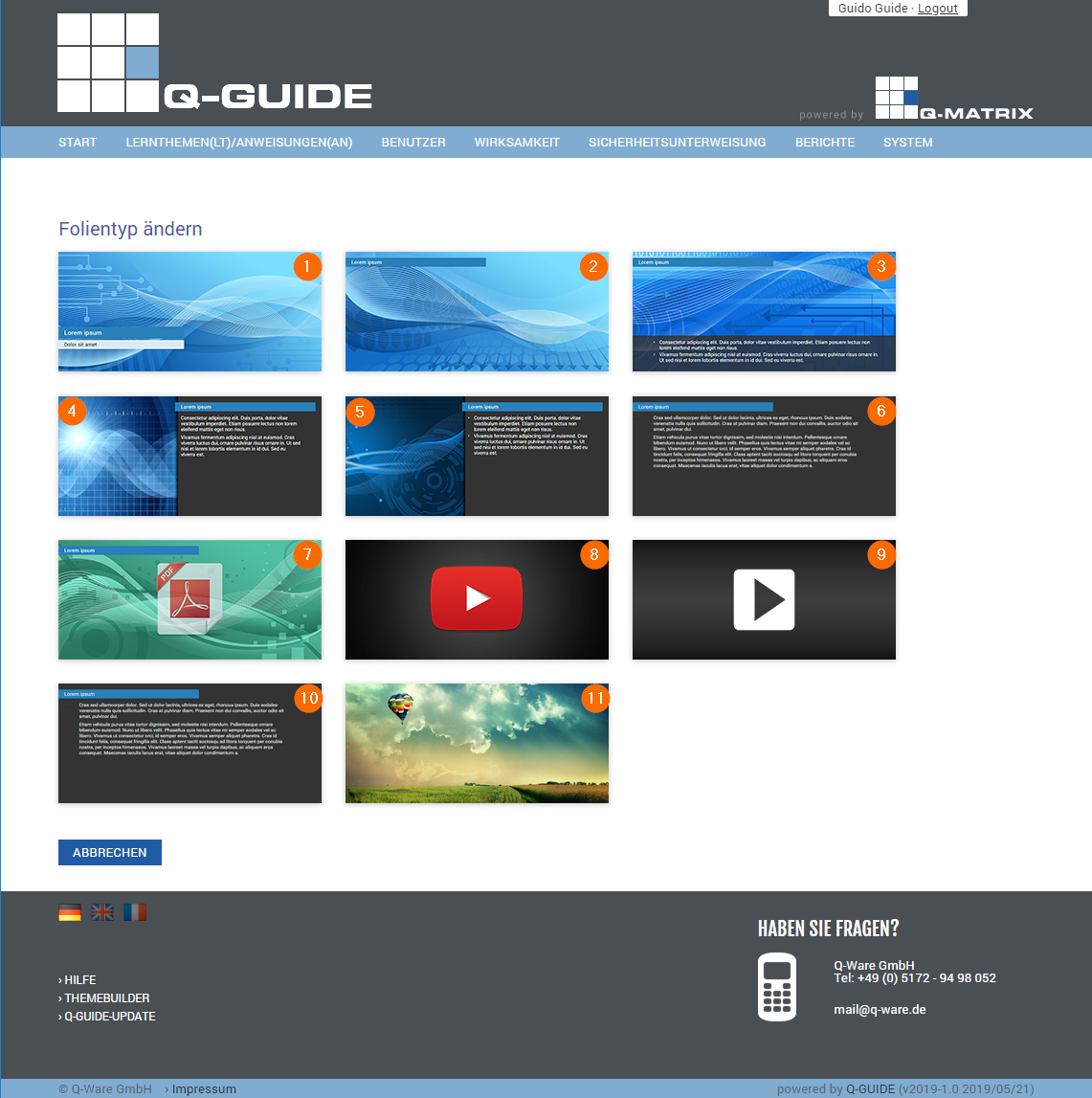
You can choose one of the following slide types:
| 01) Title Slide | As shown in the thumbnail, the current slide is set up with a slide title and subtitle
 |
| 02) Section Title | As shown in the thumbnail, the current slide is set up with a section title at the top
 |
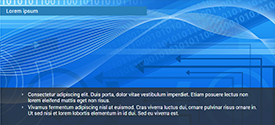
| 03) Image Slide | As shown in the thumbnail, the current slide is set up at the top with a slide title, a large background image, and, set apart at the bottom, a bullet list
 |
| 04) Text with Image | As shown in the thumbnail, the current slide reserves the left side for an image and sets up text with a slide title on the right
 |
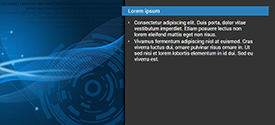
| 05) Bullet List with Image | As shown in the thumbnail, the current slide reserves the left side for an image and sets up a bullet list with a slide title on the right
 |
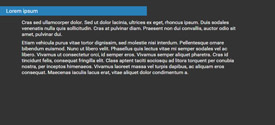
| 06) Text Slide | A purely text-based slide with a slide title is set up for the current slide
 |
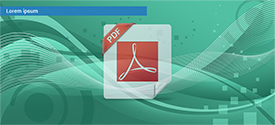
| 07) PDF File | As shown in the thumbnail, the current slide is provided with a slide title and a large PDF icon. Clicking the PDF icon lets you set a PDF file for this slide, which is displayed in the editing view.
 |
| 08) YouTube | As shown in the thumbnail, the current slide is equipped with a YouTube video. Enter the complete URL to the video, or just the video ID.
 |
| 09) Local Video | As shown in the thumbnail, the current slide is equipped with a local video. This means a video is located in a directory on the server, and the desired video can be selected via a dialog.

Note:
Your IT administrator may need to copy the video onto the server first before you can select it. |
| 10) HTML Slide |
As shown in the thumbnail, the current slide is set up as an HTML slide.
Other slides do not have the option to apply various text formatting (e.g. bold, italic). You can do this with an HTML slide. Additional functions are available for this:

| Bold | Font Color | Indent Right |
| Italic | Font Background Color | Bulleted List |
| Underline | Align Left | Numbered List |
| Text Style | Center | Insert Image |
| Font | Align Right | Insert URL (Link) |
| Font Size | Indent Left | Remove Formatting |
| View HTML Code (Source) |
|
| 11) Empty Image Slide | As shown in the thumbnail, the current slide is created with only an image and no text.
 |
|
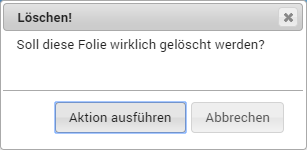
| Delete Slide | Deletes the current slide upon confirmation:
 |
| Close | Closes the editing view for the instruction and returns to the basic settings. |
Slide Management
Before and after each slide thumbnail, a + (plus /  ) is displayed.
Clicking this icon adds another slide before or after the current slide.
Slide Attachments
Opens a file selection dialog for uploading a file.
The file is attached to the current slide.

Slide Position
Enter a numeric value in the free text field (e.g. 2), then click move; the current slide is moved to the position you selected, and all other slides are adjusted accordingly.


