



Colors Tab
In this tab, you can customize all colors used, so that the page background or menu colors match your preferences.
Color Picker
All color values must be entered as a hexadecimal value (web color), for example #ffffff for white.
If you don't know these numeric values, you can set the color values using a color picker.
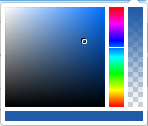
The color picker consists of 4 areas
- Square color selector - set the color
- Vertical color spectrum bar - select a color from the color space
- Vertical color gradient - adjust color saturation
- Horizontal color bar - selected color
The result, i.e. the chosen color, is set / output as a hexadecimal value in the relevant / associated input field.
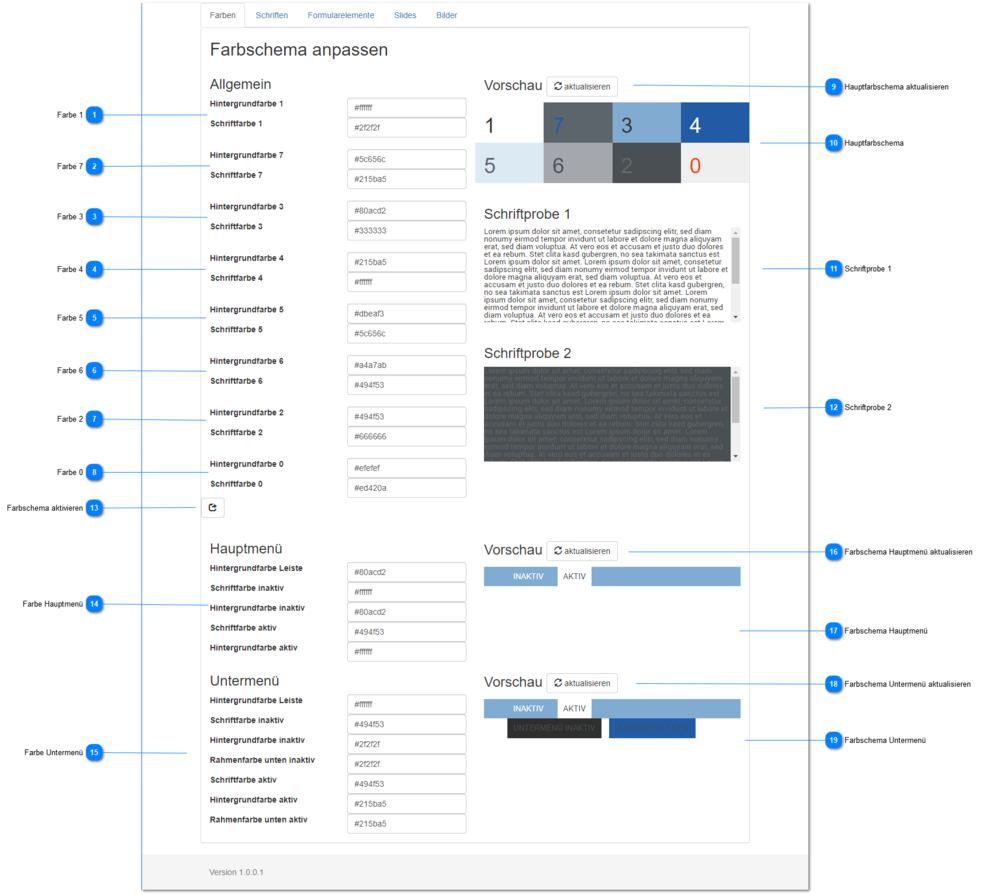
Color 1
Set the color values for the background and text of color pair 1 here.
The color picker is available to you for input.
Color 7
Set the color values for the background and text of color pair 7 here.
The color picker is available to you for input.
Color 3
Set the color values for the background and text of color pair 3 here.
The color picker is available to you for input.
Color 4
Set the color values for the background and text of color pair 4 here.
The color picker is available to you for input.
Color 5
Set the color values for the background and text of color pair 5 here.
The color picker is available to you for input.
Color 6
Set the color values for the background and text of color pair 6 here.
The color picker is available to you for input.
Color 2
Set the color values for the background and text of color pair 2 here.
The color picker is available to you for input.
Color 0
Set the color values for the background and text of color pair 0 here.
The color picker is available to you for input.
Update Main Color Scheme
If the current color values are not shown to you in real time, you can update the main color scheme using this button.
Main Color Scheme
Shows you the result for color pairs 0 - 7 based on the current color values.
Font Sample 1
A rendering of generic text with the current color values of color pair 1.
Font Sample 2
A rendering of generic text with the current color values of color pair 2.
Activate Color Scheme
Use this button to update the current color scheme for the current template, so all tabs are displayed with the current color settings.
Main Menu Color
Set the color values for the background and text of the main menu here.
The color picker is available to you for input.
Submenu Color
Set the color values for the background and text of the submenu here.
The color picker is available to you for input.
Update Main Menu Color Scheme
If the current color values are not shown to you in real time, you can update the main menu's color scheme using this button.
Main Menu Color Scheme
Shows you the result for the main menu's color scheme based on the current color values.
Update Submenu Color Scheme
If the current color values are not shown to you in real time, you can update the submenu's color scheme using this button.
Submenu Color Scheme
Shows you the result for the submenu's color scheme based on the current color values.