



Menu Item "Applicant Management"
Here you get an overview of all actions as well as the status of all applicants.
Based on this information, you can see at a glance where you stand with reviewing and possible next steps.
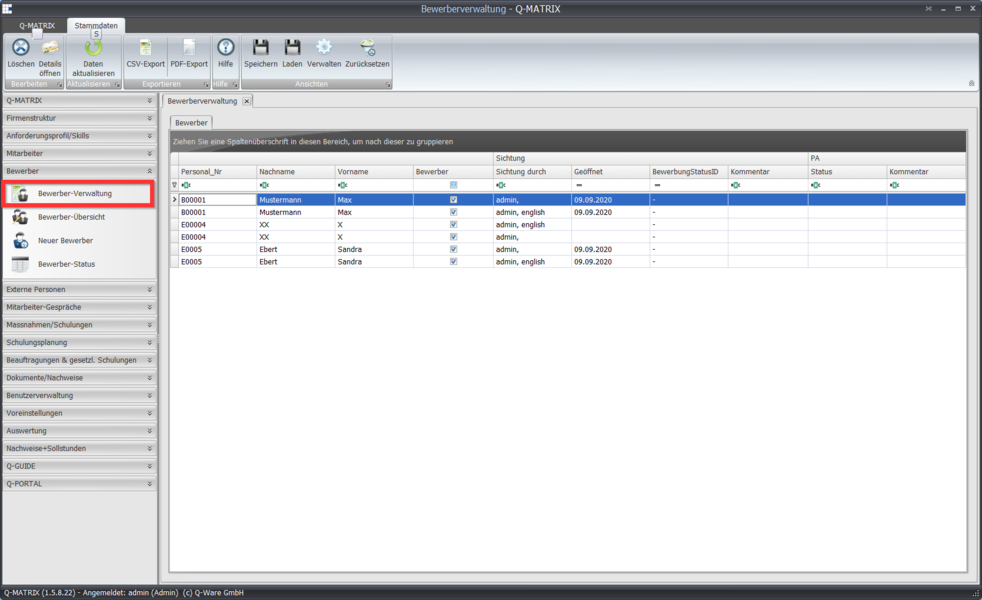
Double-clicking an applicant opens the detail view.
Alternatively, the first context menu item (right mouse button) Open Details or the toolbar button Open Details can be used.
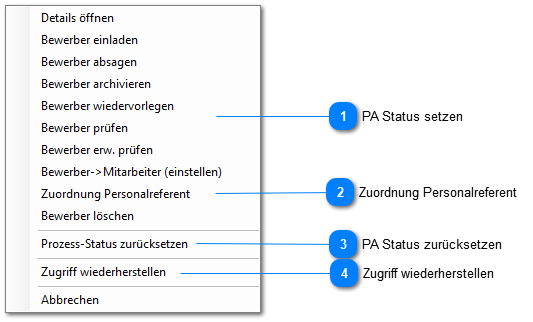
The Delete Applicant menu item deletes the selected applicant.
The context menu (right mouse button) also lets you move an applicant to the Applicant Archive.
 Set HR Status
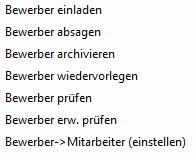
These context menu items Invite/Reject/Archive/Follow Up/Review/Extended Review Applicant set the general, higher-level status of the HR department (PA).
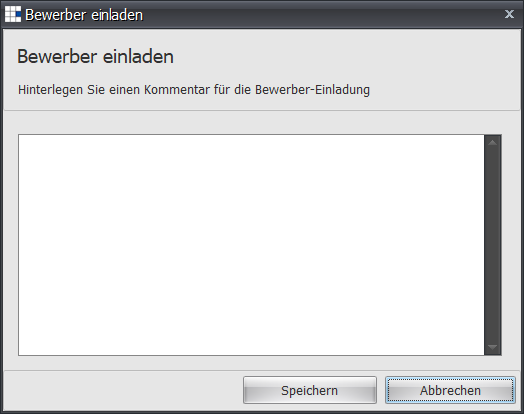
After selecting the menu item, a dialog for commenting (e.g. invitation sent on X.Y.ZZ) is displayed. This comment is assigned to the status.
For the status to be applied and displayed correctly, the use of the respective status must be set in the management of the applicant status.
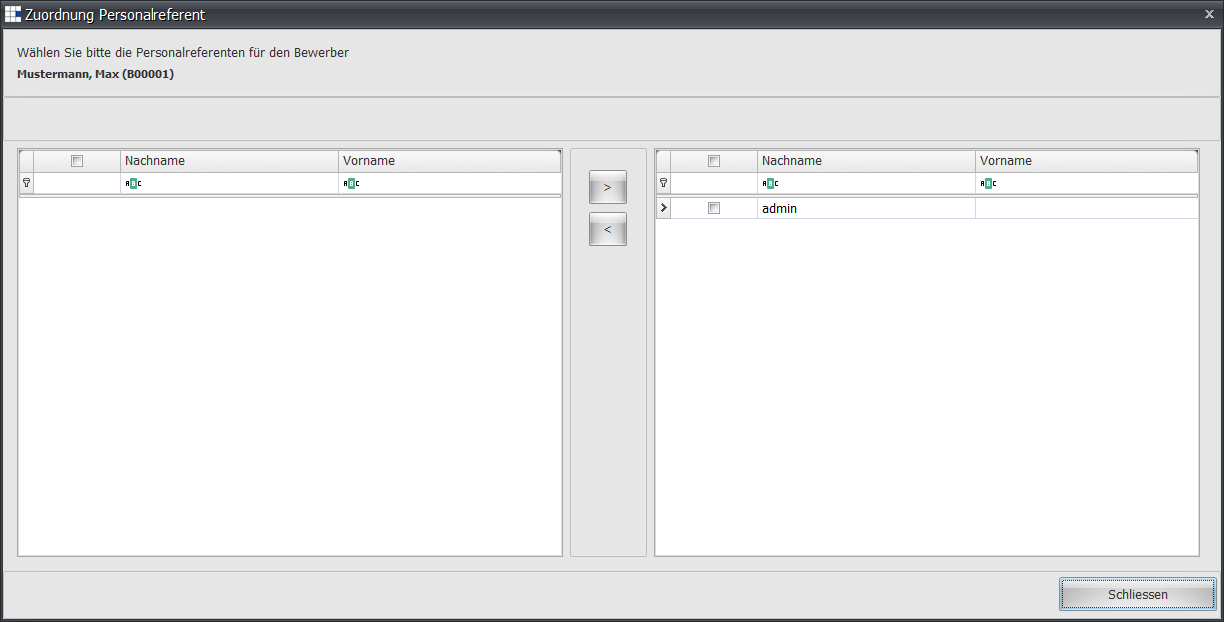
 HR Representative Assignment
With this wizard, you can assign HR representatives (activated users for applicant management) to an applicant  or remove them
  .
.
To do this, select the desired persons and then press the corresponding button.
The default assignment of HR representatives is applied to all activated users with the role HR Department or admin.
If no user is entered as an HR representative, no user can view the applicant details or use the process.
Note:
As long as an HR representative is not assigned to an applicant, that HR representative cannot see the applicant in the overview.
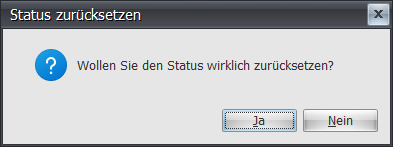
 Reset HR Status
Confirming the prompt removes the overall status (HR department status [PA status]) of the applicant.
 Restore Access
If no user is entered as an HR representative, no user can view the applicant details or use the process.
A user with the admin role can then use this function.
After executing this function, all applications (i.e. all archived or unassigned applications, or those with deleted assignments) are assigned to this user.