



Menu Item "Continuing Education Planning"
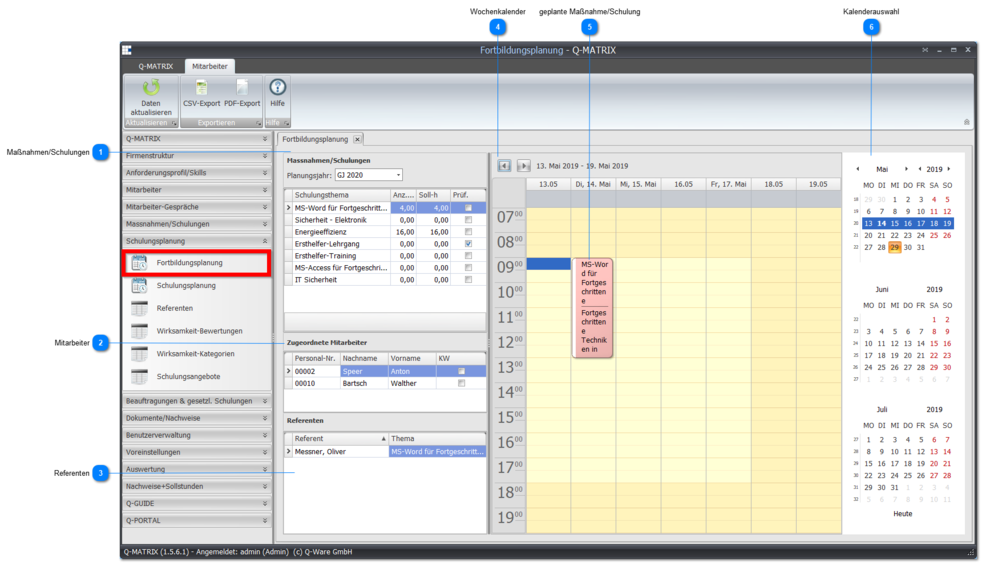
This menu item allows you to plan measures/training courses on a weekly basis.
Procedure for Planning a Week
- Add the measures/training courses for the week to be planned
- Add the employees for the week to be planned
- Add all measures/training courses for the week to be planned
- While holding down the left mouse button, drag a measure/training course into the weekly calendar area
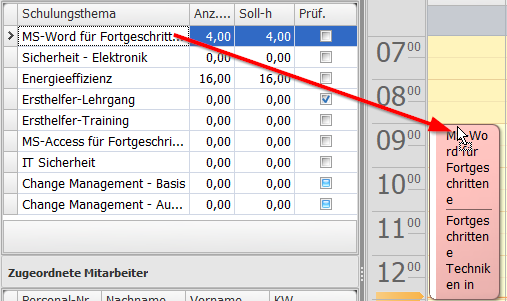
- Repeat this for every measure/training course to be planned
- While holding down the left mouse button, drag a measure/training course into the weekly calendar area
- Open each measure/training course and assign an instructor, so that every training course has an instructor
- Add all employees to the training plan
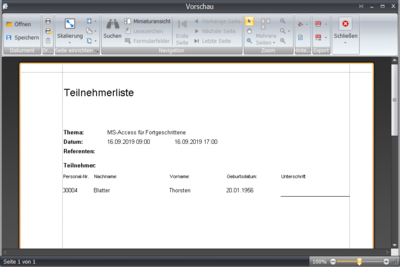
- Generate and print the participant list for each measure/training course
- Conduct the measure/training course and have each participant confirm attendance on the attendance list
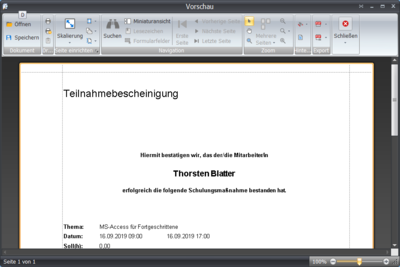
- Save and print the certificate of attendance for the training plan for all employees
- You can attach the saved documents to the individual measures/training courses in measures management
- Hand out the certificate of attendance to each employee at the end of the measure/training course
 Measures/Training Courses
This lists all measures/training courses used for the selected week.
Measures/training courses are planned and generated for the configured fiscal year.

The measures/training courses can therefore be found for this fiscal year in measures management.
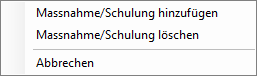
Additional measures/training courses can be added or deleted via the context menu.
The measure/training selection dialog shows all standard measures/training courses from the measures catalog.
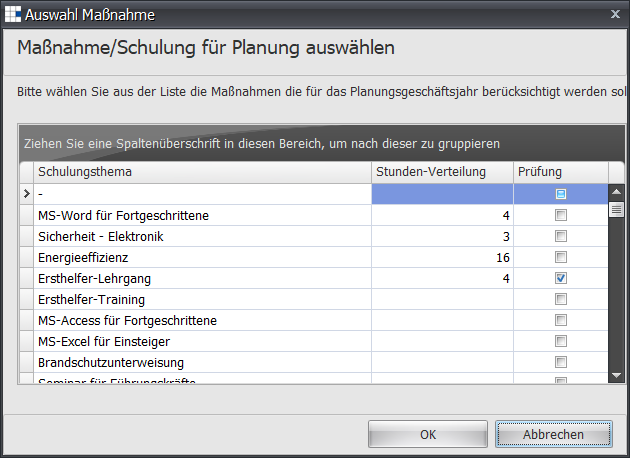
You can also add several measures/training courses. Proceed as follows:
- Select a measure/training course, and your selection is highlighted in blue.
If you want to select several, hold down the CTRL key and mark further measures/training courses with the left mouse button.
Each selected measure/training course is displayed highlighted in blue. - Confirm your selection with OK.
 Employees
Here you can see the employees to be scheduled for the selected week.
You can add, delete, or assign employees to be scheduled via the context menu.
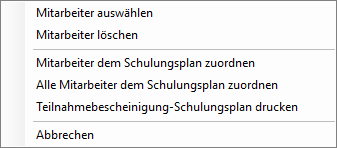
| Select Employees | The employee selection dialog allows you to specifically add employees to be scheduled.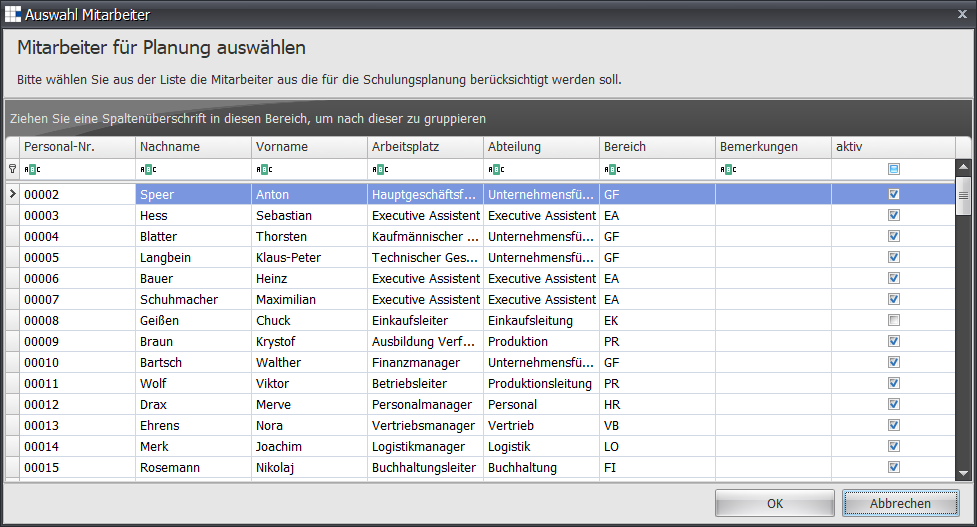 You can also add several employees. Proceed as follows:
|
| Delete Employee | Removes the marked/selected employee from the list of employees to be scheduled |
| Assign Employee to Training Plan | Assigns the marked/selected employee to all measures/training courses of the calendar week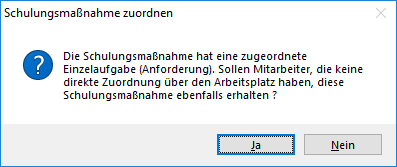 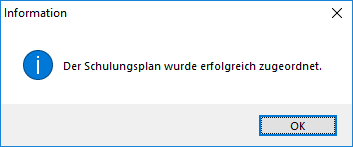 |
| Assign All Employees to Training Plan | Assigns all employees to all measures/training courses of the calendar week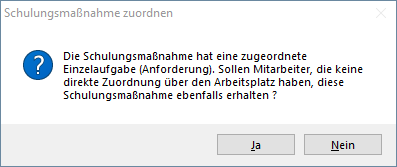 |
| Print Certificate of Attendance Training Plan | Prints the certificate of attendance for the calendar week and all associated measures/training courses: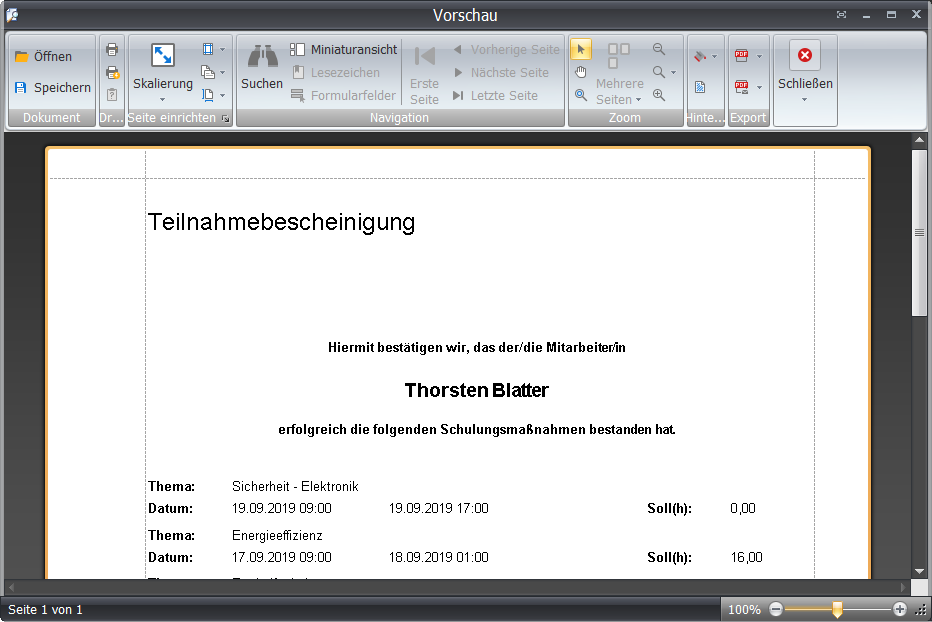 |
 Instructors
This lists the assigned instructor for each measure/training course.
Changing the instructor assignment is not possible here.
 Weekly Calendar
Shows the scheduled measures/training courses for a calendar week (Monday - Sunday) for core hours from 9:00 AM to 6:00 PM.
You can page forward or backward through the week using the arrow icons.

You can also click a day in the calendar selection to display that day's week.
 Scheduled Measure/Training Course
Double-clicking or using Open in the context menu shows you the detail view of the measure/training course.
All information listed can be changed by you.
In particular, setting the instructor for this measure/training course is intended here.
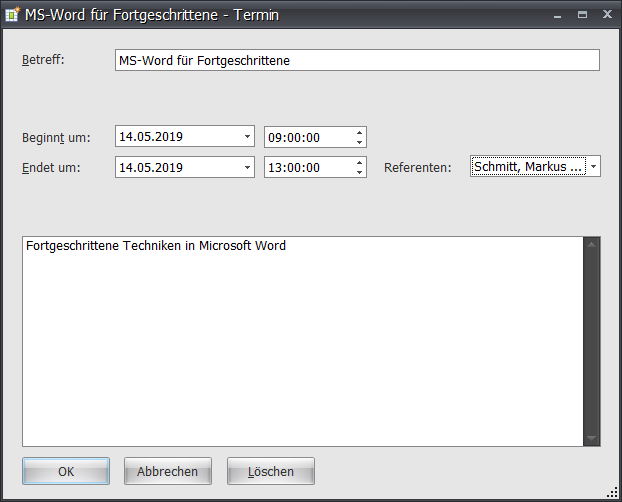
| Subject | Initially always contains the topic of the underlying measure/training course |
| Starts At | Initially always contains the date and start time of the planning you performed |
| Ends At | Initially always contains the date and end time of the planning you performed |
| Instructors | Using a dropdown list, you can set an instructor for this measure/training course |
| Free Text | Initially always contains the content of the underlying measure/training course |
You can open or delete the measure/training course via the context menu.
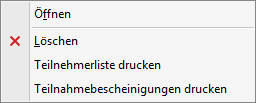
You can also print the participant list or the associated certificate of attendance.
 Calendar Selection
This compact quick overview for a date selection gives you fast access to a planning week.
Simply click a day in the planning week, and the associated information will be displayed.
Days highlighted in bold ( ) have at least one measure/training course scheduled.
You can select today's date by clicking Today (below the compact calendar view).
Additionally, today's date is marked with a special highlight ( ).
).
Above the compact calendar view, you can use the arrow buttons ( ) to switch between months and years.