



Completing a Measure
You have already successfully created a measure for one or more employees.
These measures have now been carried out, and you want to complete the respective measure.
Your overview should now show several entries, all with the status "open".
This status indicates that the measure has not yet been carried out.
(A complete list of all statuses can be found in the Measure Management chapter.)
In the "Proof" and "Actual hours" columns, you can see that not all proof and required hours have been provided yet.
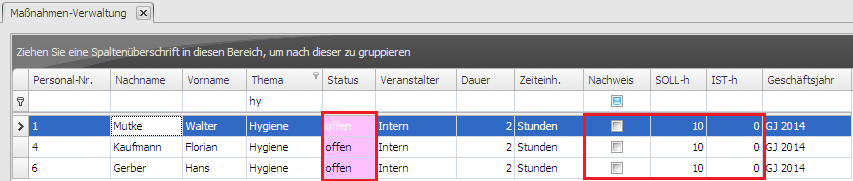
To now add proof to a measure and enter actual hours, open the employee details by double-clicking the corresponding measure.
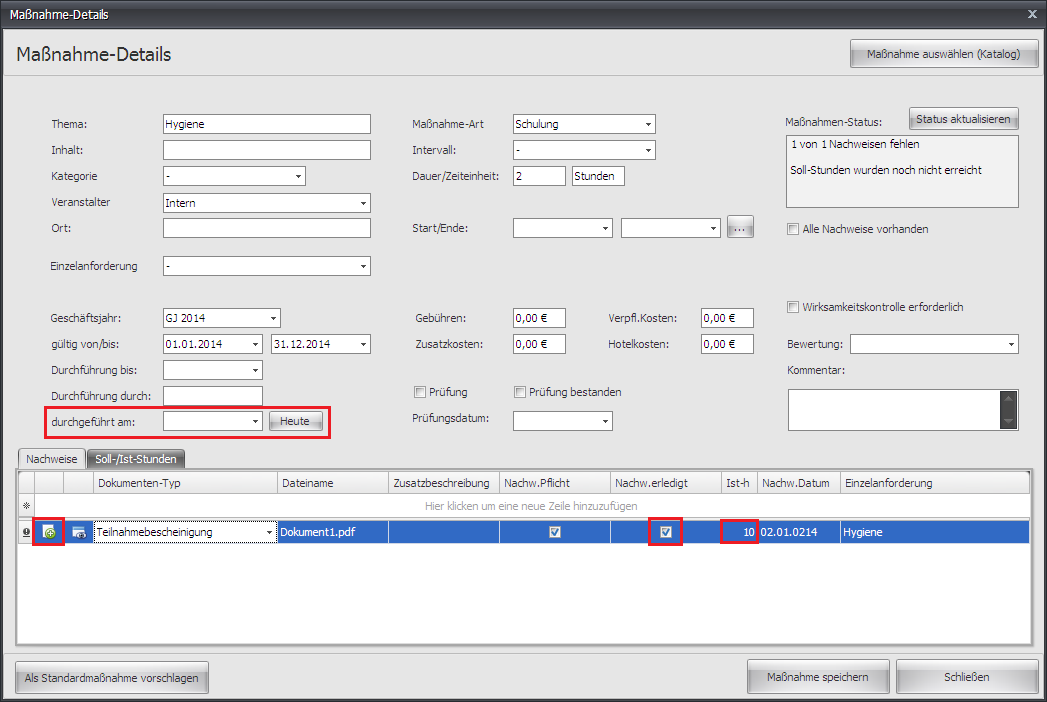
You can add the certificate of attendance by clicking the plus icon. A new window opens:
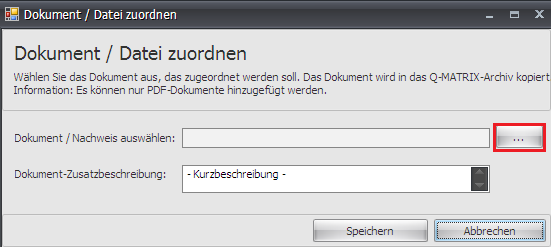
Clicking "..." lets you select a document. Choose "Save" to store the document.
Back in the measure details, now check the "Proof completed" checkbox and enter the actual hours completed.
In the "Proof date" column, you can also enter the date on which you received the proof.
It's important that you provide a date in the "Completed on" field.
This date is used to determine whether a measure has already been carried out or not.
Save the changes with "Save measure".
The status of the measure has now changed in the measure overview.

The status of the measure is now "completed" - all proof has been provided and the actual and required hours are balanced.