



Menu Item "Question Catalog"
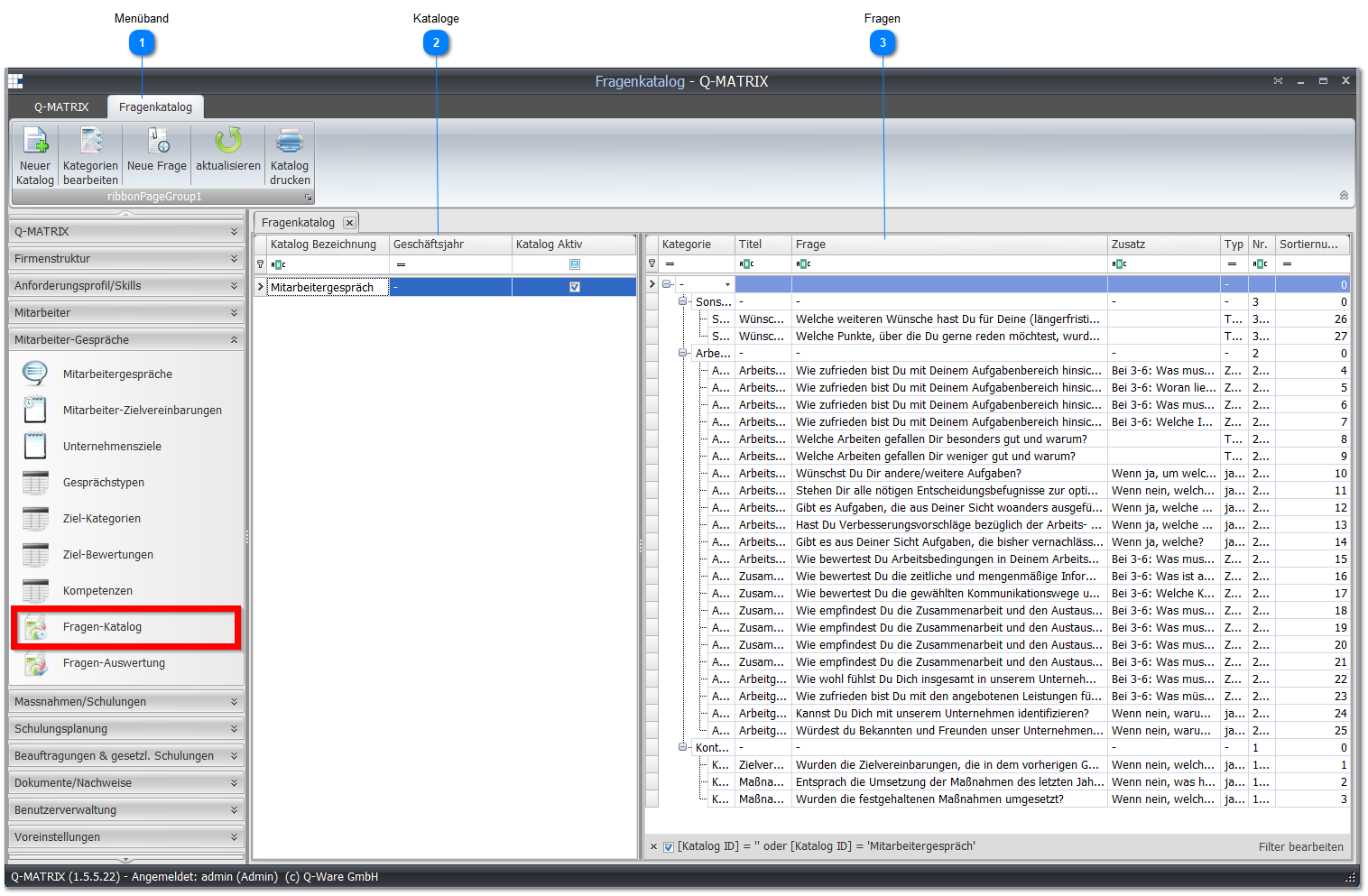
The "Question Catalog" menu item contains the management of all question catalogs.
To create a question catalog, follow this guide.
Creating a Question Catalog - A Guide
- Use New Catalog to create an empty catalog. Assign a name, for example Conversation
- Create new categories or use existing ones for your question catalog.
- Create new categories via the Edit Categories dialog. Assign a name, for example Work Environment
- Edit the catalog and set the necessary content. This includes:
- activate the catalog
- assign a start document (e.g.: C:\Q-Matrix™\Sample Templates\Intro.dotx)
- assign an end document (e.g.: C:\Q-Matrix™\Sample Templates\Outro.dotx)
- add the categories to be used (e.g.: Work Environment)
- Add your questions and create the desired question catalog
- These questions can then be answered by employees via the Q-Portal
Note:
New questions are always added to the selected question catalog.
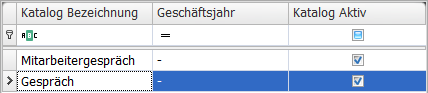
 Ribbon
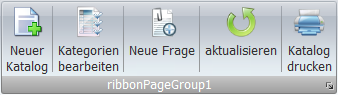
| New Catalog | In the dialog for a new catalog, you can name the catalog (Name field) and assign it to a specific fiscal year. If the question catalog is year-independent, assign the value -.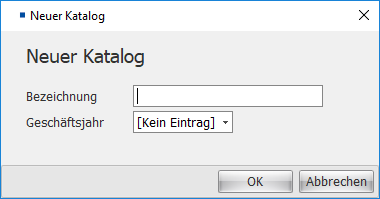 | ||||||||||||||||||
| Edit Categories | The editing dialog for the categories allows you to manage them: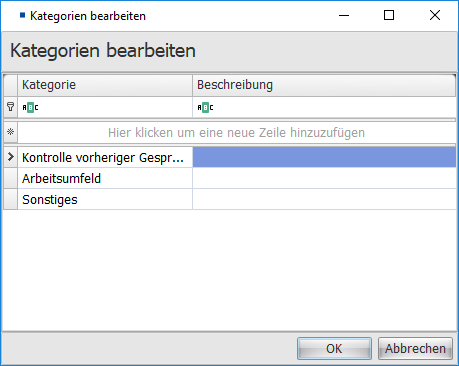 Categories can be deleted via the context menu: 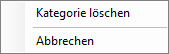 | ||||||||||||||||||
| New Question | If a question catalog is selected and it also contains categories, you can use this dialog to add new questions to the question catalog: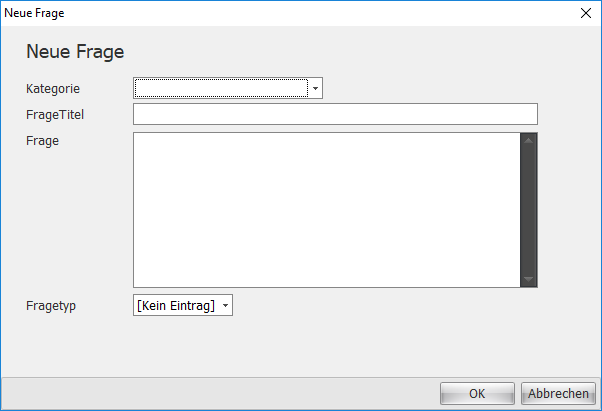
| ||||||||||||||||||
| Refresh | Refreshes all data for this menu item that is shown in the various views and windows | ||||||||||||||||||
| Print Catalog | Opens the print preview of the question catalog |
 Catalogs
Clicking a catalog (a row in the table) opens the following context menu:
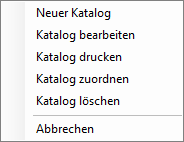
The function behind the menu item is
| New Catalog | Corresponds to the dialog from the ribbon | ||||||||||||
| Edit Catalog | The editing dialog allows you to fully edit all properties of a question catalog. These are: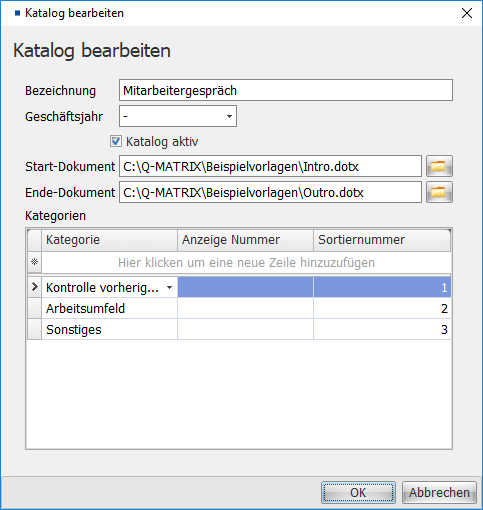
| ||||||||||||
| Print Catalog | Corresponds to the dialog from the ribbon and opens the print preview of the question catalog | ||||||||||||
| Assign Catalog | Opens a dialog for employee selection. Multiple employees can be selected by holding down the CTRL key: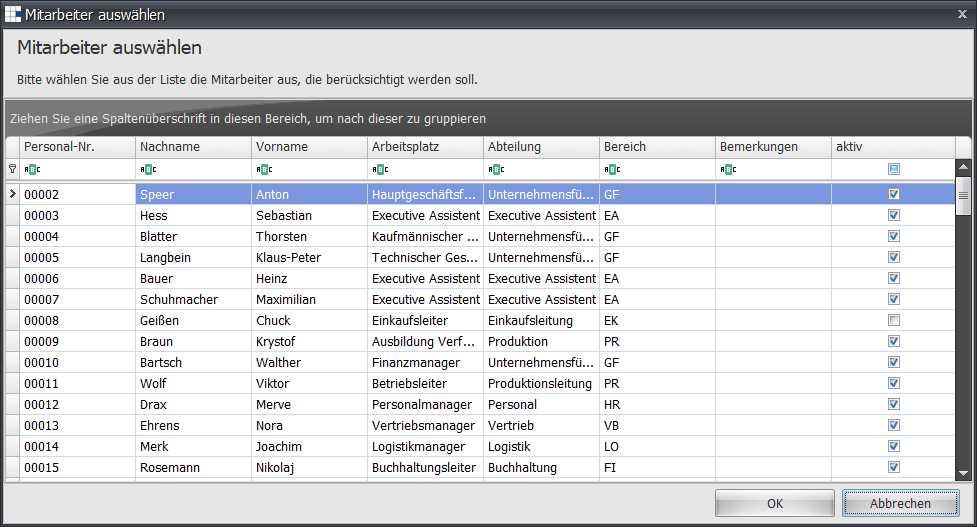 Once the employees are selected, define a due date, i.e. by when the question catalog is to be completed/finished: 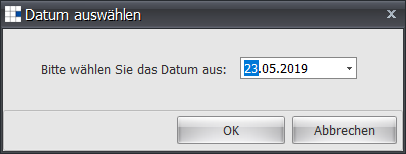 | ||||||||||||
| Delete Catalog | Opens the delete dialog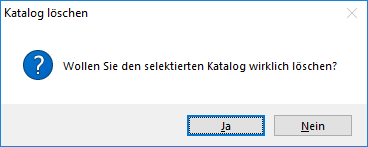 |
 Questions
Here, all the questions you have entered are displayed hierarchically according to their categories.
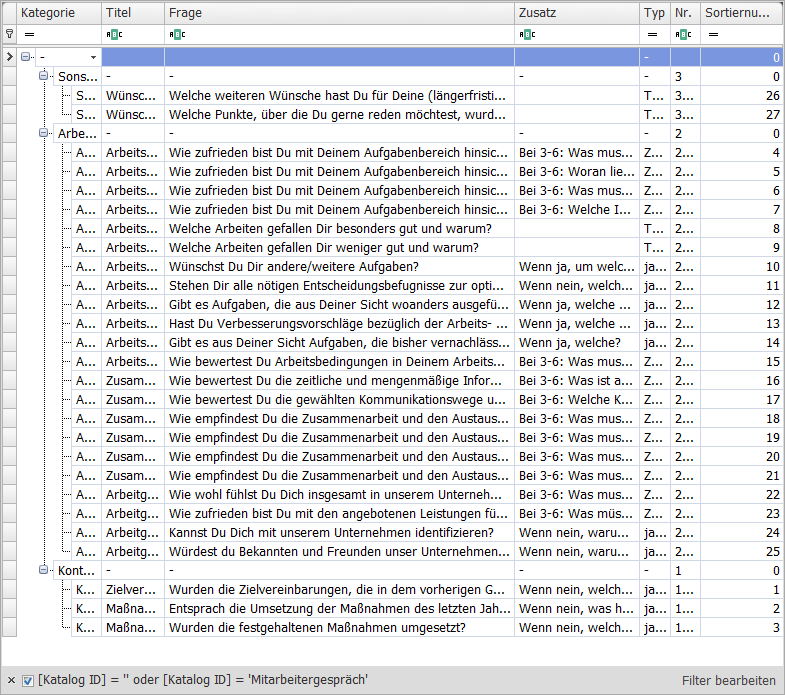
| Category | Shows which category is involved. This column is also used to assign a question to a different category.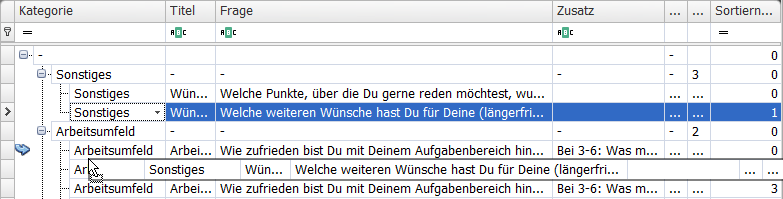 Changing the position or hierarchy is done via a left click on the category. While holding down the left mouse button, the question is dragged to a new position. Once the desired position or hierarchy is reached, the mouse button can be released and the new position is set. The category is automatically changed in the process. | ||||||||||
| Title | The title of the question, e.g. Work/Task Area | ||||||||||
| Question | The question, e.g. How do you rate the working conditions in your work environment? (in terms of equipment, premises, tools and aids, noise, temperature, safety, etc.) (measured in school grades) | ||||||||||
| Additional | If necessary, the follow-up question is placed here, e.g. For 3-6: What do you think needs to be improved? | ||||||||||
| Type | There are different question types. These are:
| ||||||||||
| Number (No.) | If you want to number the questions for printing, assign a number here, e.g. 2.12 | ||||||||||
| Sort Number | If you want to sort the questions, assign a number here for the order, e.g. 12 |