



Configuration
The initial Q-Guide configuration is web-based and guides you through the various steps.
Depending on the installation and configuration of the web server, the URL (http://<server>/qguide/setup.php) for the configuration may be different.
At some points and after some steps, you may see the following waiting dialog:

Simply wait until this dialog is hidden again and you can carry out the next step.
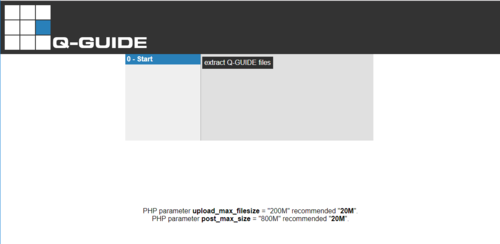 |
00.a) Configuration start Configuration begins with this page, and clicking extract Q-Guide files starts generating the final files and directory structure. Note: For the installation to proceed correctly, the PHP configuration variables upload_max_filesize and post_max_size must be set to at least 20M. | ||||||||||||||||||||||||||||||||||||
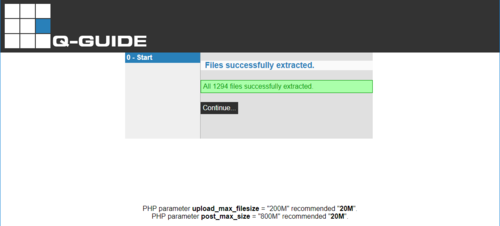 |
00.b) Configuration start Once the files and directories have been generated, you can proceed to the next step by clicking Continue. | ||||||||||||||||||||||||||||||||||||
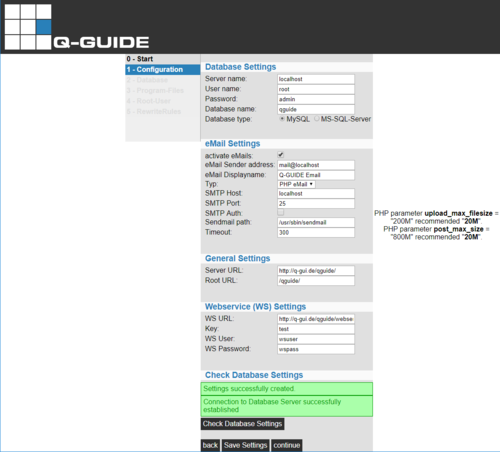 |
01.a) Configuration Here you define the settings for 01.b) Databases (required setting) 01.c) Email 01.d) URL Availability (required setting) 01.e) Web service The required settings are necessary for the further process, while the other settings can also be made at a later time (in the configuration files). Once you have configured b-e, you can save the settings via Save Settings. Finally, you can check whether the database is reachable by clicking Check Database Settings. Without a database, the configuration cannot be completed successfully. Clicking Continue takes you to the next step. | ||||||||||||||||||||||||||||||||||||
|
01.b) Databases
Note: The database connection check also ensures that the database you entered (Database name) already exists. If the database does not yet exist, it must be created beforehand. For a MySQL or MariaDB database, we recommend creating it with the utf8_general_ci setting. |
01.c) Email
| ||||||||||||||||||||||||||||||||||||
|
01.d) URL Availability
This information is used for step 5 (rewrite rules). |
01.e) Web service
| ||||||||||||||||||||||||||||||||||||
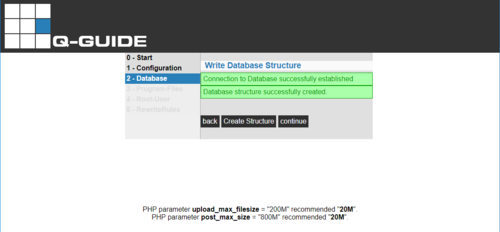 |
02) Database Click Create Structure and the database structure with the default entries will be generated. Clicking Continue takes you to the next step. | ||||||||||||||||||||||||||||||||||||
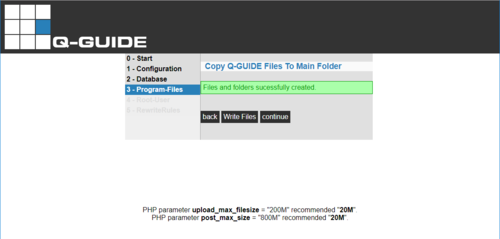 |
03) Configuration files Click Write Files and the configuration files will be generated. Clicking Continue takes you to the next step. | ||||||||||||||||||||||||||||||||||||
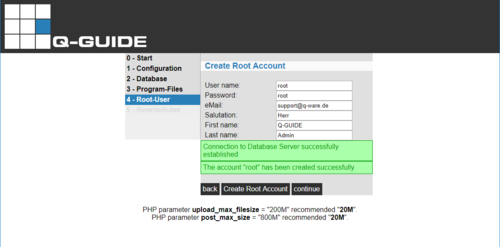 |
04) Initial user Click Create Root Account and the initial user will be created with the information you entered. This user is then also used for the first login.
Clicking Continue takes you to the next step. | ||||||||||||||||||||||||||||||||||||
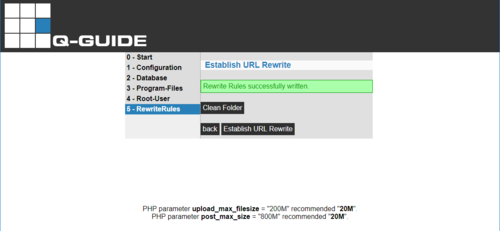 |
05) Rewrite rules Click Establish URL Rewrite and the rewrite rules will be generated for the web server in use. Clicking Clean Folder (deletes files and directories that are no longer needed) takes you to the final step. | ||||||||||||||||||||||||||||||||||||
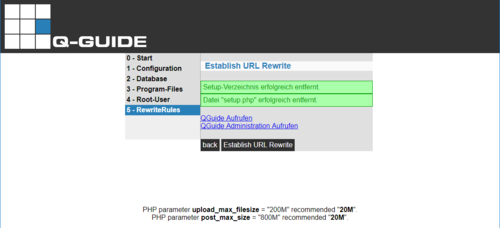 |
06) Final step Click one of the two links QGuide Aufrufen QGuide Administration Aufrufen and you can use Q-Guide with the initial user. |
 ) or not (
 )
)