



Tab "General"
The preferences of the "General" tab are as follows:
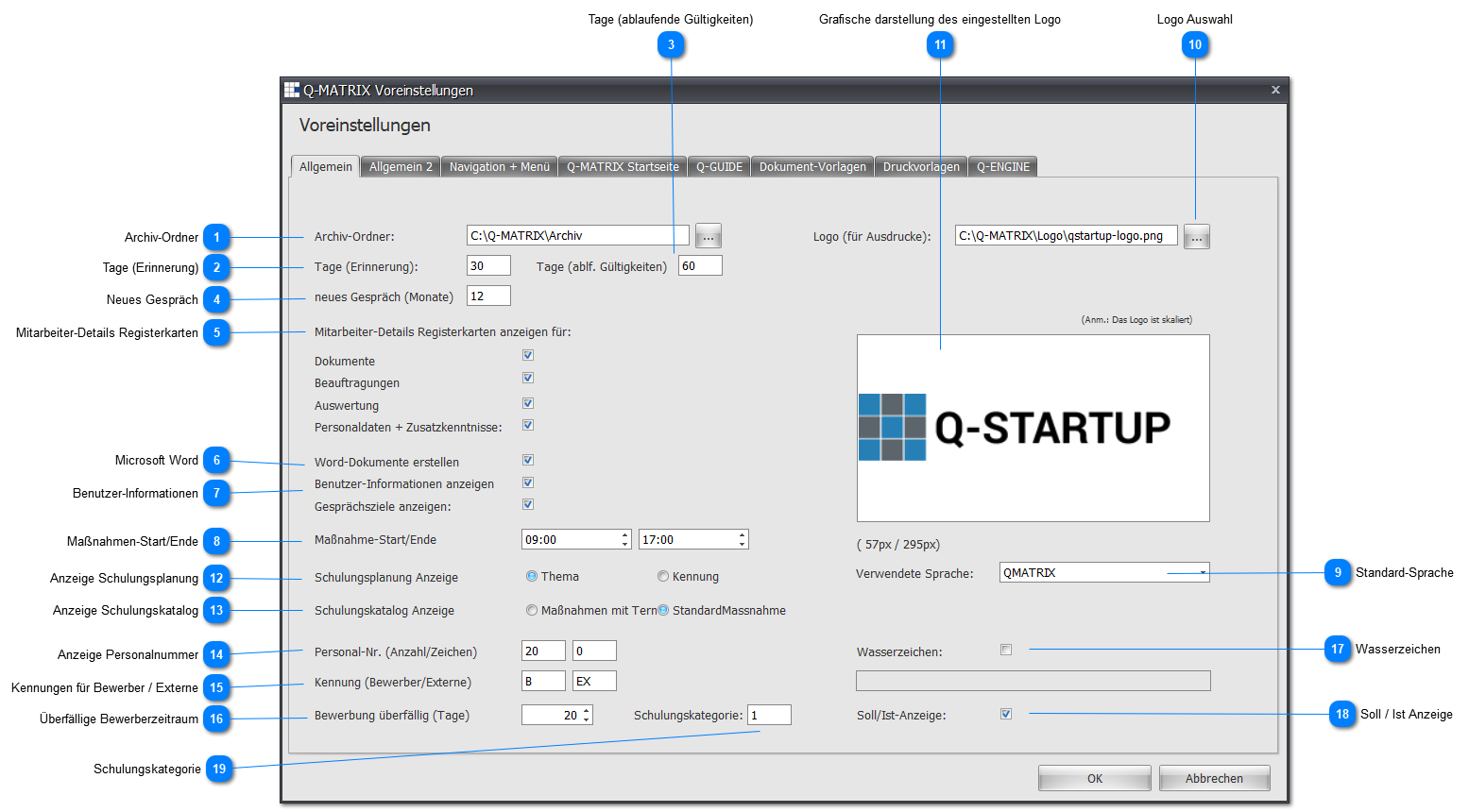
 Archive Folder
If the path is known, the directory path can be entered directly in the text input field.
Clicking  (see following image) allows the archive folder to be set via a directory selection dialog.
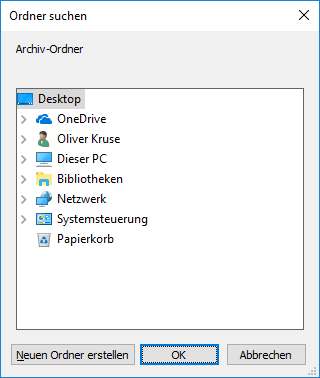
If no path is specified/selected for the archive folder, the documents are stored on the user's PC in the main directory or in the Q-Matrix™ program's source directory.
The structure of the archive directory is built as follows: <EmployeeNo>_<LastName><FirstName> \ <MeasureContentID>_<TrainingTopic>
Note:
The specified/configured path should be reachable for all users in the Administrator, HR, and Manager roles.
If the directory is not reachable for a user in these roles, the documents cannot be viewed and/or saved.
 Days (Reminder)
A numeric value (0 to N) is to be entered here.
This value (default: 30) is used to notify the user at program start that documents will become due in the coming 30 days from today.
 Days (Expiring Validities)
A numeric value (0 to N) is to be entered here.
This value (default: 60) is used to notify the user at program start that statutory measures will expire in the coming 60 days from today.
If no other employees fulfill these statutory measures, this can pose a risk to your company/organization.
 New Interview
This numeric value (default: 12) determines when a new interview is scheduled.
 Employee Details Tabs
If users in the Manager roles should not be able to view all information in the employee details (tabs), the extended tab information can be deselected here (default: selected).
The extended tab information is:
- Documents
- Assignments
- Evaluation
- Personal Data + Additional Skills

The Measures, Interview Overview, Objectives, Documents, and Evaluation tabs are also controlled via the acquired license.
 Microsoft Word

An evaluation is "saved" or "printed" at various points in the program.
Whenever no printer icon is visible for this action, a data export is performed in the background.
In combination with the setting in the document templates, the user can view the result in the special viewer or in Microsoft Office.
Here, the setting refers to the use of Microsoft Word within training planning.
If this option is selected (default: selected/checked), Word documents are generated from the mail merges, i.e. a document is created for all participants based on the document templates.
If this option is not selected, the Word document is opened as a mail merge with the participant data, i.e. in Microsoft Word you can determine the next step/action for the mail merges yourself.
For example, the mail merge can also be sent as an email via Microsoft Word.
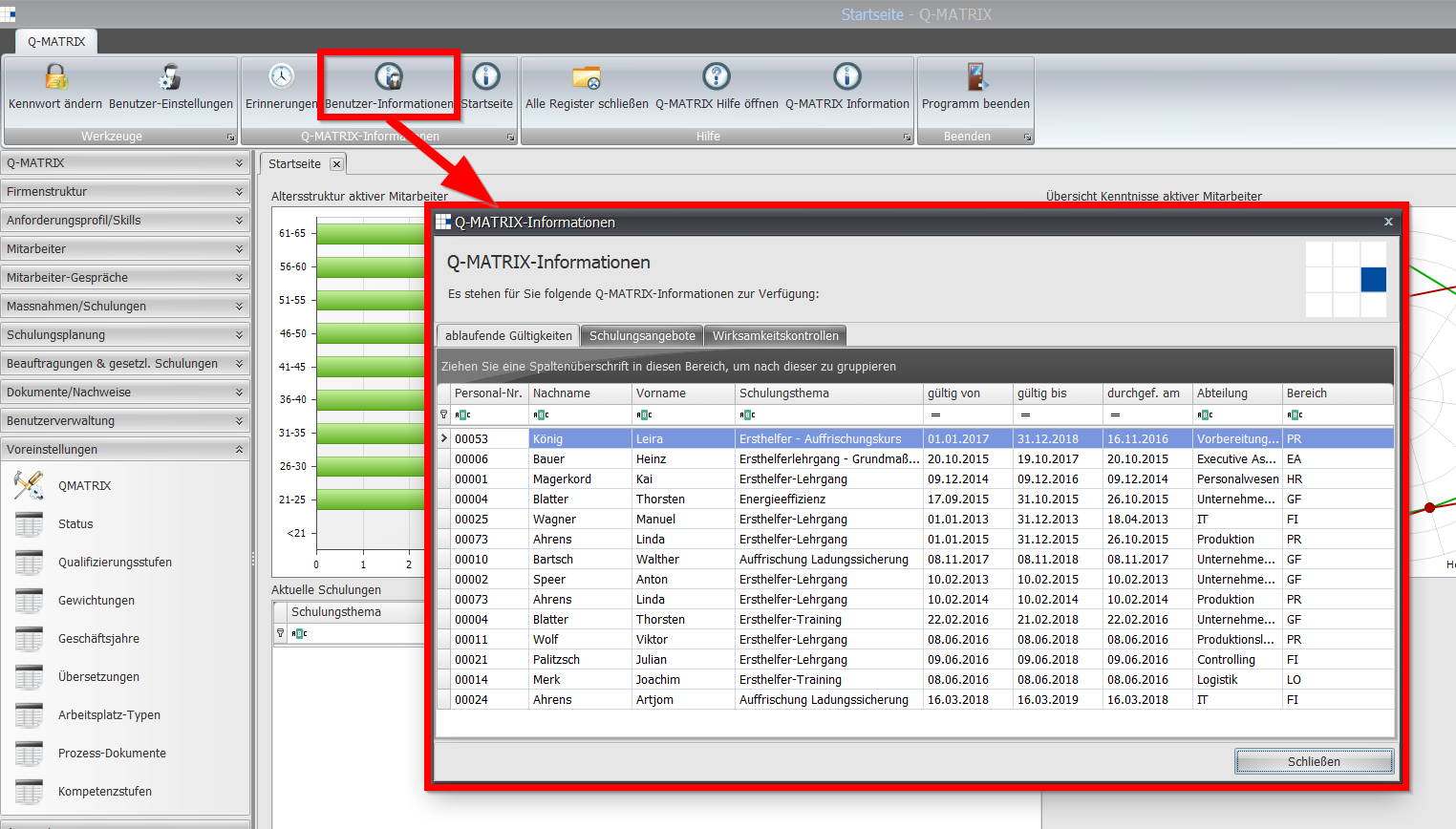
 User Information
If this option is selected (default: selected), user information is displayed after login for users in the Manager roles.
For users in the Administrator and HR roles, the user information is always displayed.
This user information shows the expiring validities, new training offers, and pending/outstanding effectiveness reviews that will become due in the coming days or are already overdue.
The settings from point 2 and point 3 are taken into account here.
 Measure Start/End

The settings made here are used in training planning as the default times for the start and end of a measure.
The setting is made by directly entering the numbers with a colon as separator, or via the icons (▲▼) to increase or decrease the marked numbers.
Times from 00:00 to 23:59 can be set.
If the start time is later than the end time, measures are scheduled on the following day up to the end time.
Note:
If a time of 00:00 is set for both start and end, all participants are moved to the waiting list when measures are rescheduled.
 Default Language
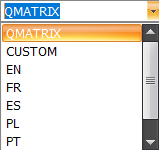
The license is always acquired with a language setting.
Normally your native language is set, and if it is not currently supported, English is set instead.
In addition, you can define the language for program startup here.
The default is Q-Matrix™, i.e. our preferred and used terminology within Q-Matrix™.
Once logged in, the user's language setting is used.
The following languages are currently available for the user interface:
- Q-Matrix™ = manufacturer's default language
- CUSTOM = initially Q-Matrix™ and used to adapt your terminology for the user interface
- EN = English
- FR = French
- ES = Spanish
- PL = Polish
- PT = Portuguese
- IT = Italian
 Logo Selection

If the name and path for the logo are known, everything can be entered directly in the text input field.
Clicking (see following image) allows the logo to be set via a selection dialog.
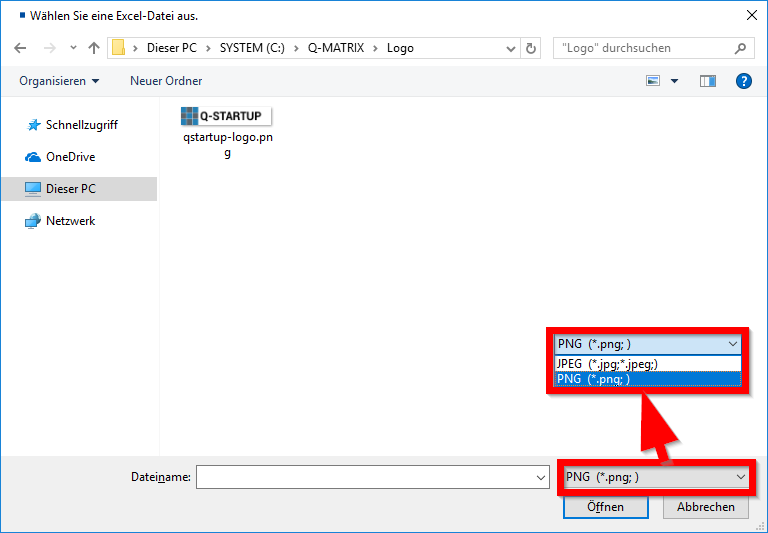
The filter (*.png or *.jpg; *.jpeg) for the graphic allows viewing of the supported graphic formats.
The setting must be changed accordingly if the desired graphic has a different format.
 Graphical Display of the Configured Logo
The image set under point 10 is displayed here, scaled.
The original size of the image (in pixels) is shown below the image in parentheses.
 Training Planning Display
Depending on the selection made, new entries in the measure calendar are created with the topic or the ID.
 Training Catalog Display
Depending on the selection made, the selection for measures with dates or the measures catalog list is shown.
 Employee Number Display
Defines how many characters are shown and displayed in the employee number columns.
The default setting is the maximum length of the employee number (20 characters).
This setting is also used to generate the next free employee number for new persons (employees, external persons, or applicants).
Examples:
- 20 ► B0000000000000000001
- 6 ► B00001
 IDs for Applicants/External Persons
The characters set here (maximum 3) are prefixed to the employee numbers generated by Q-Matrix™ for applicants or external persons.
Examples:
- Applicants
- B0000000000000000001
- B0000000000000000002
- External Persons
- EX000000000000000001
- EX000000000000000002
 Overdue Applicant Period
The days set here are used to generate an overview of overdue applications for the group of people in applicant management.
For this, an additional tab with applicants is displayed in the user information.
 Watermark
If this function is enabled, all PDF documents are generated with a watermark.
The text field is a free-text field used to enter the watermark (e.g. COPY).
 Target/Actual Display
Enabled by default and results in a default display in the evaluation with a target/actual comparison.
If the actual value is less than the target value, the background is RED.
If the actual value is greater than or equal to the target value, the background is GREEN.
 Training Category
Defines how many characters are used by default for the training category evaluations/calculations in lists and evaluations.
The default is 1 and should only need to be changed in very rare cases.