



Menu Item "Target/Actual Assessment"
The target/actual assessment shows you at a glance, using color markers, whether your employees fully meet your requirements or not.
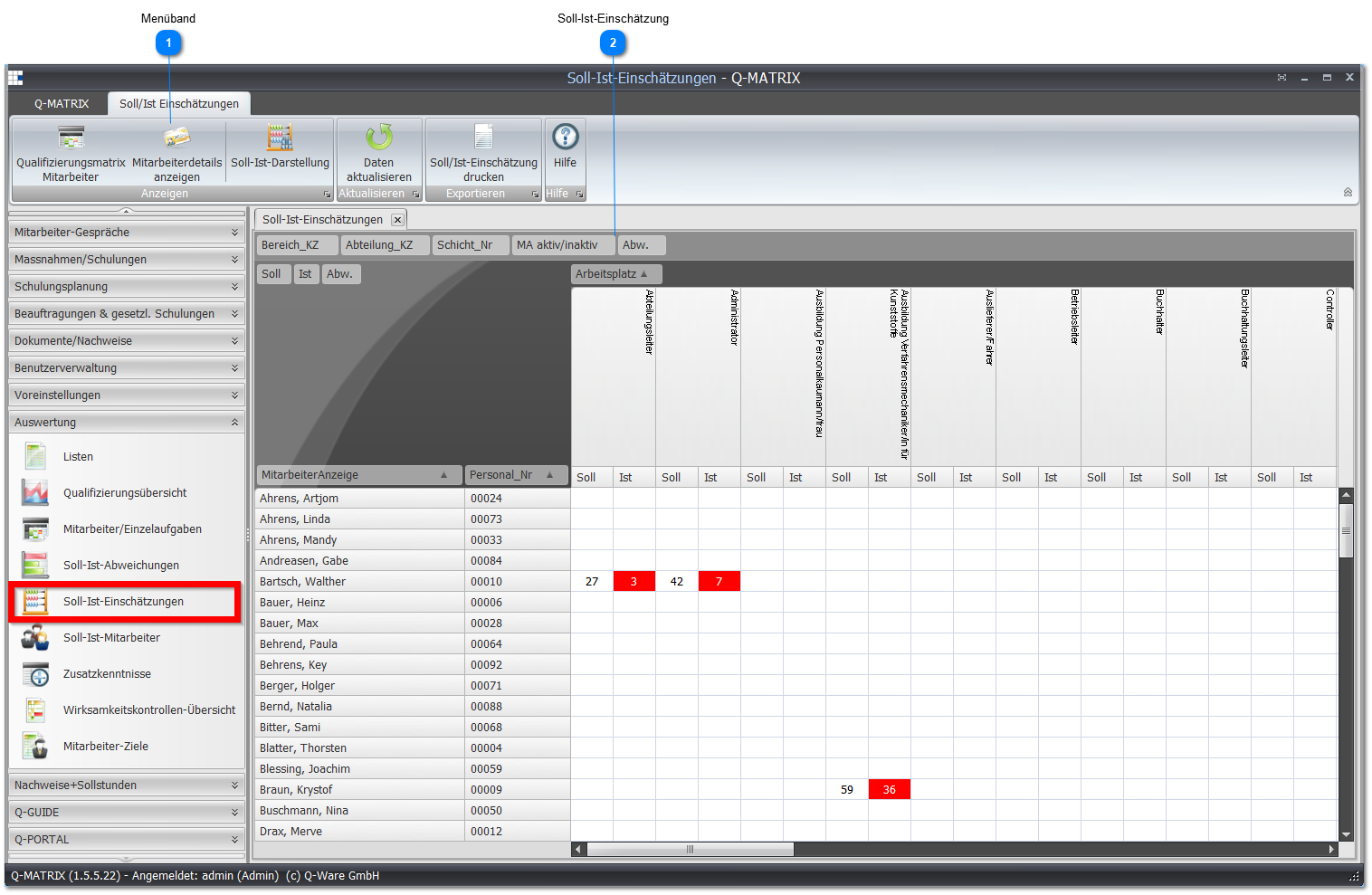
 Ribbon

| Employee Qualification Matrix | Opens the assessment screen for the marked employee. |
| Target/Actual Display | Opens the target/actual assessment individual task. |
 Target/Actual Assessment
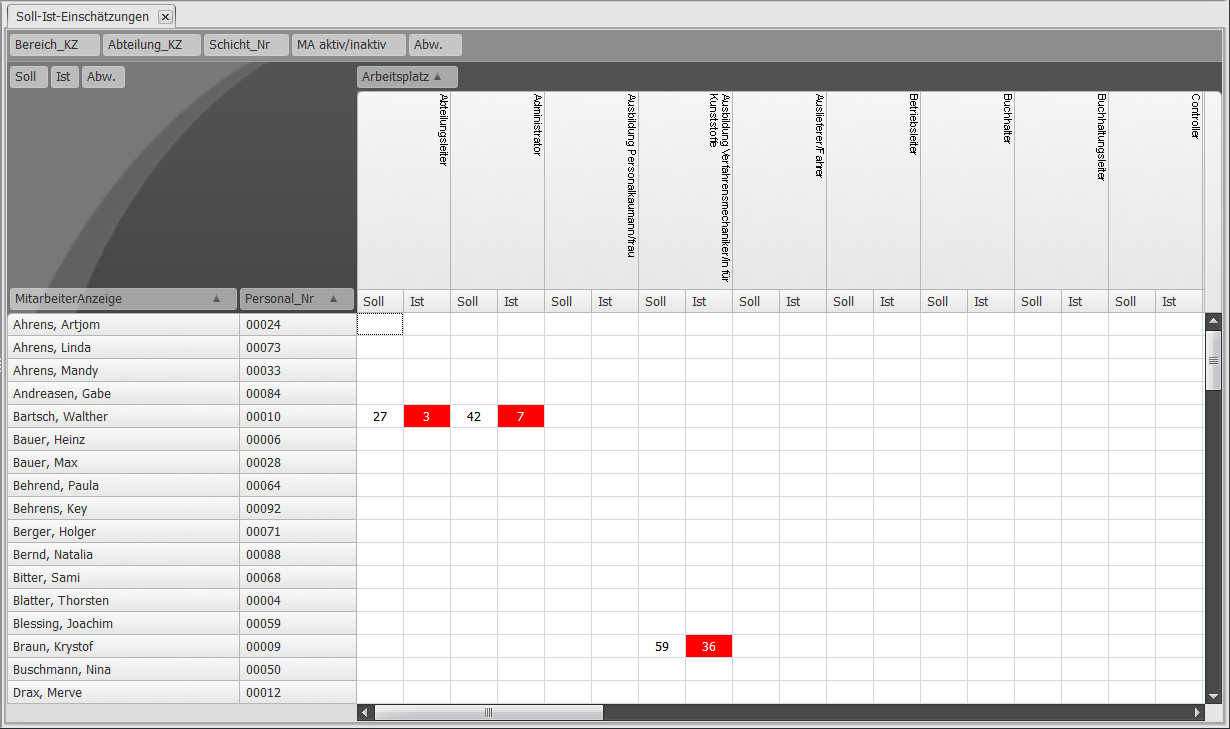
Here you again find the TARGET and ACTUAL table columns. Whether an employee is marked red or green depends on two factors:
If the employee has more ACTUAL than TARGET points and thus meets your requirements for your employees, they are marked green.
If even a single individual task shows a negative deviation from ACTUAL to TARGET points for an employee, they are marked red in the target/actual assessment, even though they may have more ACTUAL than TARGET points overall.
You can change the displayed data according to the settings.
The context menu of a cell allows direct access to
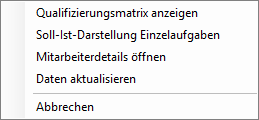
Furthermore, a view of the target/actual assessment individual task can be reached by double-clicking a single value.