



Creating a Measure
To create a new measure, first select the "Measure management" menu item.
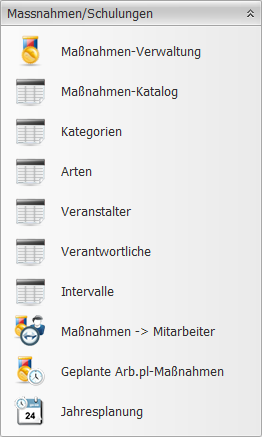
You should now find an empty table.
To populate this table with measures, use the "New measure" function in the menu bar.

In the additional window that appears, select the employee for whom you want to create a measure.
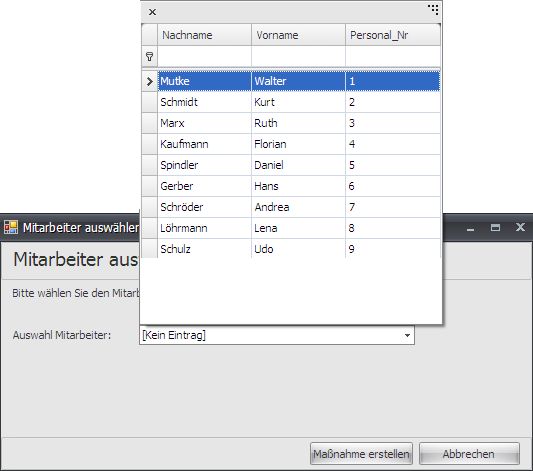
Clicking "Create measure" takes you to the measure details.
Measure details
The measure details contain all important information about a measure.
Here you can enter basic information about the topic, location, date, and cost of the measure.
You can also save documents associated with the measure, such as certificates of attendance and certifications.
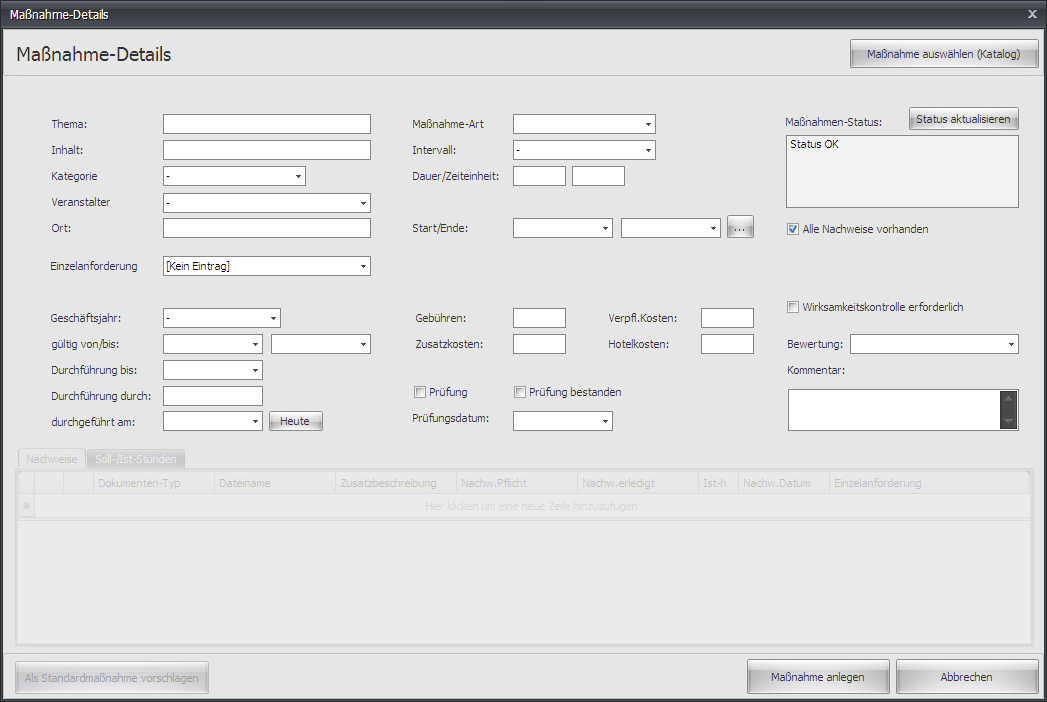
Fill in the form with the corresponding data as needed.
A detailed explanation of the individual fields can be found in the "Measure details" section.
| Fiscal year | Select the fiscal year the measure falls into. |
| Valid from/to | For measures whose qualification proof only has a limited period of validity and must be carried out again afterwards. |
| Completed on | Indicates the date on which the measure was completed. You don't need to consider this entry during planning initially. |
| Interval | If a measure should be repeated at regular intervals, you can specify the interval here. |
| Start/End | The execution period of the measure should be stored here. |
| Effectiveness check required | Check this box if an effectiveness check is required for this measure. |
Confirm your entries by clicking "Create measure".