



New Learning Topic (LT)
Shows you the creation view for a new learning topic (LT).
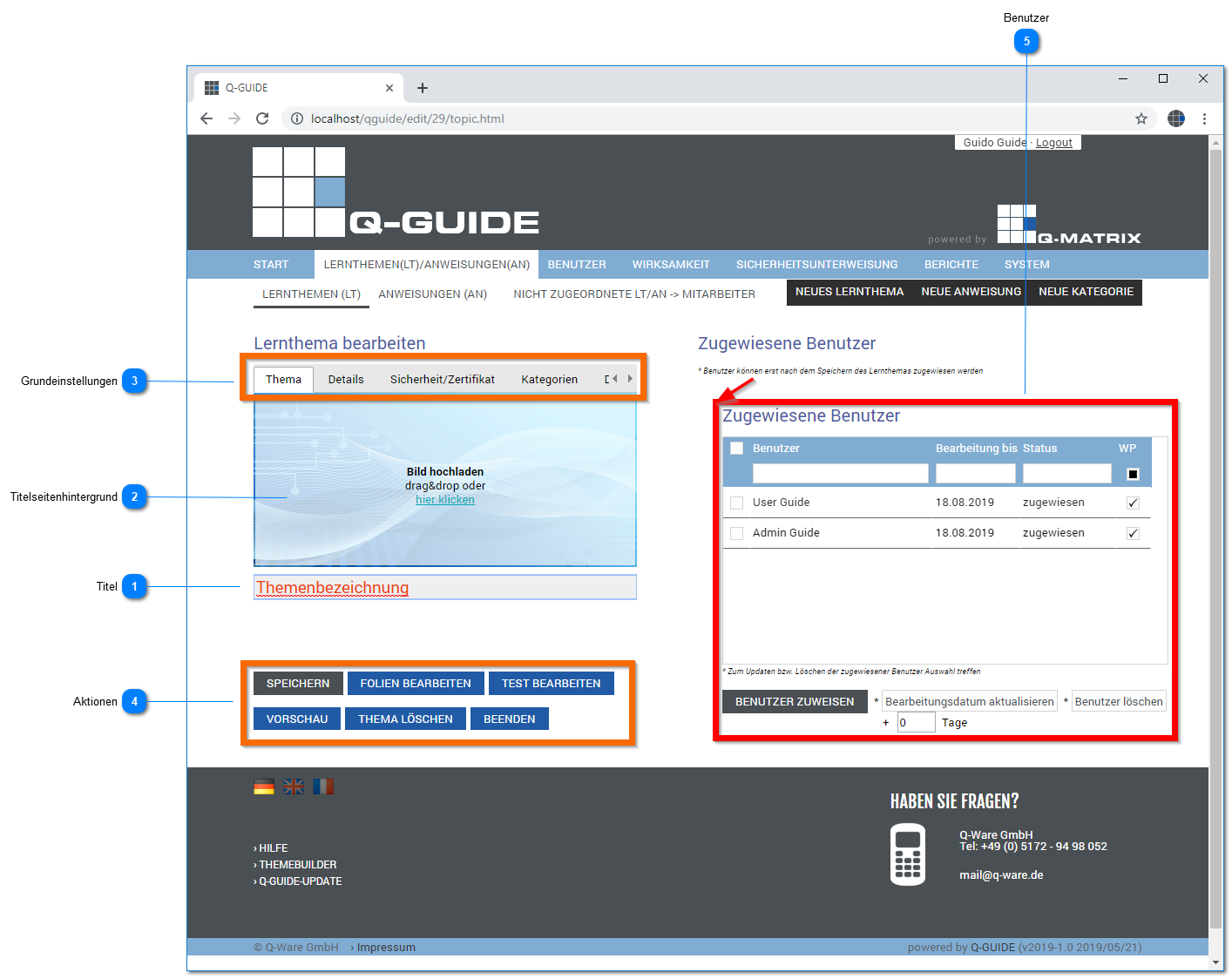
Title
Set the title of the learning topic here.
This title is used in all parts of the program (e.g. overviews, reports).
We recommend keeping the title unambiguous so that you can access a learning topic more quickly.
Title Page Background
If you want to use a special background image for the title page of the learning topic, you can add the desired image here.
Simply drag and drop the desired image here, or use the file selection dialog.
The file selection dialog opens as soon as you press click here.
Basic Settings
A complete description of the individual options can be found in the detailed description of the basic settings.
| Topic | Allows editing of the title and background |
| Details | Define behavior settings and certificate content |
| Security/Certificate | Set process settings |
| Categories | Manage category membership |
| Design | Set the color scheme for the content |
Actions
| Save | Saves all current settings and content for the learning topic with a message confirming completion of the process: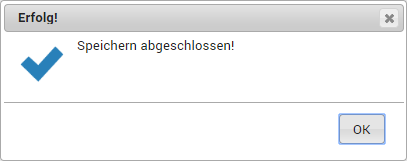 |
| Edit Slides | Opens the editing view for the learning topic |
| Edit Test | Opens the test editing view for the learning topic |
| Preview | Opens a simulated user access for working through the learning topic in a new tab |
| Delete Topic | Deletes the current learning topic upon confirmation: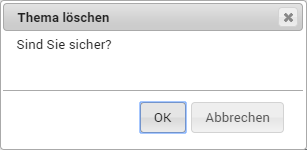 |
| Finish | Closes the current editing view and opens the overview of all learning topics (LT) |
Users
As soon as the empty new learning topic is saved, a tabular overview of the assigned users (initially empty) is displayed here.
The following information and actions are then available:
| Selection Table |
This information is displayed:
| ||||||||||
| Assign User | Opens the assignment view for learning topics | ||||||||||
| Update Processing Date |
There are two (2) options for changing the date:
Then click this button to fix / change the processing date Note: Leave the numeric value at 0 (zero) in the +N Days field if you want to set an individual date per user. If a value greater than zero (0) is used in the +N Days field, that value is always added to the date. | ||||||||||
| Delete User | Deletes the assignment for the selected user(s) (no deletion confirmation is shown) | ||||||||||
| +N Days | Moves the processing date for the selected user(s) forward by N days |
 ), and the row is selected (
 ). The selected row is also highlighted with a light blue background to indicate the selection.