
Email
With the management view for editing email templates, you can change all default templates (Usable only by the ROOT role).
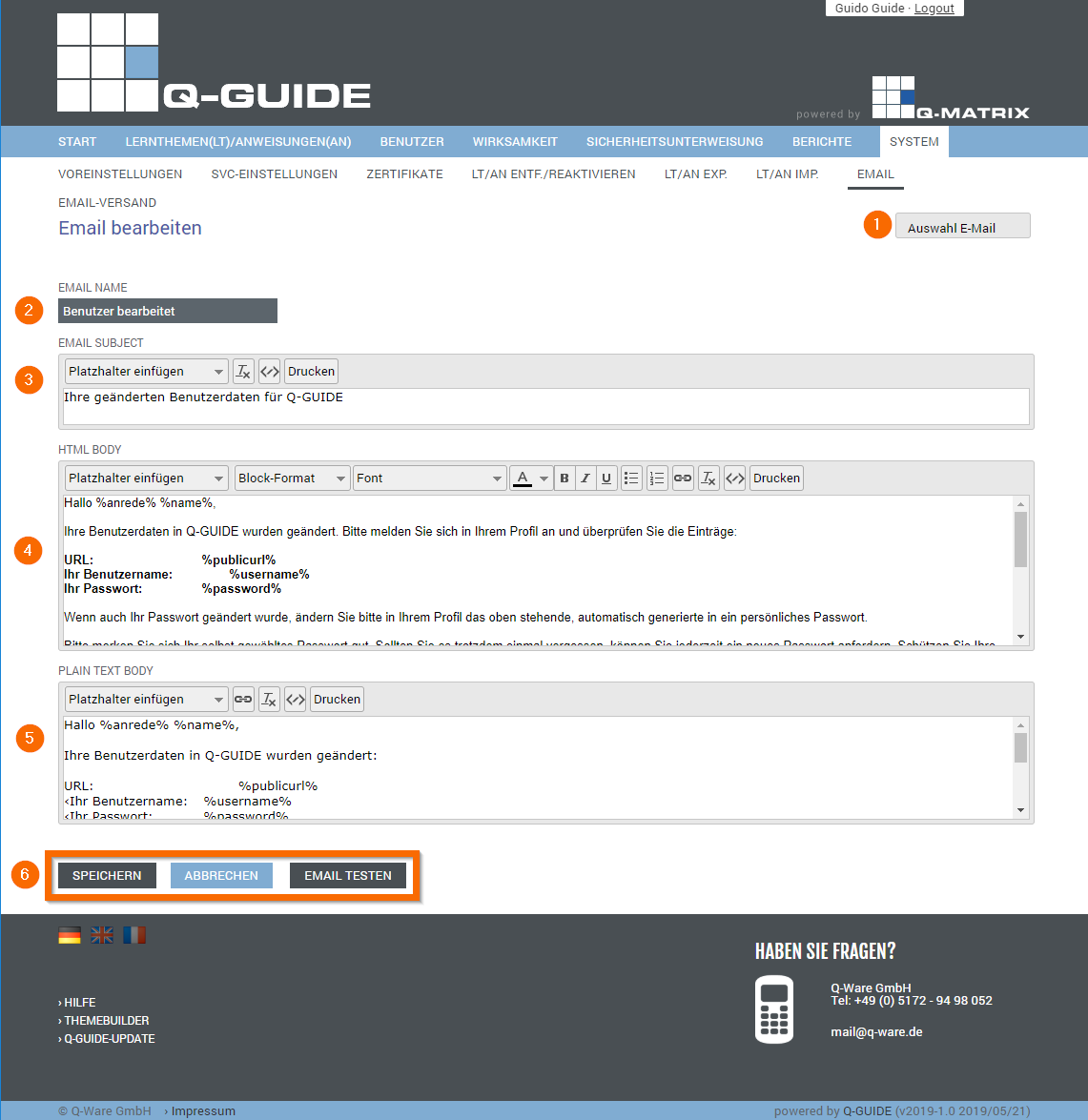
| 1) Template Selection |
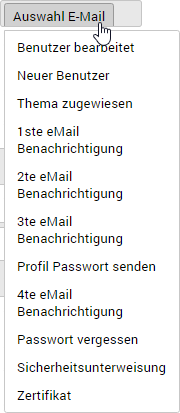 |
1) Move the mouse pointer over this button, and a drop-down list of the available email templates is shown.
2) Select the desired email template (highlighted in gray) by clicking the desired name with the left mouse button
|
|
| 2) Template Name | Shows the name of the email template. You cannot change the name! |
| 3) Email Subject | Enter the desired subject for the selected email template |
| 4) Email Content (HTML) | Enter the desired HTML content for the selected email template here. HTML content offers various formatting options, for example text in bold, italic, or underlined. |
| 5) Email Content (TEXT) | Enter the desired text content for the selected email template here. Plain text messages have no formatting. |
| 6) Actions |
| Save | Applies all the settings you have made to the database. From this moment on, these settings are active and taken into account. |
| Test Email | Sends this email template according to the preferences to the user for the email test |
|
Further options and formatting are explained in the following sections.


