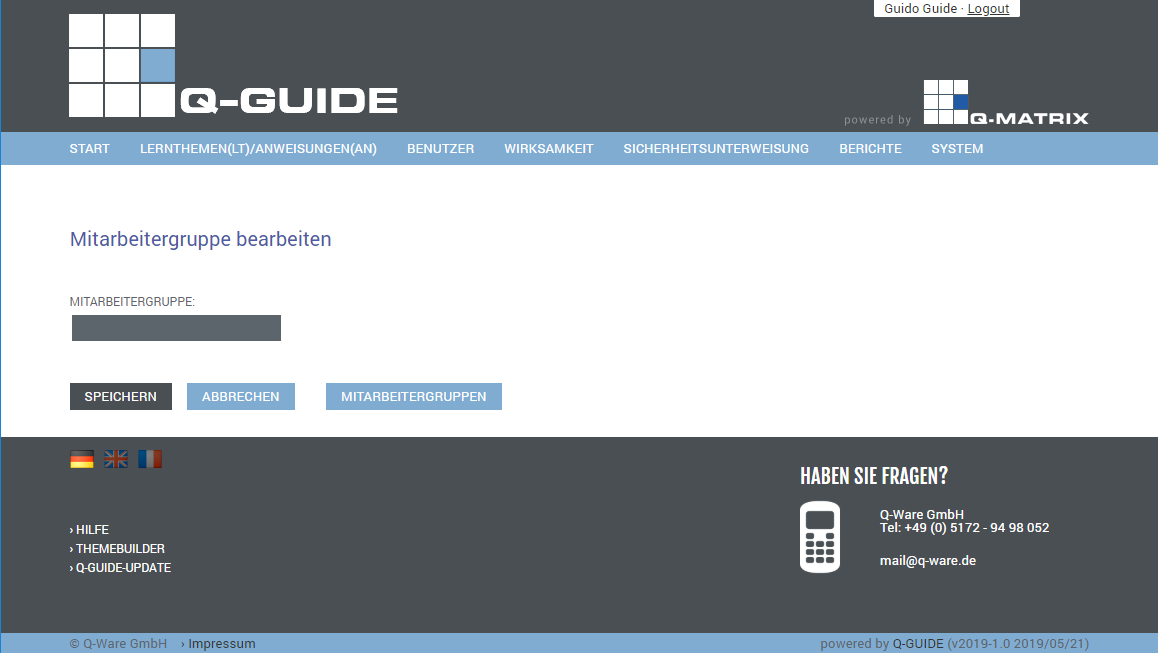
New Employee Group
Shows you the creation view for a new employee group.
Each user can belong to one or more employee groups.
If the Group field is displayed empty, you can assign a new group.
To do so, enter the group name you want, for example New Hire, and click Save.
You will then be shown the group overview.
This view is also shown when you click the Employee Groups button.
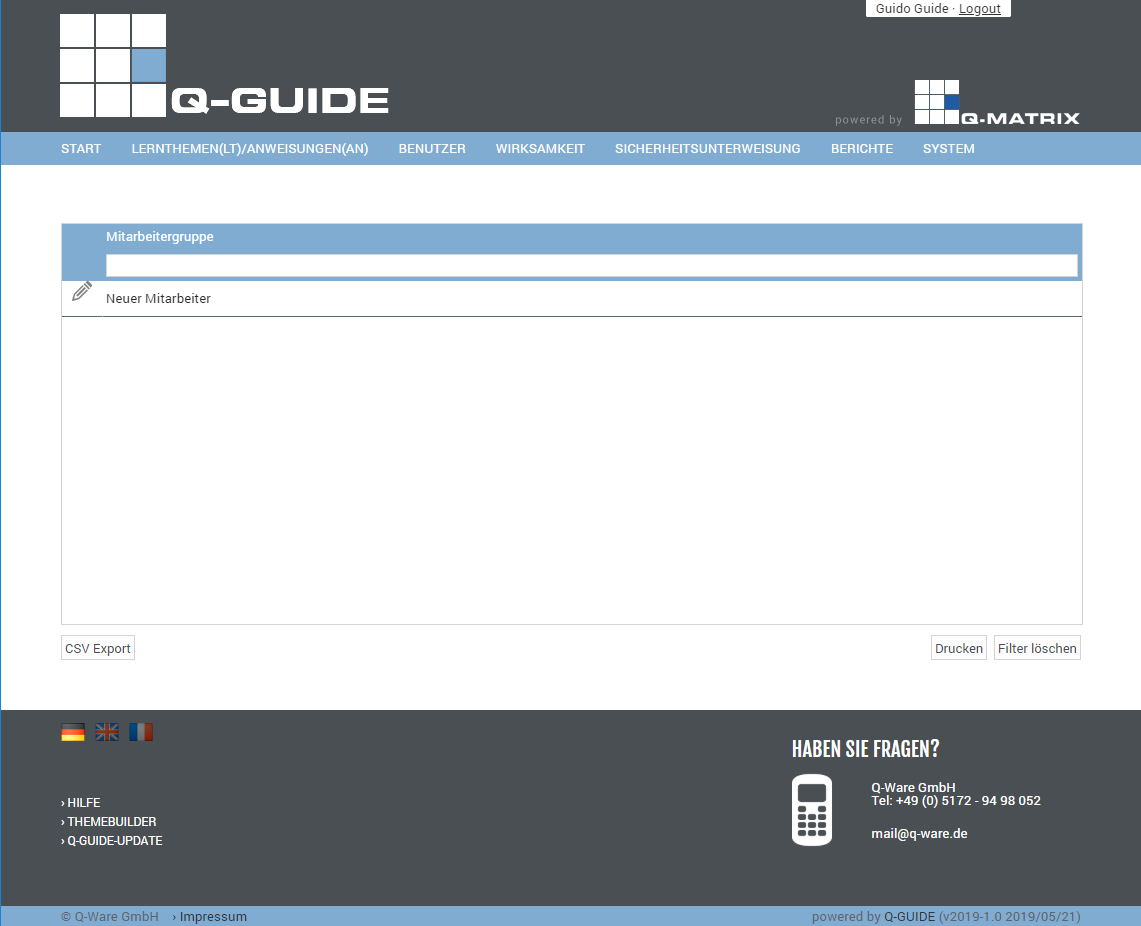
Group Overview
Shows you all available groups for management in a tabular overview.
Click  to edit a group.
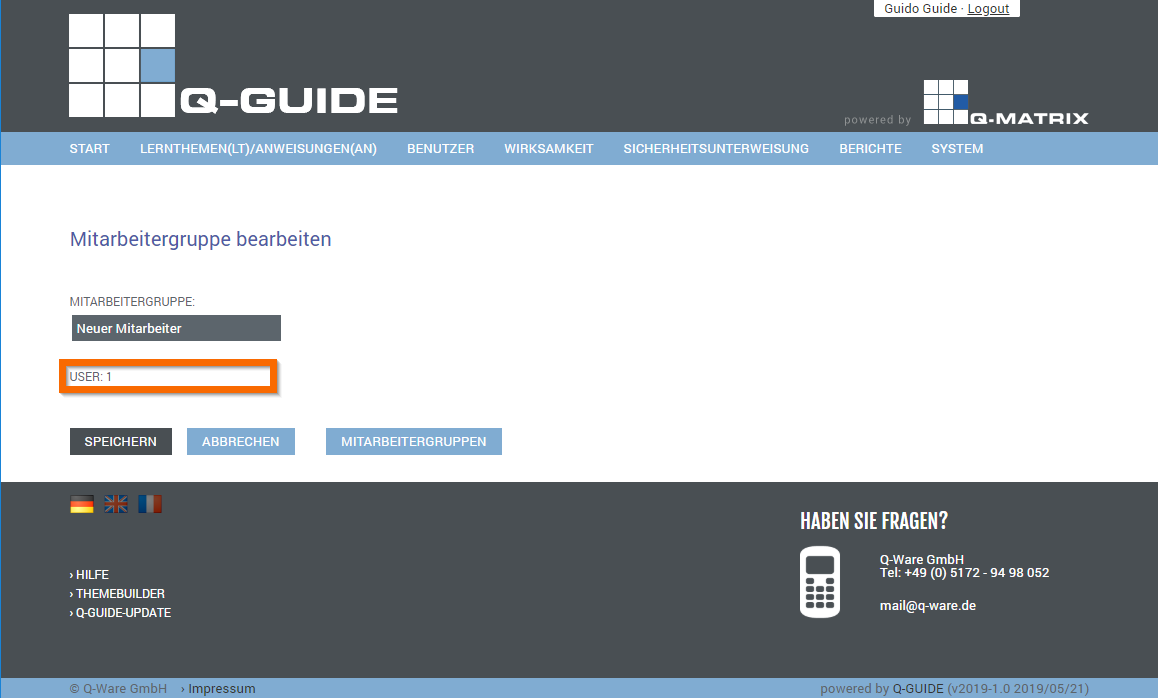
Edit Group
When you edit a group, the number of times this group is assigned to a user is shown below the group name.
If the assignment count is zero (0), meaning the group is not assigned to any user, you can delete the group using the  button.