



Theme
Use this function to manage essential settings (e.g. colors, logos) for the user interface.
Currently, the main colors (background, header background, gray1, gray2, blue1, blue2) as well as the logo can be set.
For the color settings, use the color management menu on the right.
The logo can be set via the file selection menu above as well as the 4 buttons.
You can also set the general design of the user interface.
Additional functionality will only be available in later versions.
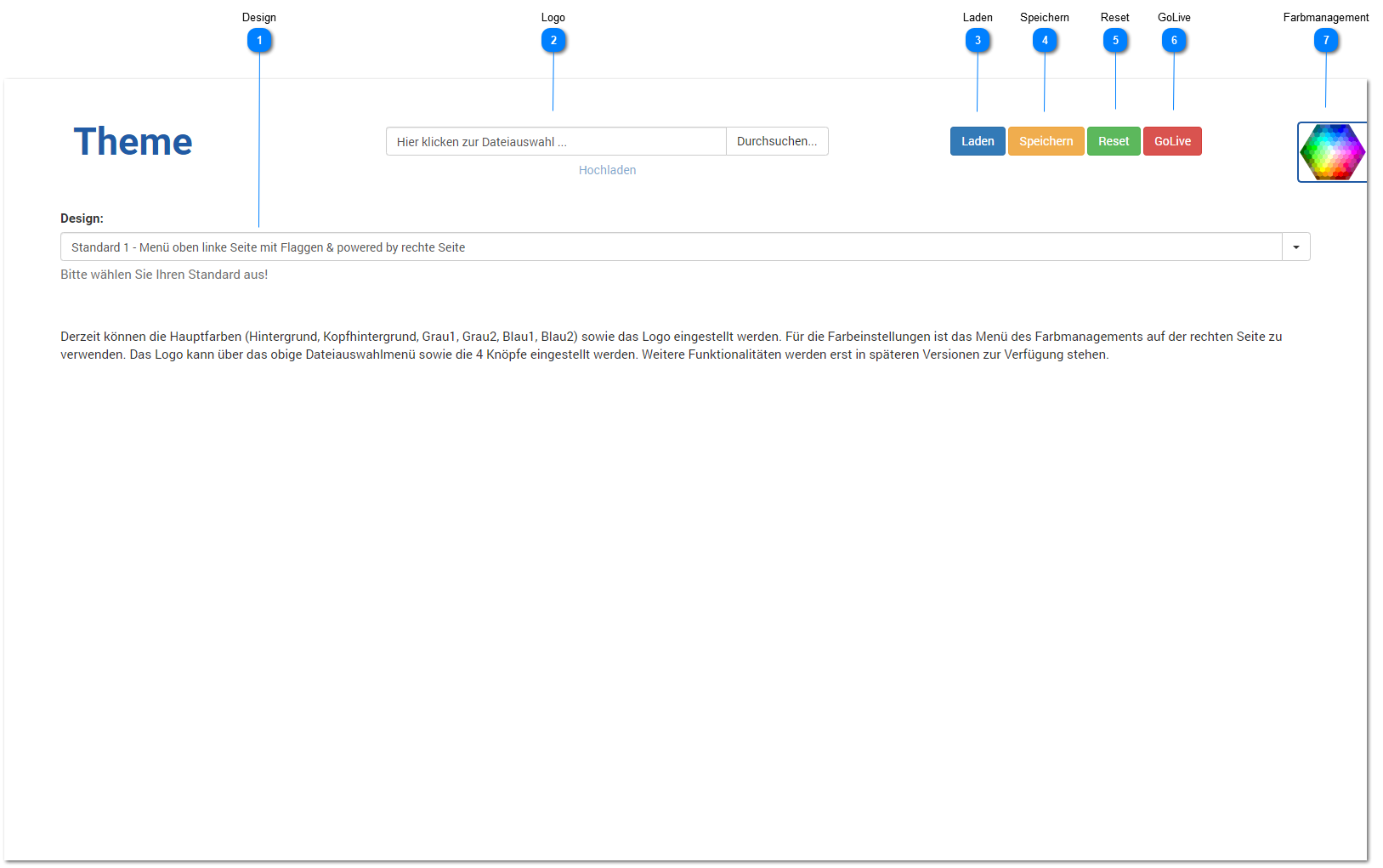
Design
You currently have two (2) different general designs available.
You can choose between
- Standard 1 (menu at top left with flags & powered by on the right) and
- Standard 2 (menu at top right with flags on the left and no powered by)
selecting one.

Logo
Click Browse to upload a new image (allowed file extensions are .JPG, .JPEG, .GIF, and .PNG).
The maximum size of the image file is limited to 512 KB, and the image is always converted to a height of 45 pixels for use.
This "compression" is performed to avoid real-time scaling of images.
Examples:
- The image file is 200 pixels high and 400 pixels wide.
After uploading, the image is then saved and displayed at 45 pixels high and 90 pixels wide. - The image file is 100 pixels high and 200 pixels wide.
After uploading, the image is then saved and displayed at 45 pixels high and 90 pixels wide.


Note:
It may be necessary to refresh the browser cache. Press Shift + F5 to do this.
Load
If your desired saved colors are not shown, you can click this button to load and activate the saved colors.
Note:
It may be necessary to refresh the browser cache. Press Shift + F5 to do this.
Save
Clicking this button permanently saves your current settings (colors, logo, design).
Note:
It may be necessary to refresh the browser cache. Press Shift + F5 to do this.
Reset
Clicking this button loads and activates the default settings (colors, logo, design).
Note:
It may be necessary to refresh the browser cache. Press Shift + F5 to do this.
GoLive
Clicking this button activates your settings for the entire user interface and all users.
Note:
It may be necessary to refresh the browser cache. Press Shift + F5 to do this.
Color Management
Clicking this button  opens the color management menu on the right side of the screen.
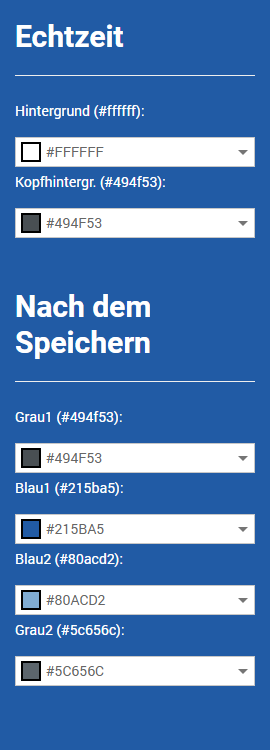 |
The colors are shown with two (2) different visibilities:
Real-time settings:
Save settings:
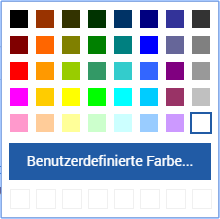
Clicking one of these color setting items opens the default color picker:
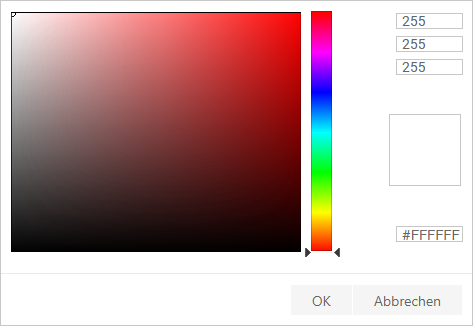
Clicking Custom Color ... opens another color picker dialog, in which you can then select the color in RGB mode (top right, example: white = 255, 255, 255), in HEX mode (bottom right, example: white = #FFFFFF), or by clicking the color in the color square spectrum depending on the selected main color of the vertical color space. Selecting the color or clicking OK applies the selected color value as a HEX number for the selection. |
Note:
It may be necessary to refresh the browser cache. Press Shift + F5 to do this.