



Unassigned LT/AN ► Employees
Shows you a tabular overview of all LT/AN not assigned to any employee.
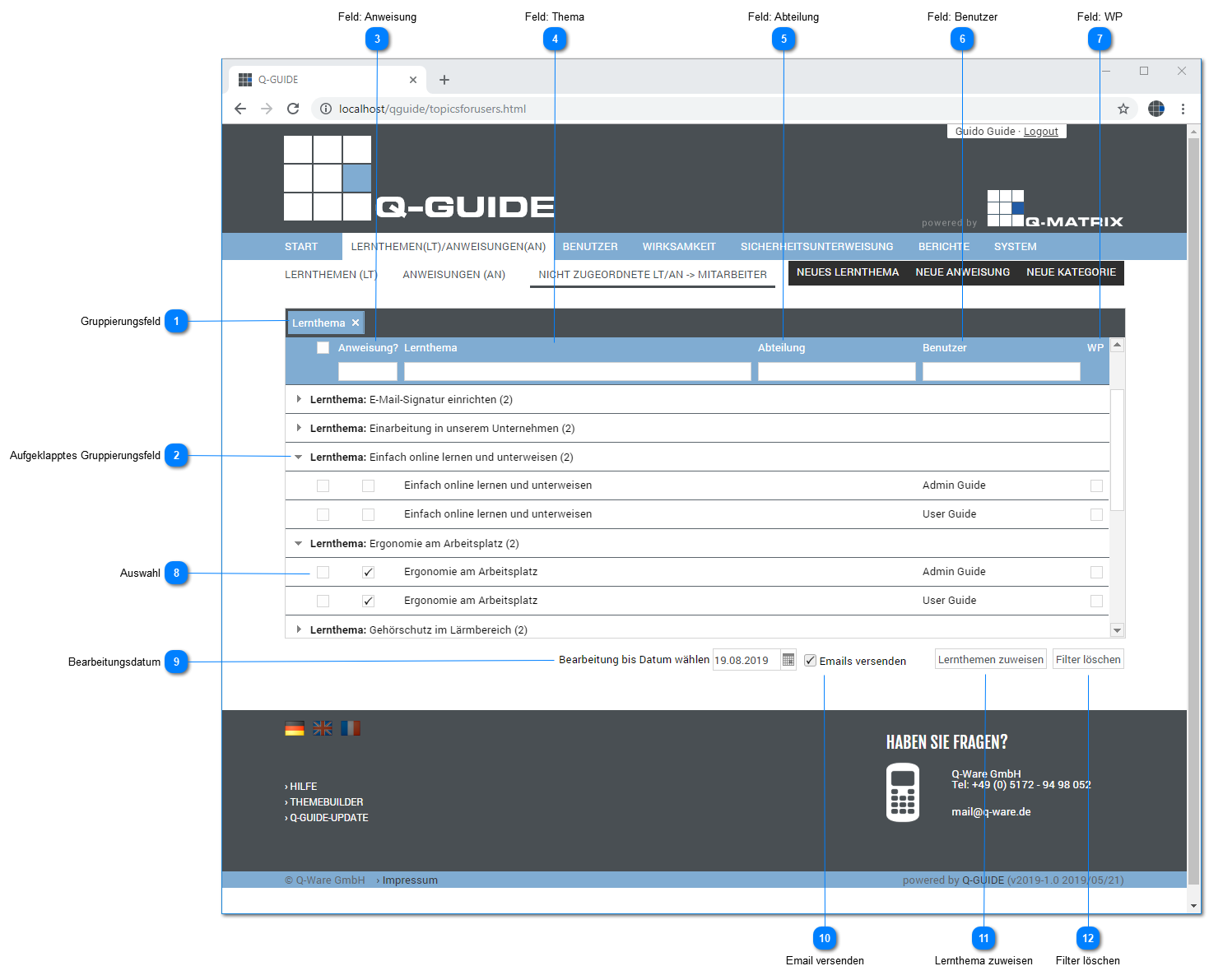
Grouping Field
When this tabular overview is opened, a grouping for the topic is always displayed initially.
You can remove the grouping by clicking the X.

You can then click a column header with the left mouse button, hold the left mouse button down, and drag the column header into the upper grouping row, then release the left mouse button.
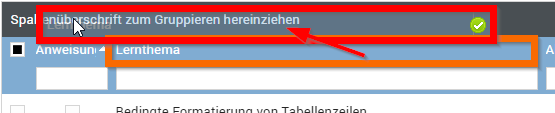
The result is a grouping of the table by this new column header (e.g. user).
Expanded Grouping Field
In a grouped tabular overview, you can open the collapsed grouping by clicking ►.
If you want to collapse the open grouping again, click ▼, and the collapsed grouping is displayed again.
Field: Instruction
This column shows you whether it is a learning topic ( ) or an instruction (
 ).
).
Field: Topic
This column shows you the topic / title of the learning topic / instruction.
Field: Department
This column shows you the department of the associated user.
Field: User
This column shows you the user.
Field: WP
This column shows you whether the learning topic / instruction requires / has an effectiveness check (Wirksamkeitsprüfung) set.
Selection
In this column, you can specify for each learning topic/instruction whether it should be assigned to the displayed user.
Simply click this icon (), and the row is selected ().
The selected row is also highlighted with a light blue background to indicate the selection.
Processing Date
Set the processing date by which this learning topic/instruction should be worked through by the user.
Clicking in the text field lets you enter the date directly, for example day.month.year
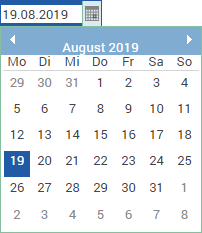
Clicking the small calendar icon on the far right lets you select the date in the dialog that opens.
To do this, simply click the desired date in the dialog, and it is applied to the text field for the processing date.
Send Email
Here you can specify whether emails should be sent (small checkbox checked) when the selected learning topics/instructions are assigned to the selected users for the set processing date.
The following email template is used by default for sending:
new task in Q-Guide for %vorname% %name%
Hello %anrede% %name%,
a new learning topic is ready for you in Q-Guide:
%topictitle%
Please process the topic by %date_deadline% at the latest.
Log in to your Q-Guide right away with your access data and check which of your learning topics are still open.
URL: %publicurl%
If you have any questions, please contact your internal point of contact.
Support Phone: +49 5172 94 98 052 Email: [email protected]
Best regards
Your Q-Guide team
Assign Learning Topic
Clicking this button assigns the selected learning topics/instructions to the selected users for the set processing date.
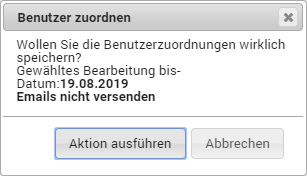
Confirming the Execute Action button carries out the assignment.
If emails are to be sent, they are sent to the stored email addresses of the users.
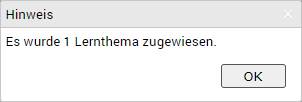
A message is displayed regarding the success of the assignment.
Clear Filter
Clicking this button removes all filters set in the tabular overview.
All learning topics/instructions are then visible for all users.