



Status of Learning Topics
Shows you the tabular report for the status of all learning topics for all users.
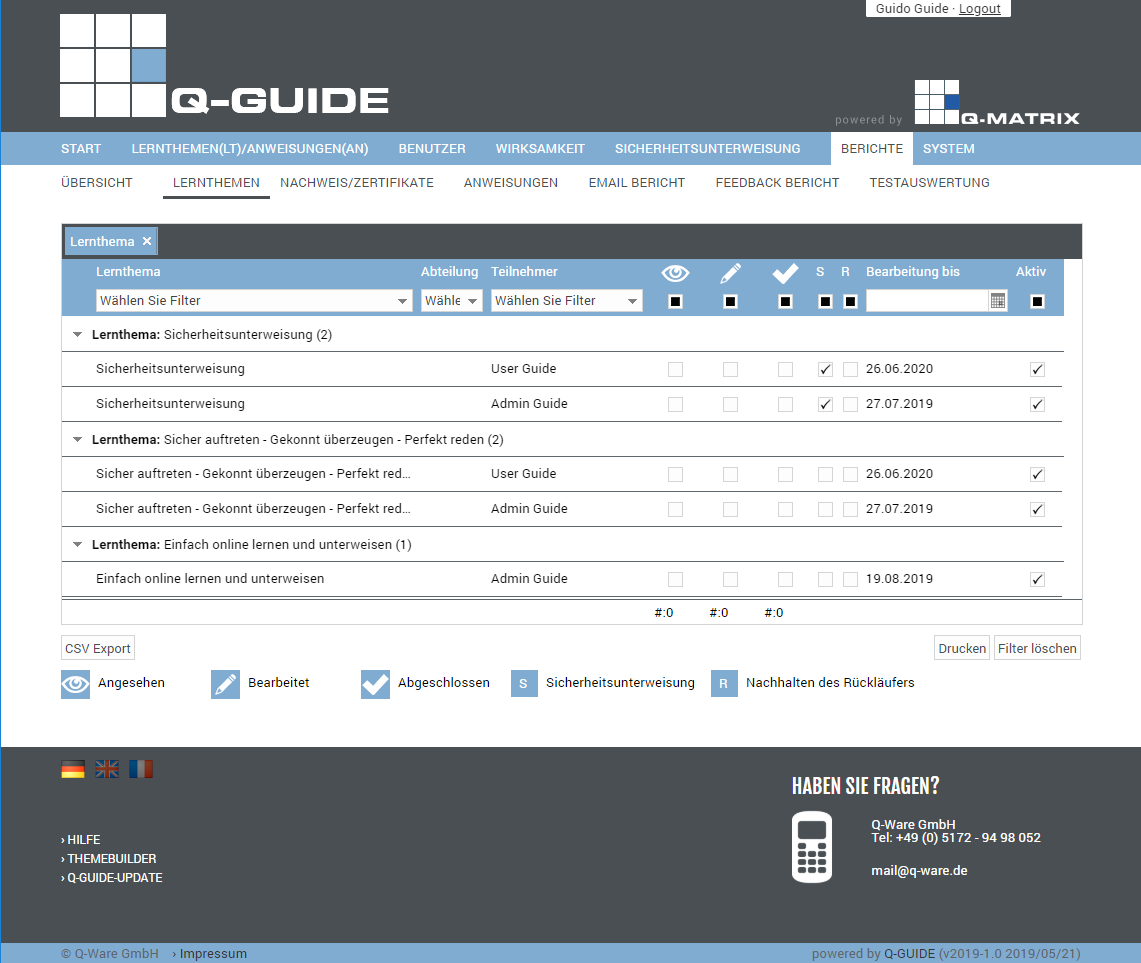
You can view the following information:
|
When this report is opened, a grouping by learning topic title is always shown initially. You can remove the grouping by clicking the X. 
Grouping options 1) You can click a column header with the left mouse button, keep the left mouse button held down, drag it into the column header in the upper grouping row, and then release the left mouse button. 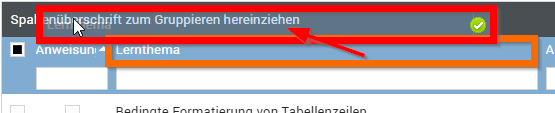
The result is a grouping of the table by this new column header (e.g. user). 2) You can also achieve a grouping by selecting it via the field selection (click the top right of the table header column): 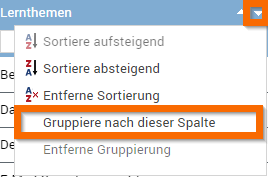
| |
| Learning Topic | This column shows the title of the learning topic |
| Department | This column shows the user's department |
| Participant | This column shows the name (first and last name) of the user |
| Viewed | Shows you whether the user has started the learning topic ( ) or not ( ) or not ( ) ) |
| Processed | Shows you whether the user has already processed the learning topic (knowledge test completed) () or not () |
| Completed | Shows you whether the user has completed the learning topic () or not () |
| Safety Instruction | Shows you whether the learning topic is classified as a safety instruction () or not () |
| Return Tracking | Shows you whether a return has been tracked for the learning topic () or not () |
| Due By | Shows you the date by which the learning topic had to be completed |
| Active | Shows you whether the learning topic is still active () or not () |
You can use these functions:
| CSV Export | Exports all data shown in the table to the file "Benutzer Liste Stand vom <today>.csv" as a CSV file. The CSV file contains the fields listed in the table as columns. |
Opens the browser's print preview for this table (for example, in Google Chrome):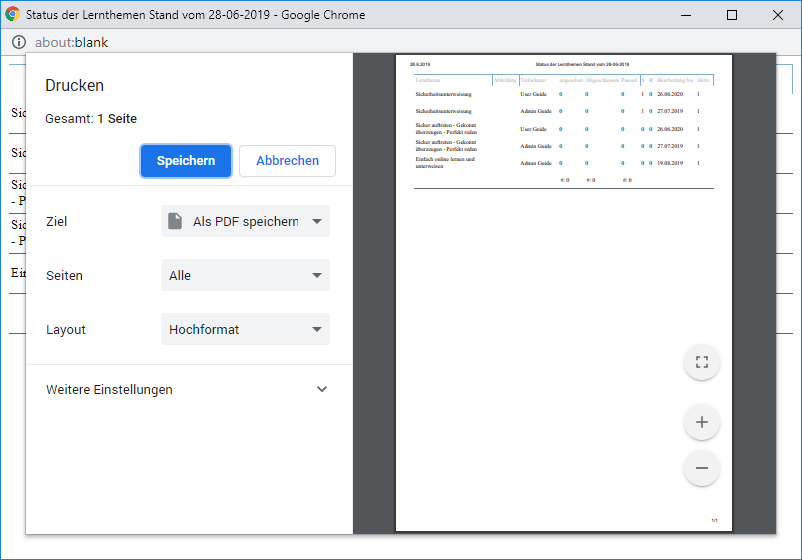 | |
| Clear Filter | Clears all filters / settings for the user data selection, and after clicking this button, all available records are displayed. |