



Certificates
Opens the management of the general certificate settings (Usable only by the ROOT role).
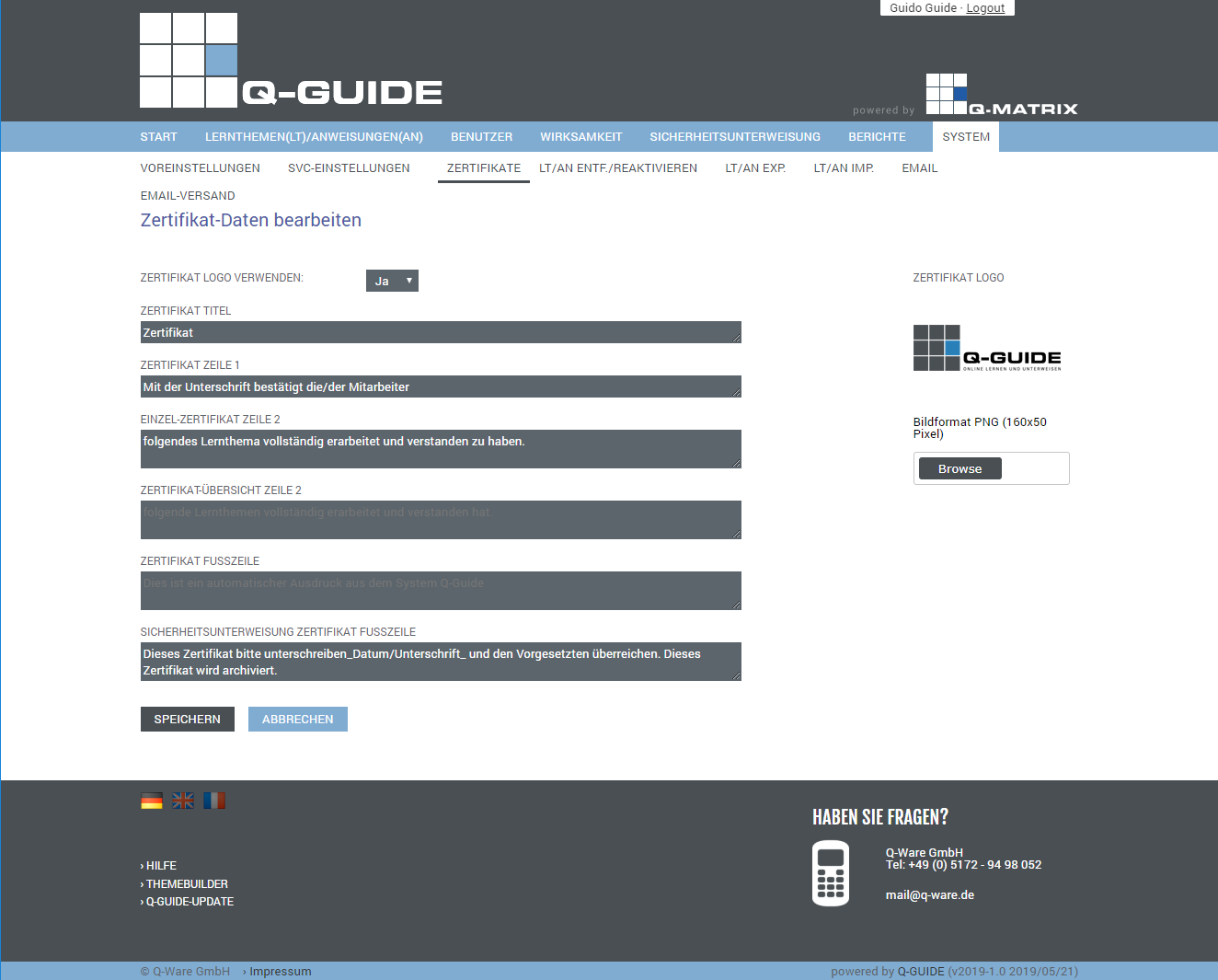
You can make the following settings:
| Use Logo | Specify whether the configured logo (visible on the right) should also be printed on the certificates or not |
| 1) Logo | Shows you the currently configured logo. Clicking Browse opens a file selection dialog. Please select an image file in PNG format with a size of 160x50 pixels. Other image formats are ignored, and if the image size exceeds the specified dimensions, the logo is cropped (160x50 pixels) for use. |
| 2) Title | Define the title for your certificates, for example Q-Guide Certificate |
| 3) Line 1 | Define the first line for your certificates, for example Our employee or With their signature, the employee confirms |
| 4) Single Line 2 | Define the second line for your single certificates, for example has successfully participated in or having fully worked through and understood the following learning topic. |
| 5) Multi Line 2 | Define the second line for your multi-certificates, for example has successfully participated in or having fully worked through and understood the following learning topic. |
| 6a) Footer | Define the footer for your certificates, for example Q-Ware GmbH | Eichendorffstr. 14 | 31224 Peine |
| 6b) Safety Instruction Footer | Define the footer for your safety instructions, for example Please sign this certificate with date/signature and hand it to your supervisor. This certificate will be archived. |
The Save button applies all the settings you have made to the database.
From this moment on, these settings are active and taken into account.
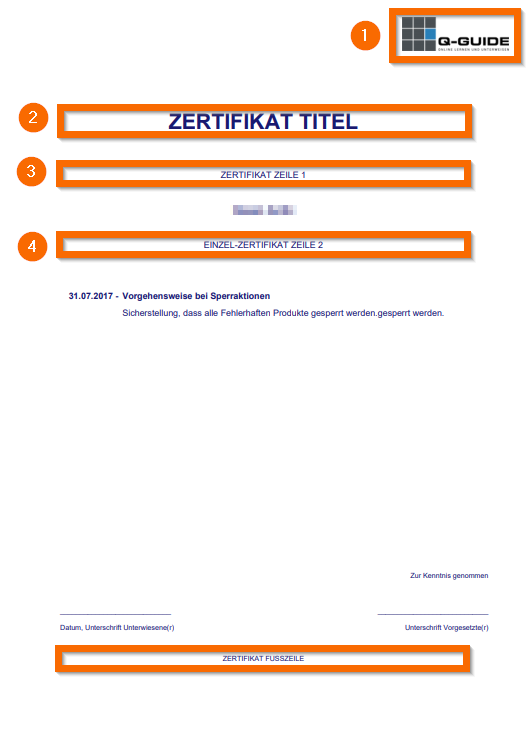
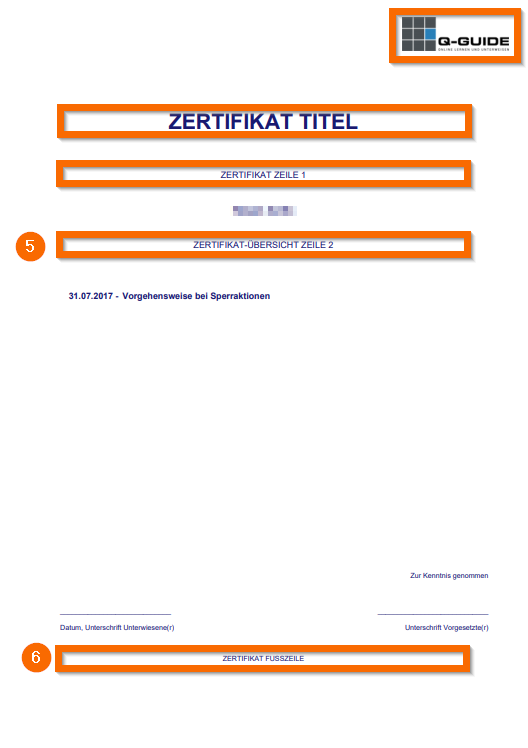
The issued certificates place the above settings (items 1-6) accordingly and look like this:
| Single Certificate | Certificate Overview |
 |  |