


Print Conversation
The print selection for a conversation allows you to generate the various documents:
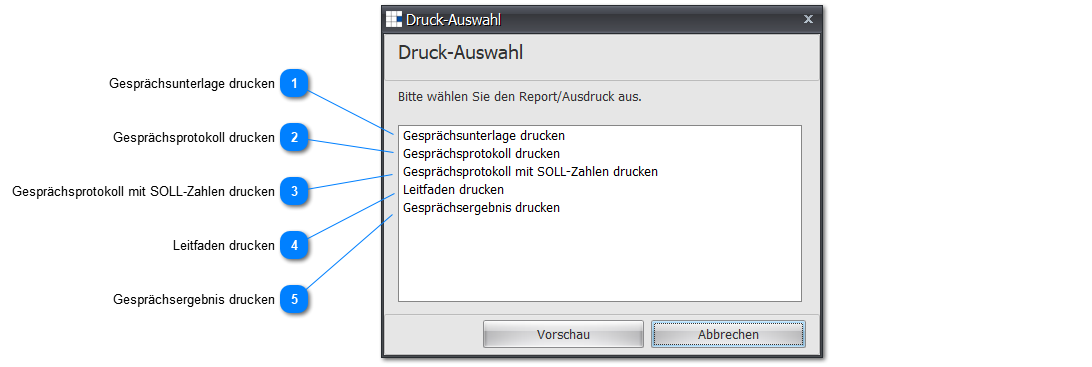
The logo and settings used in the documents are stored in the defaults of the program (see logo and settings).
The print preview includes a special ribbon with the following functions:

| Thumbnail View | Opens a thumbnail view for the pages on the left edge of the page |
| Search | Opens a search dialog for characters and strings below the ribbon |
| Open | Opens a file selection dialog for the *.prnx file format |
| Save | Opens a file save dialog for the *.prnx file format |
| Opens the print dialog with printer selection, number of copies, etc. | |
| Print Immediately | Prints the current document on the PC's default printer |
| Page Settings | Opens a dialog for adjusting the page/paper format |
| Scaling | Opens a dialog for adjusting the scaling of the pages |
| Hand | Sets the mouse cursor for panning |
| Magnifier | Sets the mouse cursor as a magnifier, allowing zoom out/in |
| Zoom Out | Shrinks the page view |
| Zoom | Percentage adjustment (up to 500%) of the page view |
| Zoom In | Enlarges the page view |
| First Page | Goes to and displays the first page |
| Previous Page | Goes to and displays the previous page |
| Next Page | Goes to and displays the next page |
| Last Page | Goes to and displays the last page |
| Multiple Pages | Shows several pages side by side and/or stacked |
| Color | Opens a color selection dialog (has no function for the preview) |
| Watermark | Opens a dialog for defining a watermark (text or image) |
| Export Document | Opens a dialog for exporting. The settings and options are based on the previously specified format. The following formats can be selected: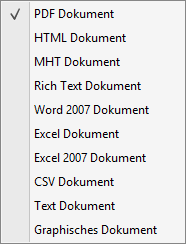 |
| Send Email | First exports the document, then attaches it to an email. The Windows default email program (e.g. Microsoft Outlook) is opened for the email. |
| Close | Closes the preview |
 Print Conversation Documents
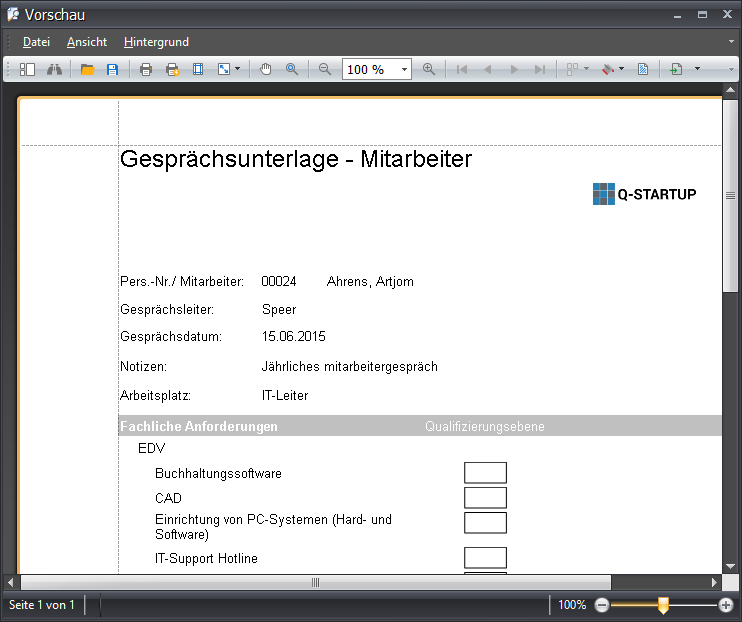
Print the conversation documents to identify strengths and weaknesses during a conversation by assessing the various individual tasks.
If the conversation takes place without digital support, we recommend printing two (2) copies, one for the conversation lead and one for the employee.
The print preview ribbon allows you to process the document further.
 Print Conversation Record
Before the preview of the conversation record is displayed, you can select whether the preview should include the qualification matrix for the employee or not.
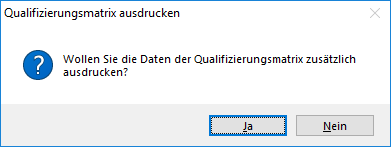
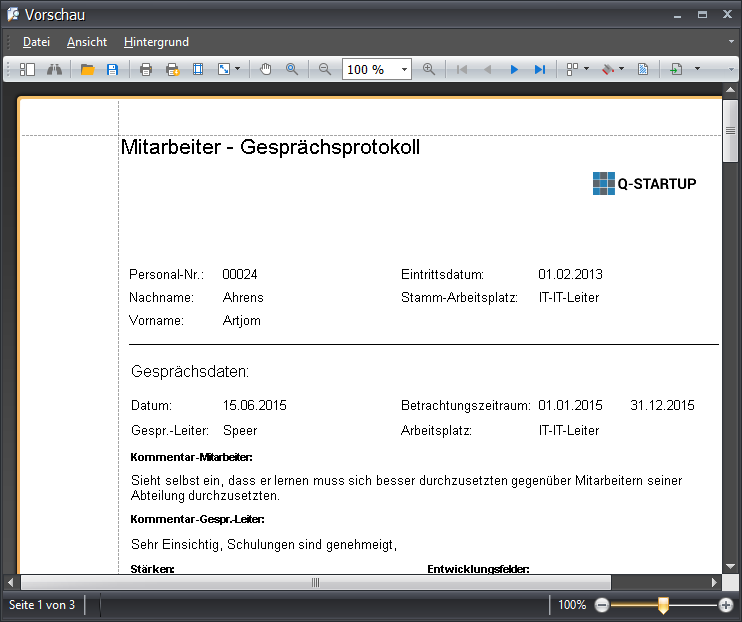
The print preview ribbon allows you to process the document further.
 Print Conversation Record with Target Figures
Like the conversation record print option, but the target values for the qualification matrix are additionally generated.
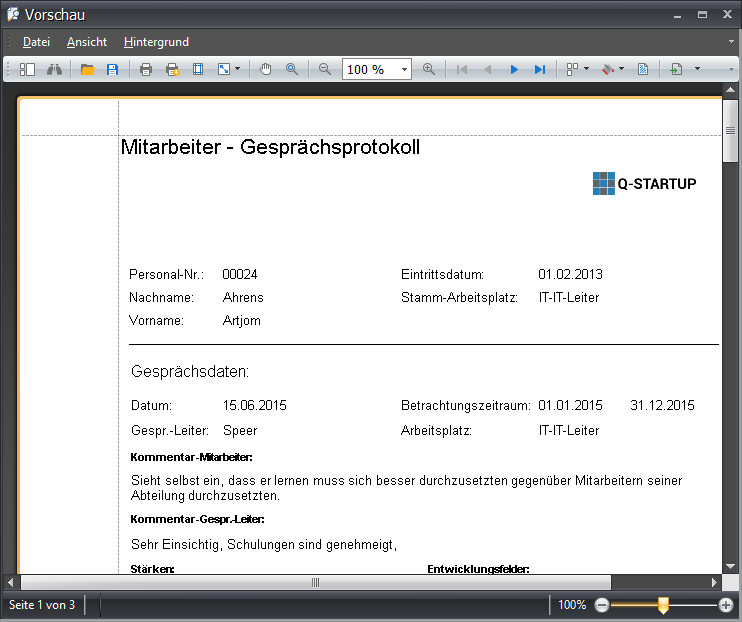
The print preview ribbon allows you to process the document further.
 Print Guide
For the guide to be printed, select the Question Catalogs tab under Functions and mark one of the listed catalogs.
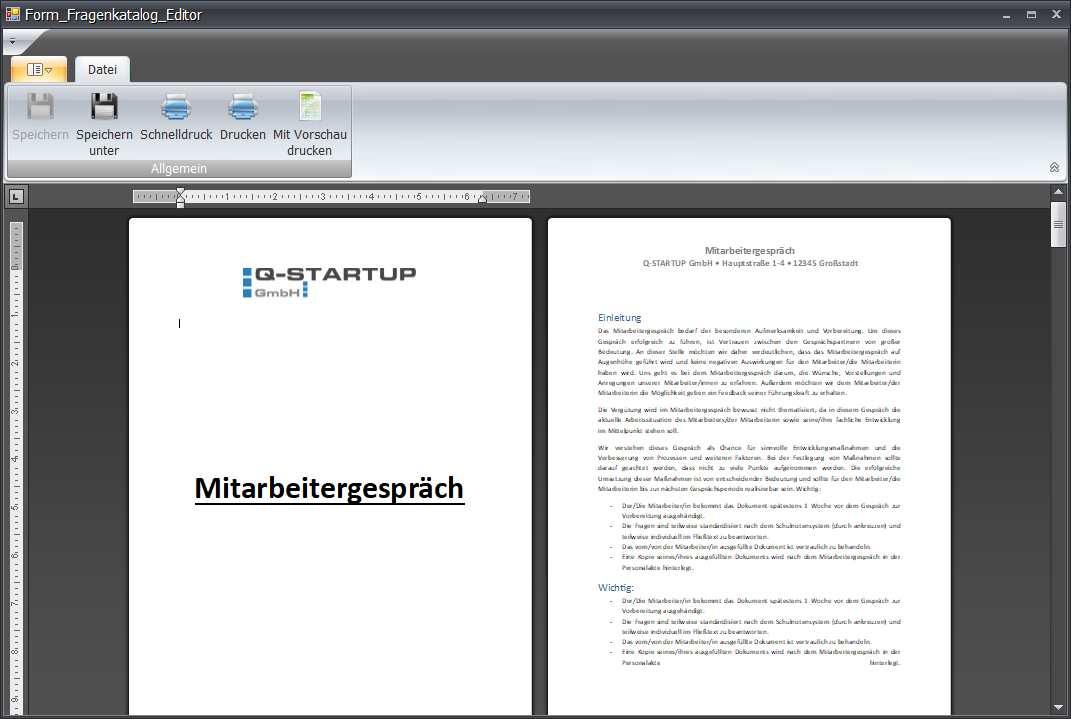
 Print Conversation Result
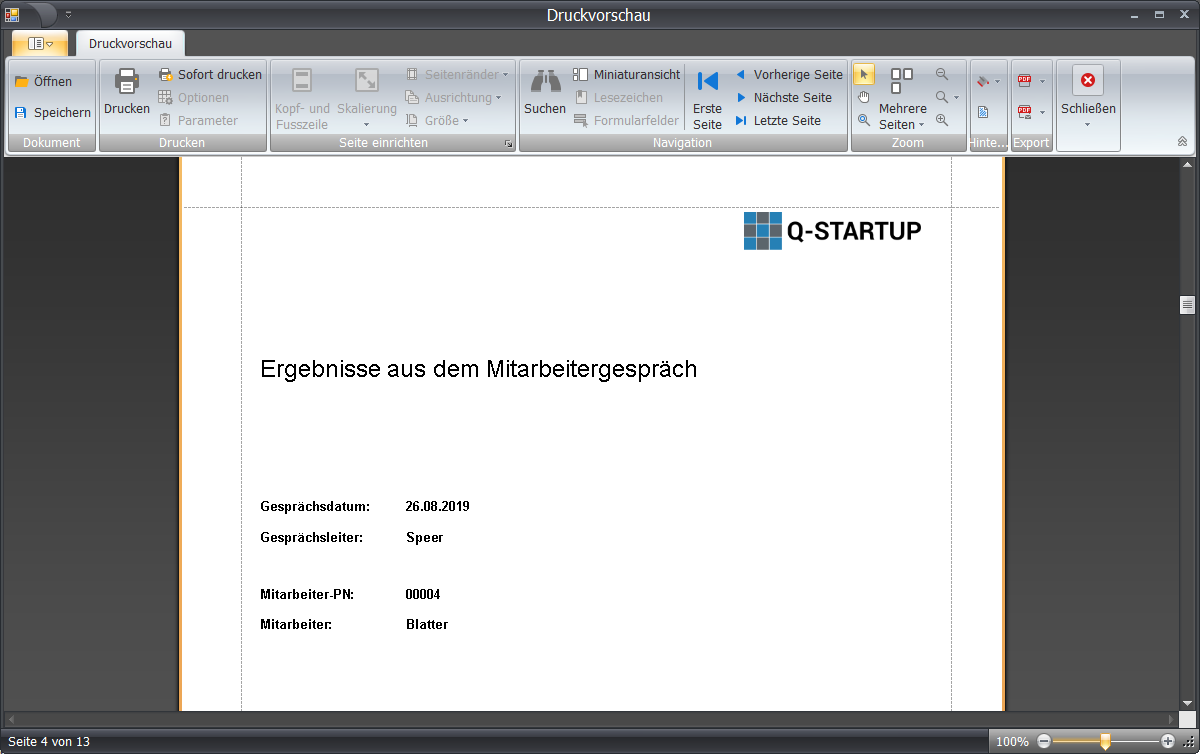
The print preview ribbon allows you to process the document further.