Editing a Test
In the test editing view, you can edit and manage all question slides.
As in the user processing mode, you can navigate between the individual slides via  and
and  .
.
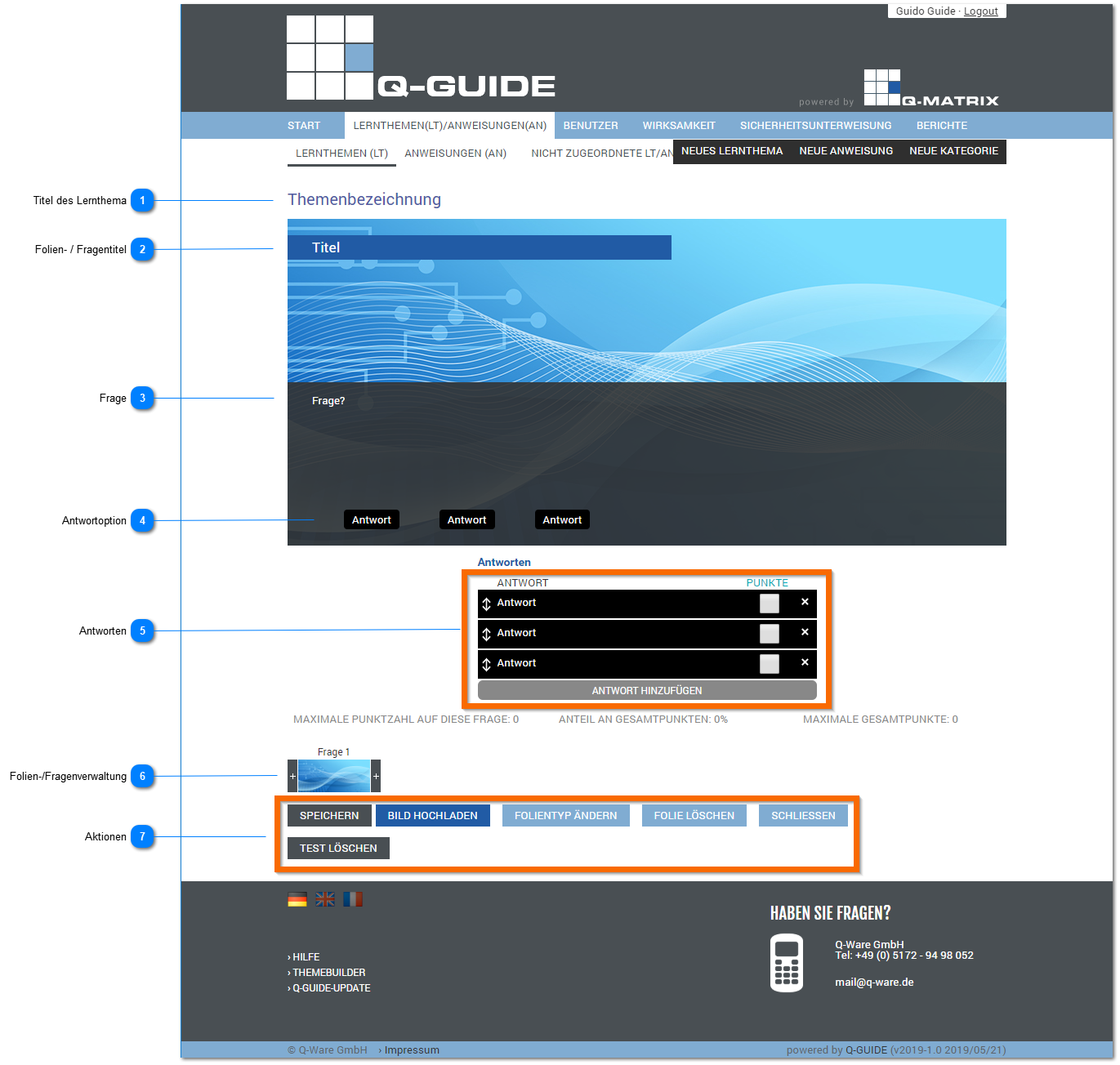
Title of the Learning Topic
Shows you the title of the learning topic.
The title can be changed in the basic settings.
Slide / Question Title
Assign a slide/question title (45 characters can be displayed on the dark blue bar) for this slide type.
Question
Assign a question (110 characters per line [8 lines maximum] can be displayed on the dark gray bar) for this slide type.
Answer Option
Here you can see the configured answer options for this slide type.
Answers
Position  | Clicking with the left mouse button and holding it down lets you move the question to another position. For example, from the first position to the last position. |
| Answer | Assign an answer (40 characters can be displayed on the bar) for this slide type. Note: The answer is output with all characters in the answer option. |
| Points | Check the box (small checkmark) if this answer is a correct answer. |
| Delete | Removes this answer from the answers |
The following information is displayed for each question slide:
- MAXIMUM SCORE FOR THIS QUESTION Shows you, as a numeric value, how many points you can achieve if you answer the question correctly
- SHARE OF TOTAL POINTS Shows you, as a percentage value, how many percent this question contributes to the overall result
- MAXIMUM TOTAL POINTS Shows you, as a numeric value, how many points you can achieve in total if you answer all questions correctly
Slide/Question Management
Before and after each slide thumbnail, a + (plus /  ) is displayed.
Clicking this icon adds another slide before or after the current slide.
Actions
The following actions are available to you for editing each question slide:
| Save | Saves the current question slide with all settings and content.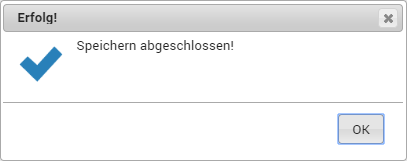 This also happens the first time the new empty question catalog is opened. | ||||||||
| Upload Image | Opens a file selection dialog for uploading an image. The image is used as the background for the current slide. | ||||||||
| Change Slide Type |
Opens the slide type selection dialog:
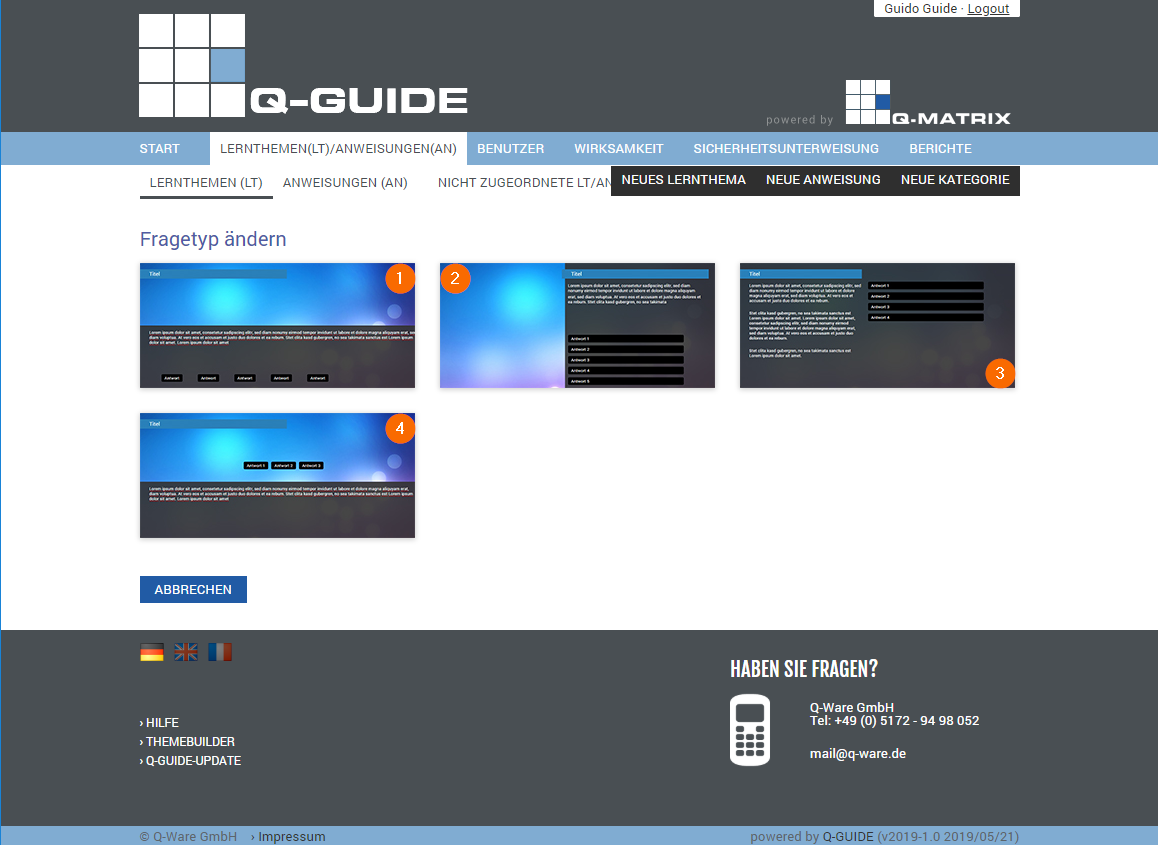
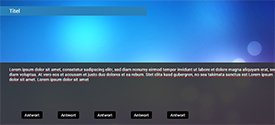
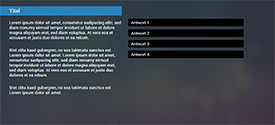
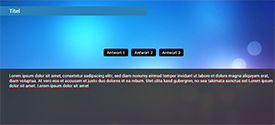
You can choose one of the following slide types:
| ||||||||
| Delete Slide | Deletes the current slide upon confirmation | ||||||||
| Close | Closes the editing view for the knowledge test and returns to the basic settings. | ||||||||
| Delete Test | Deletes the current knowledge test upon confirmation: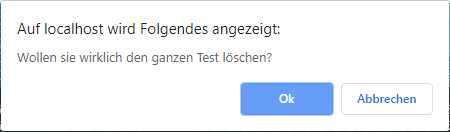 |