



User Interface
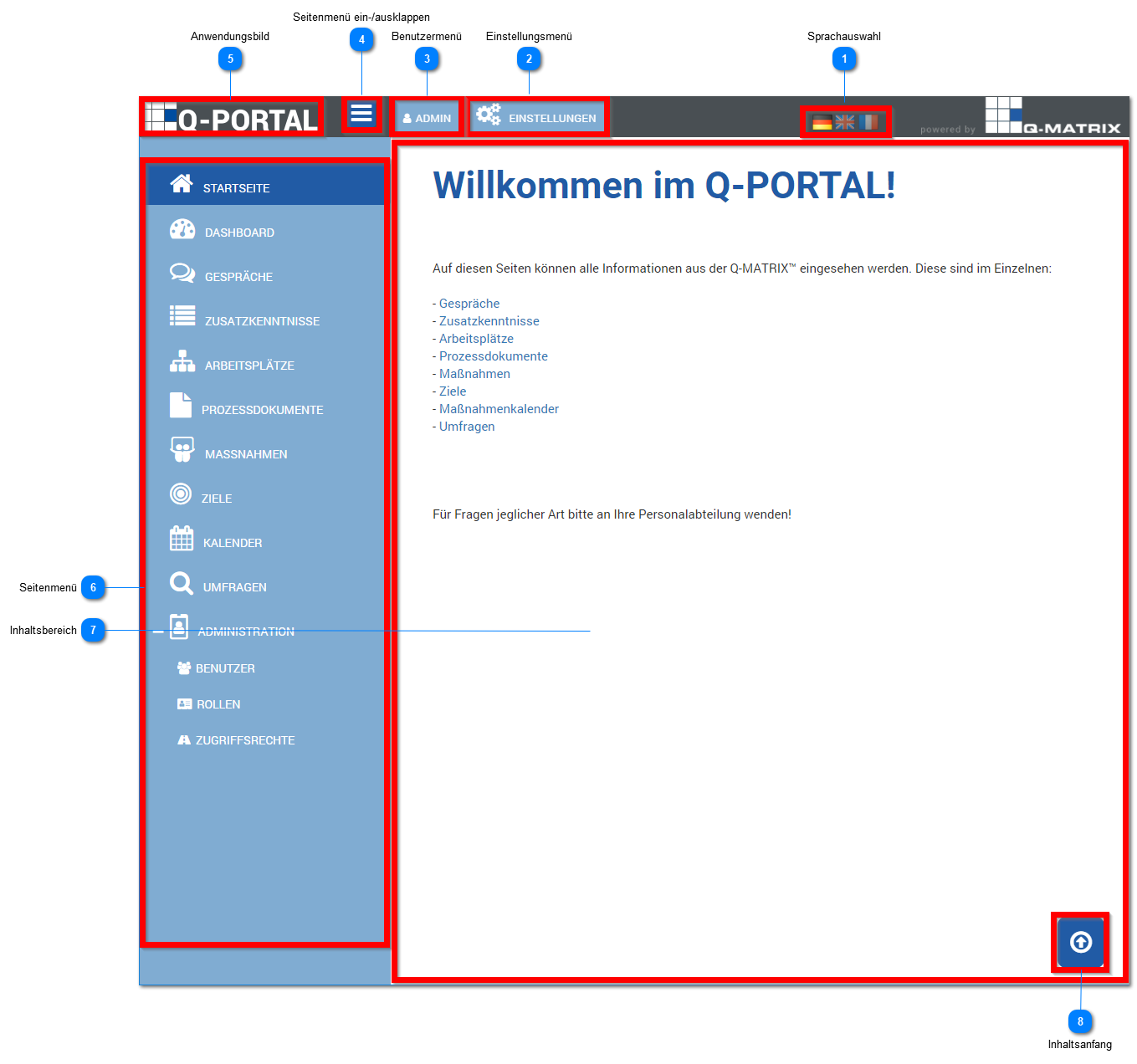
Language Selection
Click one of the flags to select the desired language.
The currently active language is highlighted, while inactive languages are shown darkened.
By default, German is always initially shown as the active language ( ).
).
 | German | Switches the active user interface language to German. |
 | English | Switches the active user interface language to English. |
 | French | Switches the active user interface language to French. |
Settings Menu
This menu can initially only be used by the Administrator and HR Department roles.
If the mouse pointer is in this area, the associated submenu expands.
You can then select one of the submenu's menu items.
User Menu
If the mouse pointer is in this area, the associated submenu expands.
You can then select one of the submenu's menu items.
Expand/Collapse Side Menu
 |
Click this icon ( Clicking the icon again ( |
 ), and the application image and text of the side menu are hidden.
Application Image
The default image is always initially the application's logo.
Your administrator can replace this image with your company logo or another image.
Clicking this image / logo always takes you to the home page.
Side Menu
Here you can find the menu items of the side menu that are visible to you.
The current / active menu item is highlighted in color (dark blue).
If information or actions relevant to you are pending, they are indicated in the menu items with a small number:
 or
or 
Content Area
All information from the various functions is displayed here.
You can find more about this in the user interface.
Back to Top
Clicking this icon displays the screen content from the beginning.
This icon is only visible when you scroll down the content or move down using the browser's scrollbar.