Employee Details
In the employee details, you will find all the relevant information and functions you need for an individual employee.
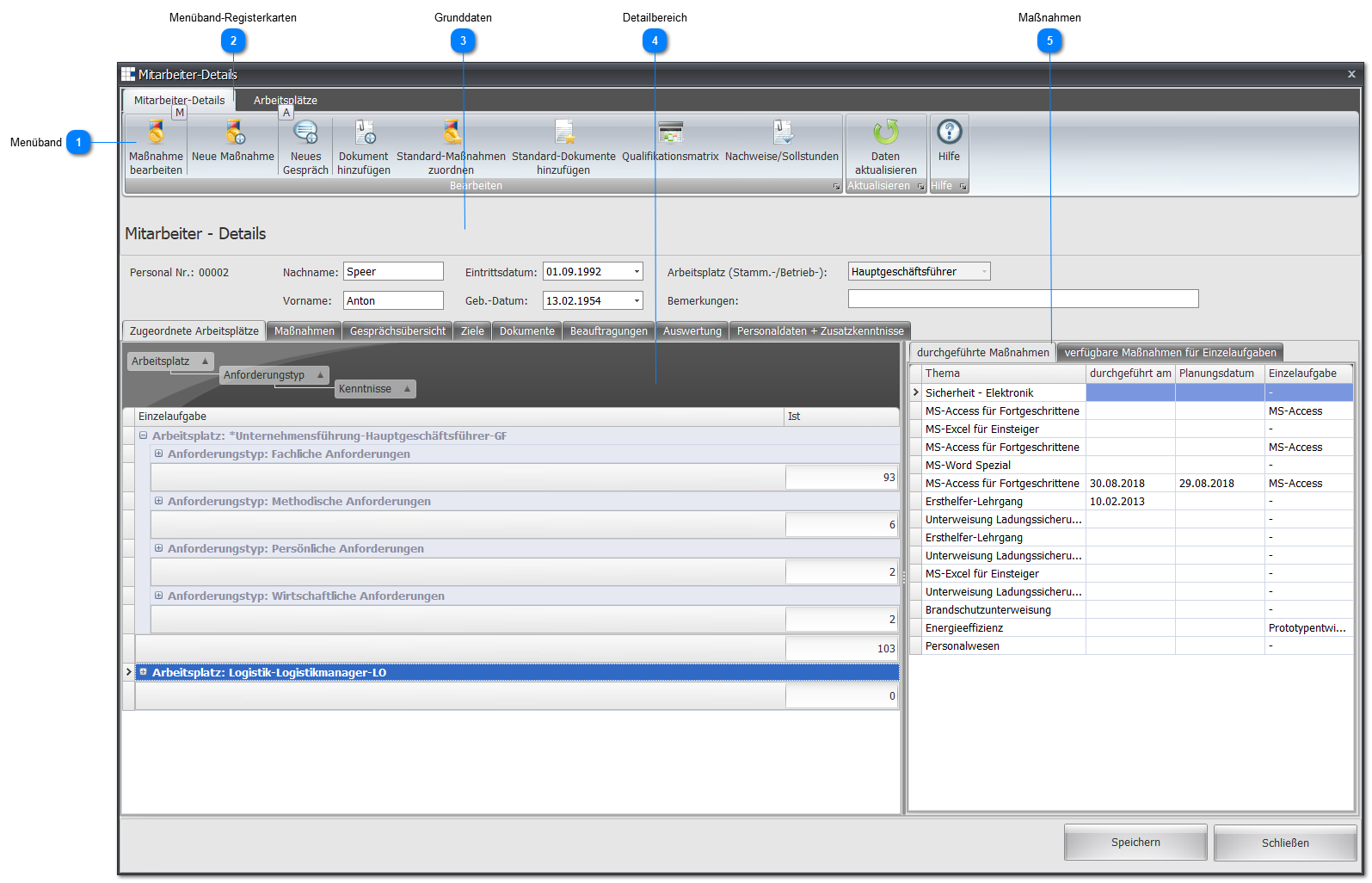
 Ribbon

| Edit measure | Measures already assigned to the employee can be edited here. |
| New measure | Assign additional measures to the employee. |
| New appraisal | Create a new employee appraisal. |
| Add document | Add a new document to the employee. |
| Assign standard measures | Assign a standard measure from the measure catalog to the employee. |
| Qualification matrix | The Qualification matrix button opens the assessment screen for this employee. |
| Proof/required hours | Shows an overview of all required hours and necessary proof for this employee. |
 Ribbon tabs

| Employee details | Opens the ribbon described above for recording individual employee information. |
| Workplaces | Here you can add additional workplaces for the employee.
To do this, select one from the drop-down list of all available workplaces/roles: 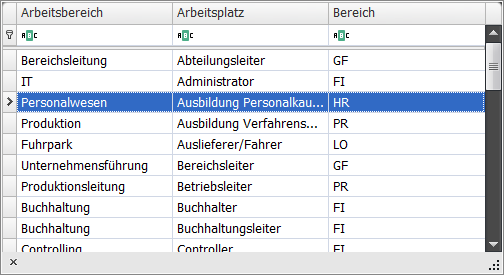
Then click "Create workplace activity", and this additional workplace is added. 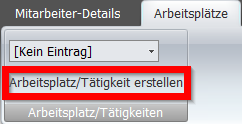
|
 Basic data

The basic data shows the master data information for the selected employee.
 Detail area
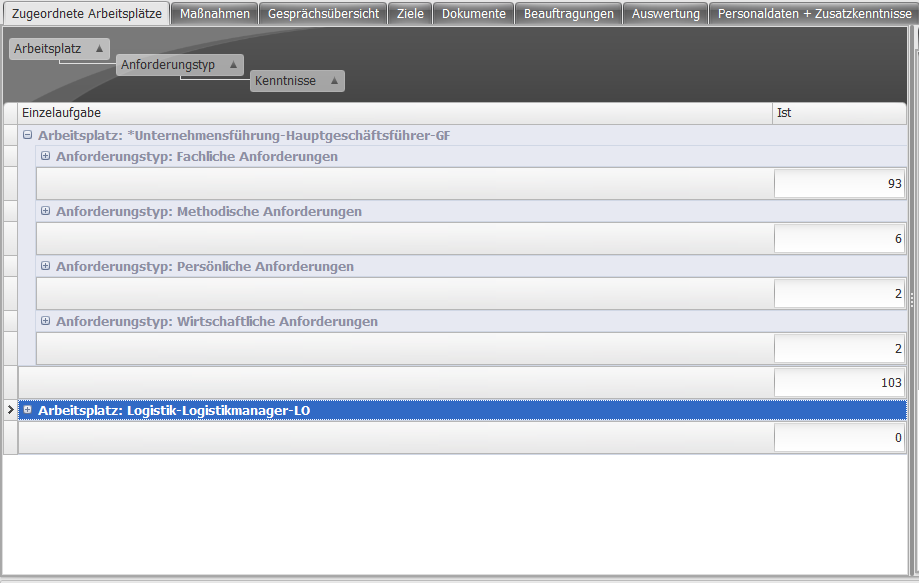
| Assigned workplaces | Here you see the workplaces assigned to the individual employee, and all associated individual tasks. From this view you can also assess the various individual tasks for the employee. |
| Measures | You get a summary of each employee's planned and completed measures. This view also includes all archived measures. |
| Appraisal overview | Get an overview of the planned and completed employee appraisals. |
| Goals | Keep track of the goals set for this employee during appraisals. However, you can also define and set goals yourself. |
| Documents | Here you edit the documents assigned to the selected employee. |
| Assignments | If the employee has an assignment beyond their regular work (e.g. environmental officer, workplace safety officer, etc.), store the corresponding information here. |
| Reporting | View the employee's development over a period of time. |
| Personnel data + additional skills | Manage an employee's personnel data and additional skills. |
 Measures
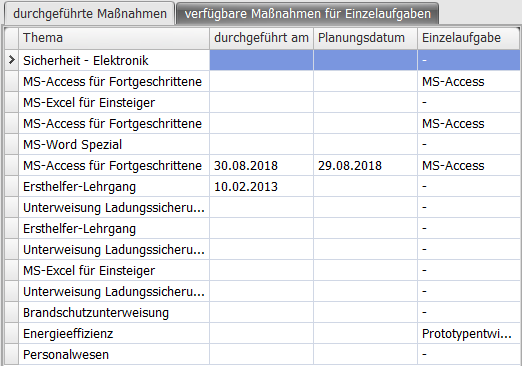
Here you see this employee's planned or completed measures, filtered by workplace/role, skills, or individual tasks.
NOTE:
If you select an individual task, a skill, or a workplace in the detail area, only the measures assignable to the selected object are shown.
Example:
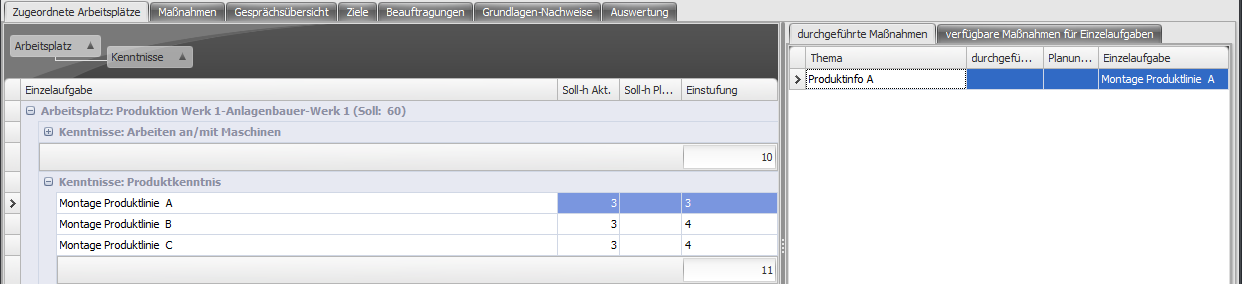
Here the individual task Assembly Product Line A is selected, so only measures assigned to the individual task Assembly Product Line A are shown.
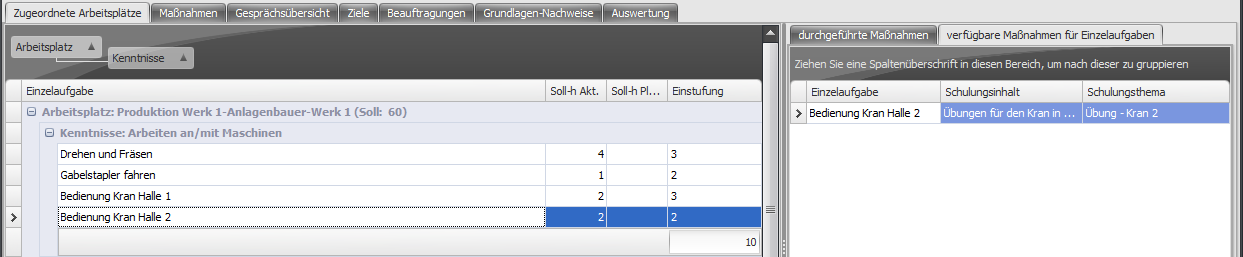
On the "Available measures for individual tasks" tab, you'll find training content and training topics for the corresponding measures of each individual task:
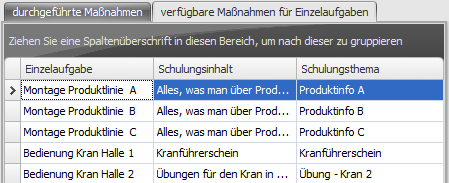
Here you see the measures that are in the measure catalog and are relevant for the employee based on their workplace.
An example for this tab:
All available measures with the individual task Crane Operation Hall 2 are shown.
You can add these to the employee via the context menu.