



Measure Details
Double-clicking or using Open in the context menu shows you the detail view of the measure/training course.
All information listed can be changed by you.
In particular, setting the instructor for this measure/training course is intended here.
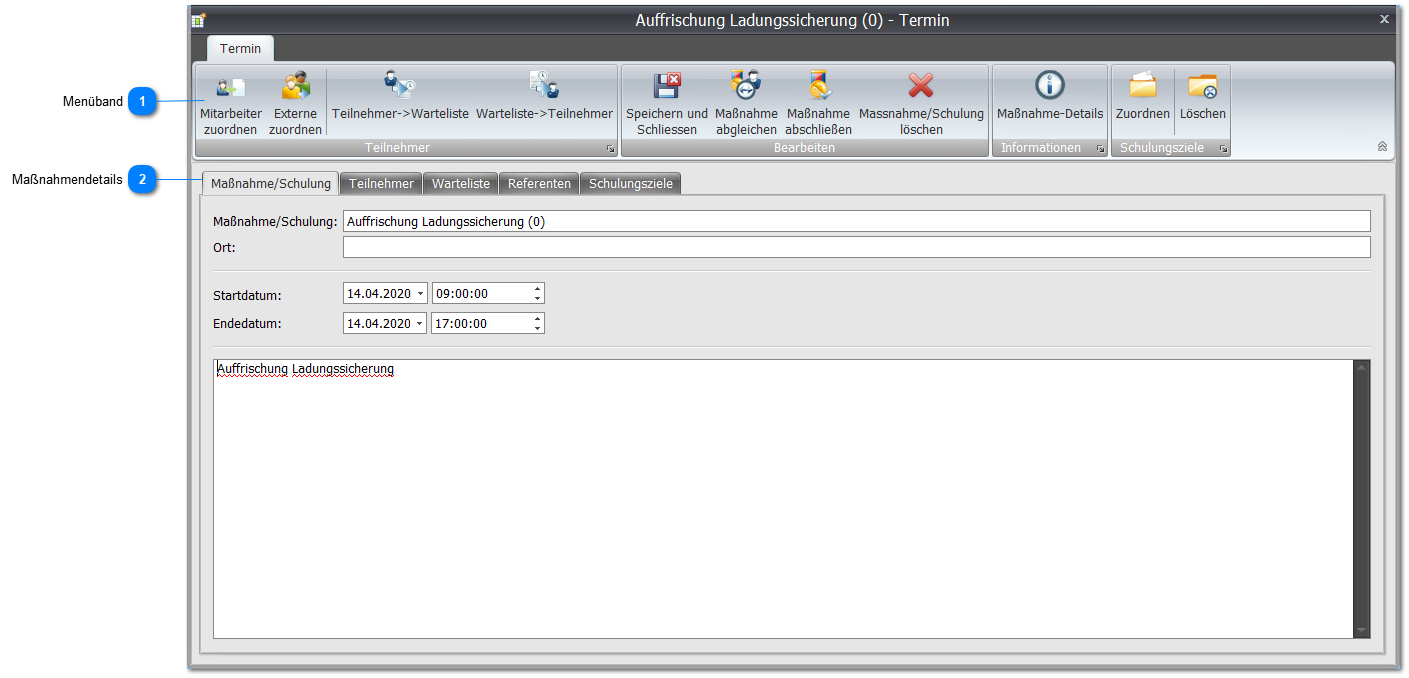
 Ribbon

The ribbon has the following functions:
| Save and Close | First all contents of the tabs are saved, and then the window is closed. If it is a module training course, the master module reconciliation wizard opens. |
| Reconcile Measure | Opens the reconciliation wizard for training planning |
| Complete Measure | Opens a wizard for setting the completion date of the measure/training course.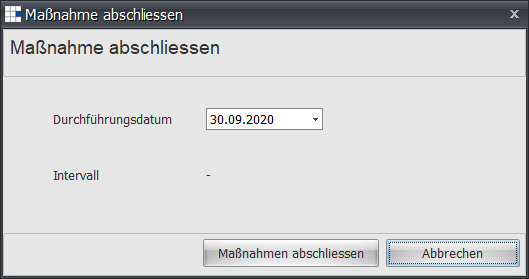 Using Complete Measure sets the completion date to the configured date for all participants. If it is a module training course, the master module reconciliation wizard opens. |
| Delete Measure/Training Course | Deletes the measure/training course after the confirmation prompt has been confirmed (Yes).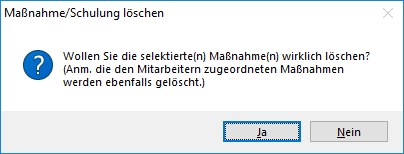 |
| Assign Employee | Opens a selection dialog for employees who should attend this measure/training course: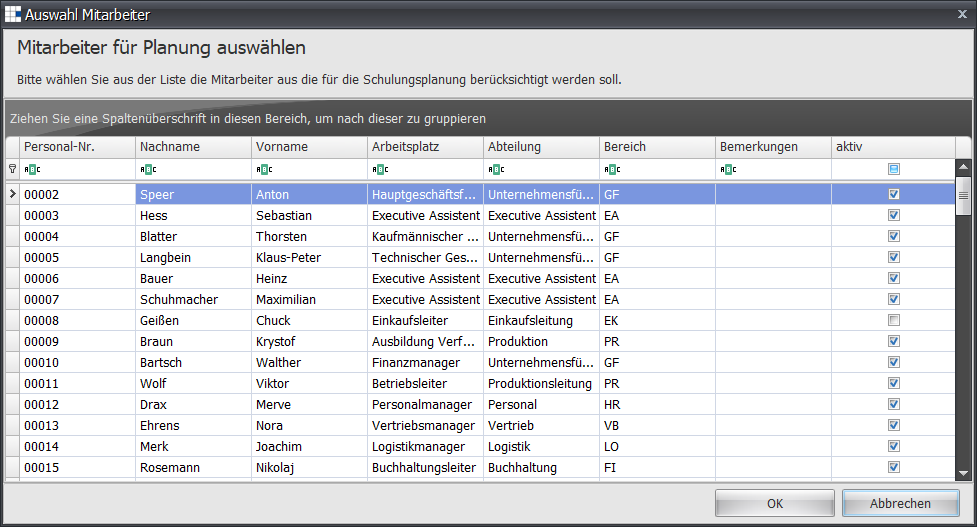 Select an employee, and your selection is highlighted in blue. If you want to select several employees, hold down the CTRL key and mark further employees with the left mouse button. Each selected employee is displayed highlighted in blue. Confirm your selection with OK. |
| Assign External Person | Opens a selection dialog for external persons who should attend this measure/training course: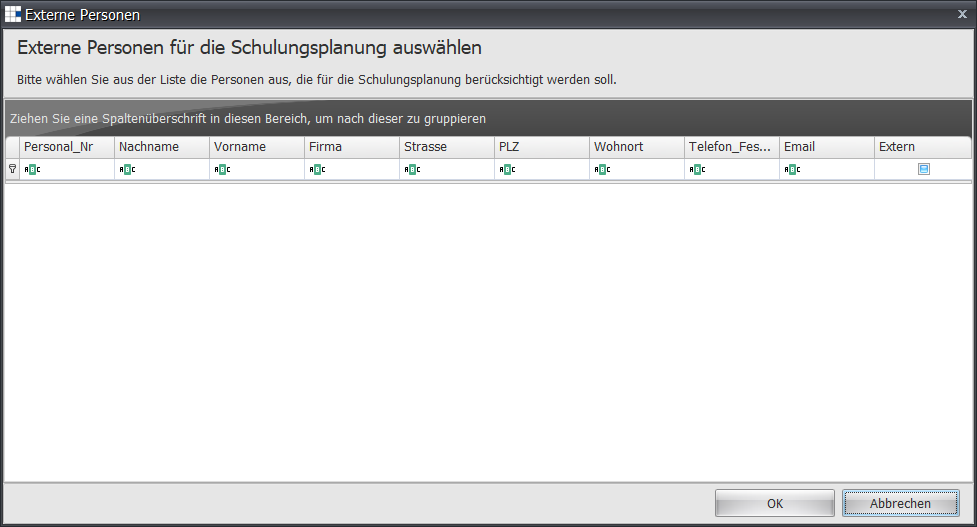 Select a person, and your selection is highlighted in blue. If you want to select several persons, hold down the CTRL key and mark further persons with the left mouse button. Each selected person is displayed highlighted in blue. Confirm your selection with OK. |
| Participant ► Waiting List | Moves the selected participant to the waiting list from the scheduled participants. |
| Waiting List ► Participant | Moves the selected participant from the waiting list to the scheduled participants. |
| Measure Details | Opens the measure details of the measures catalog for the underlying measure. |
| Assign | Opens the dialog for the training objective selection: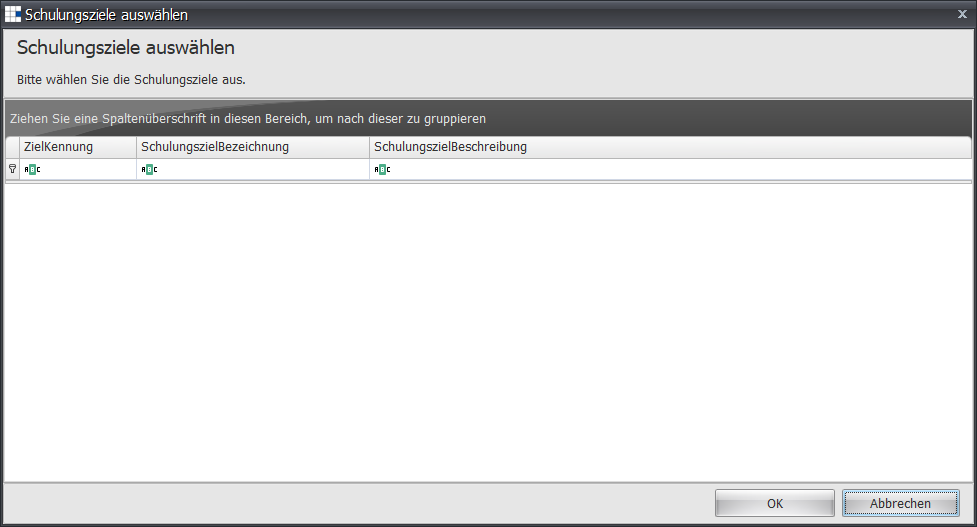 |
| Delete | Deletes a marked training objective for this training plan |
| Print Certificate | If it is a module training course, the certificate can be created using this button. Otherwise this option is hidden, and the training planning process must be used. |
 Measure Details
| Measure/Training Course | Shows you the essential details of the measure/training course: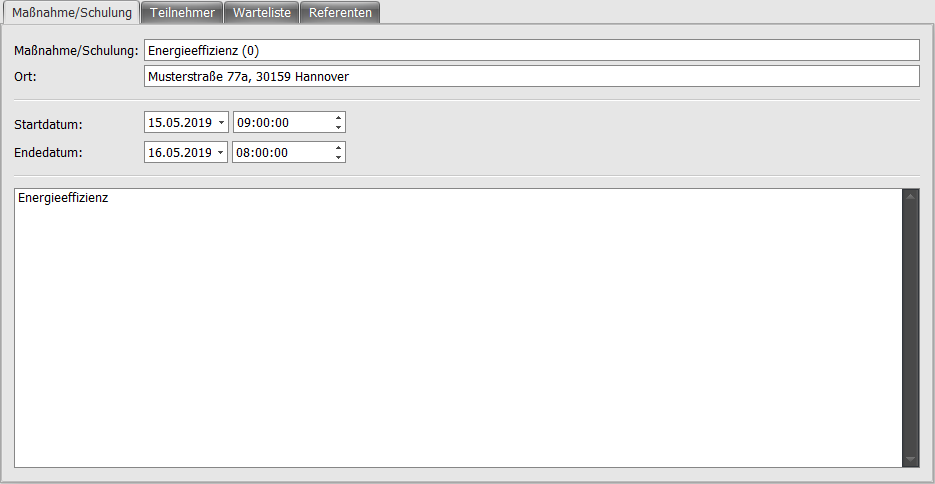
| ||||||||||||||||||
| Participants | Shows you the participants of the measure/training course in a tabular overview: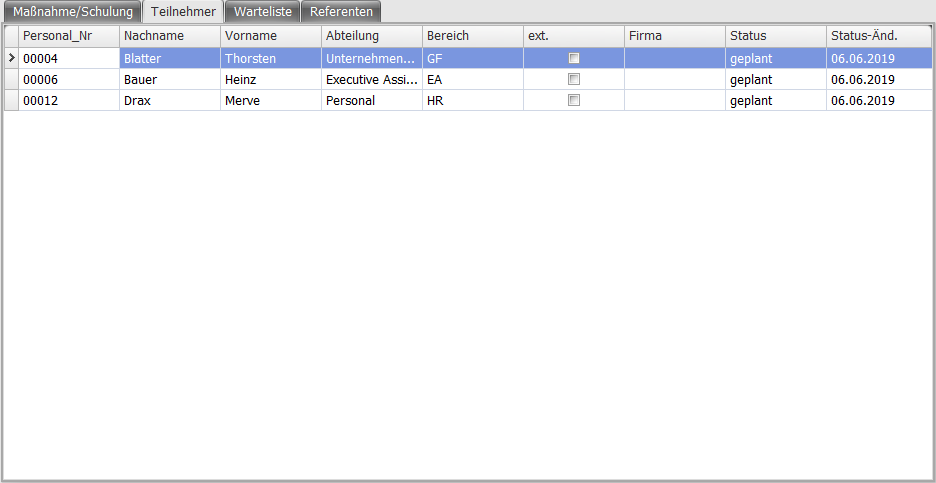
| ||||||||||||||||||
| Waiting List | Shows you the participants on the waiting list in a tabular overview: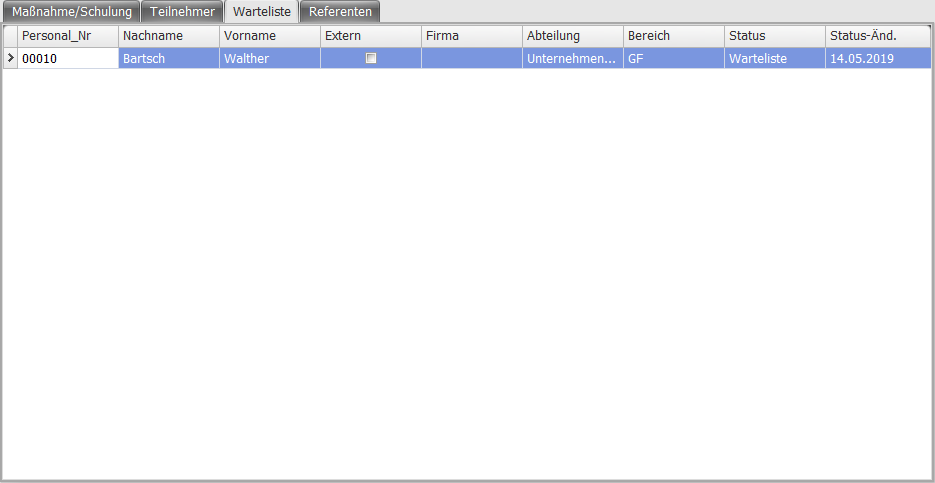
| ||||||||||||||||||
| Instructors | Shows you the scheduled instructors in a list. You can select a different instructor via the dropdown list.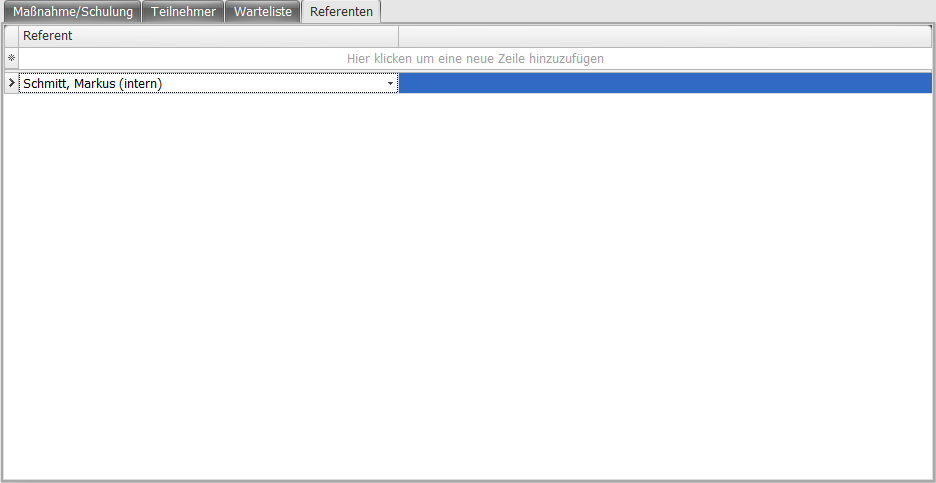 | ||||||||||||||||||
| Training Objectives | 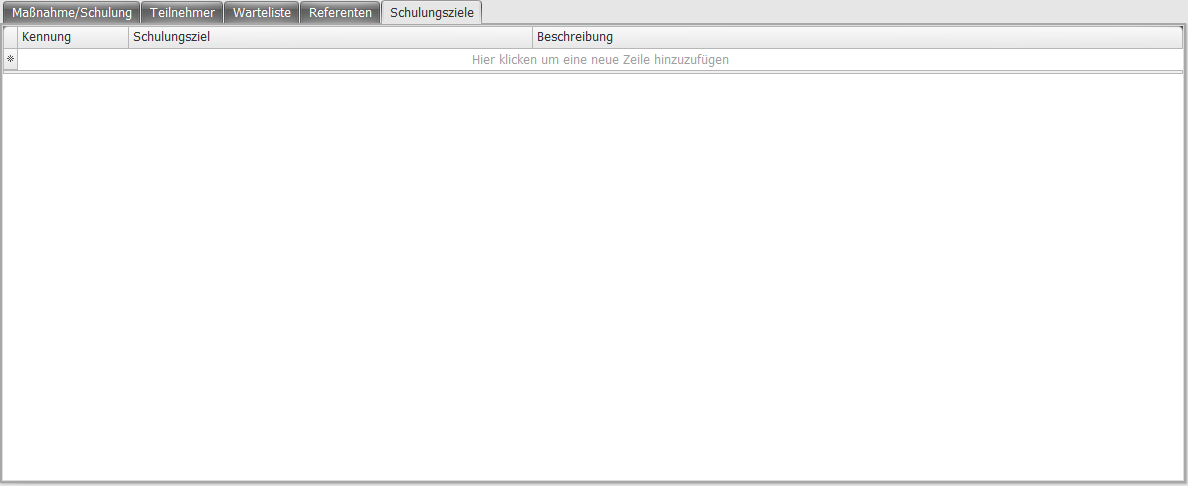 In addition to the toolbar buttons for adding objectives, objectives can also be entered manually. The columns have the following meaning:
|