Training Planning Process
The training planning process can be reached via the context menu of a measure/training course in the period calendar.
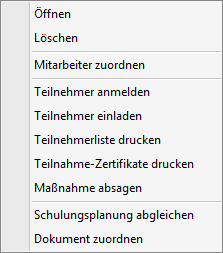
| Open | Opens the measure/training course details of the selected measure/training course |
| Delete | Deletes the measure/training course after the confirmation prompt has been confirmed (Yes).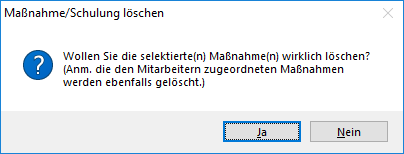 |
| Step 1: Assign Employee | Performs step 1 of the training planning process |
| Step 2: Register Participant | Performs step 2 of the training planning process |
| Step 3: Invite Participant | Performs step 3 of the training planning process |
| Step 4: Print Participant List | Performs step 4 of the training planning process |
| Step 5: Print Certificates of Attendance | Performs step 5 of the training planning process |
| Step 6: Cancel Measure | Performs step 6 of the training planning process |
| Reconcile Training Planning | Opens the reconciliation wizard for training planning |
| Assign Document | Opens the assignment wizard for training planning |
The following points must be processed/considered in order for the training planning process:
Step 1: Assign Employee
In the first step, the participants (preferably internal employees) need to be added:
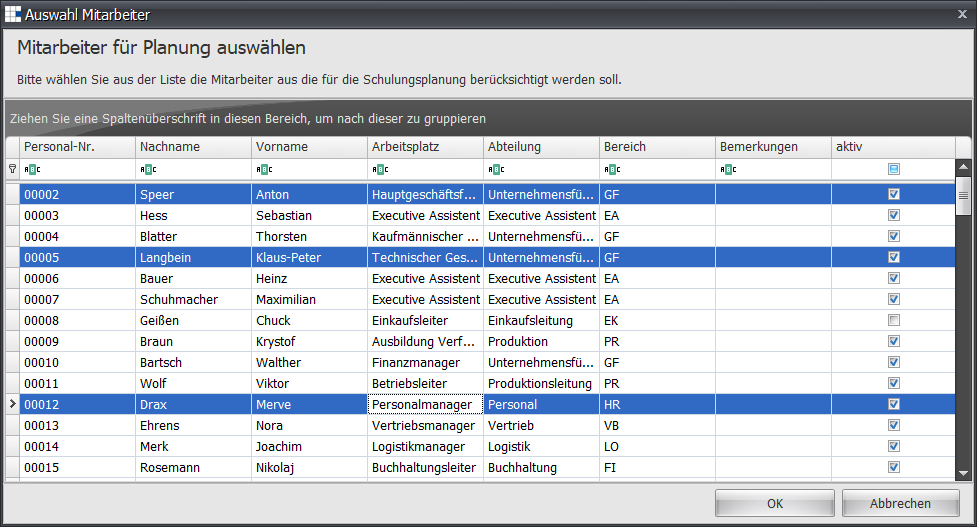
Select an employee, and your selection is highlighted in blue.
If you want to select several employees, hold down the CTRL key and mark further employees with the left mouse button.
Each selected employee is displayed highlighted in blue. Confirm your selection with OK.
Step 2: Register Participant
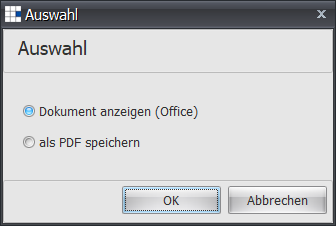
- Depending on the default setting, you will be asked whether to save the registration as a document or open it.
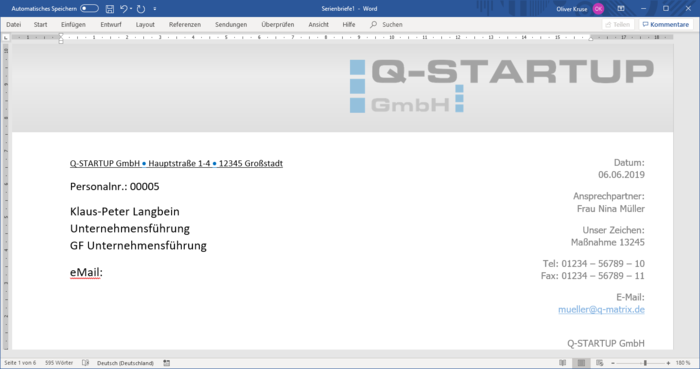
- If you use the Microsoft Office settings, Microsoft Word will open. All further editing steps follow those for mail merges, or in the case of full processing you can save, print, etc. the documents.
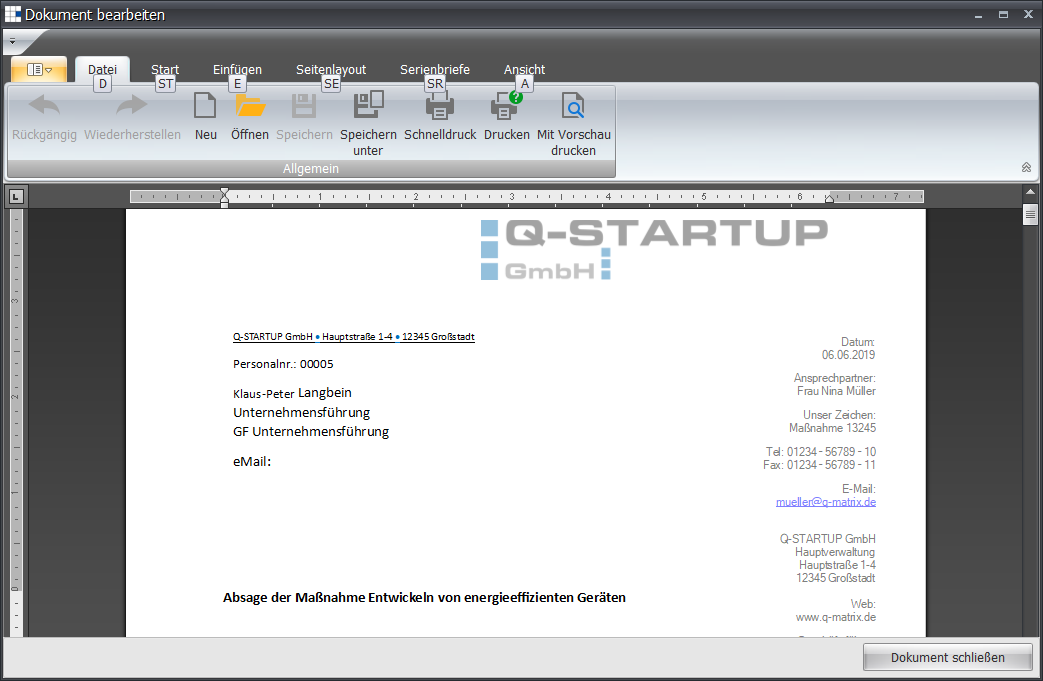
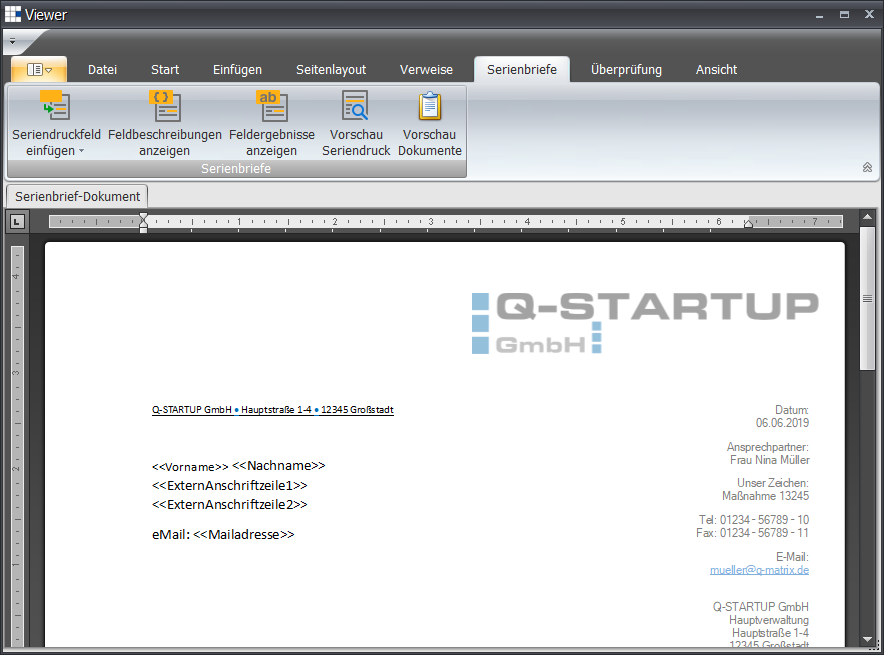
- The viewer displays the information as follows:
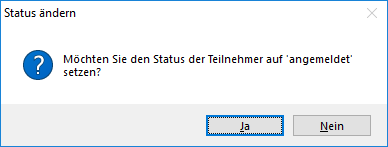
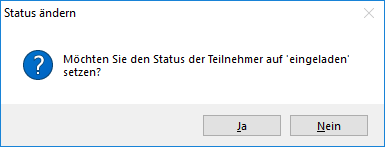
- In the final step, you can then change the status of the participants and save.
Step 3: Invite Participant
- Depending on the default setting, you will be asked whether to save the invitation as a document or open it.
- If you use the Microsoft Office settings, Microsoft Word will open. All further editing steps follow those for mail merges, or in the case of full processing you can save, print, etc. the documents.
- The viewer displays the information as follows:
- In the final step, you can then change the status of the participants and save.
Step 4: Print Participant List
- Depending on the default setting, you will be asked whether to save the list as a document or open it.
- If you use the Microsoft Office settings, Microsoft Word will open. All further editing steps follow those for mail merges, or in the case of full processing you can save, print, etc. the documents.
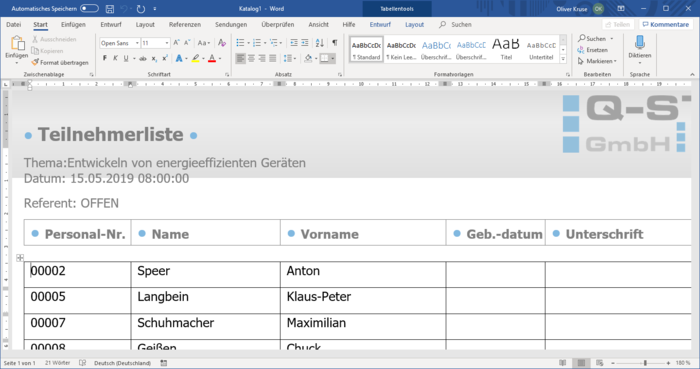
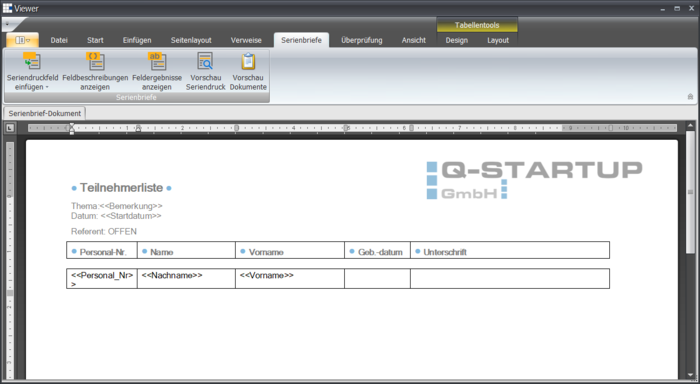
- The viewer displays the information as follows:
Step 5: Print Certificates of Attendance
- Depending on the default setting, you will be asked whether to save the certificates as a document or open them.
- If you use the Microsoft Office settings, Microsoft Word will open. All further editing steps follow those for mail merges, or in the case of full processing you can save, print, etc. the documents.
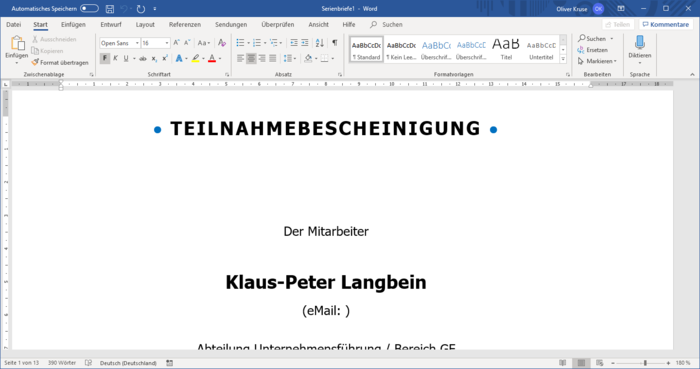
- The viewer displays the information as follows:
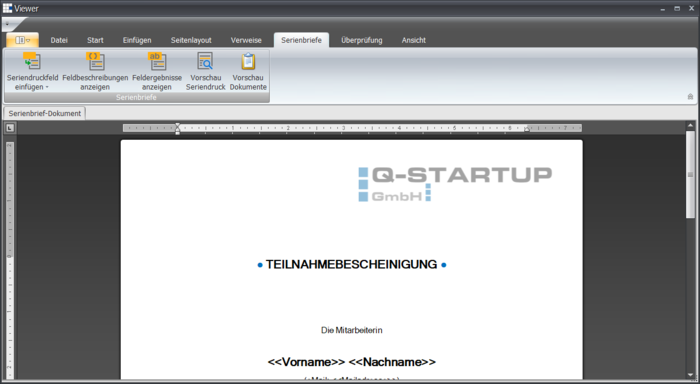
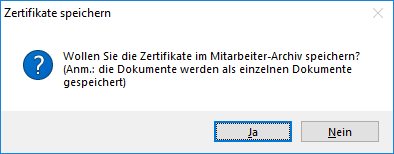
- In the final step, you can then decide whether the participants' certificates are added to the employees as a PDF document.
Step 6: Cancel Measure
- Depending on the default setting, you will be asked whether to save the cancellation as a document or open it.
- If you use the Microsoft Office settings, Microsoft Word will open. All further editing steps follow those for mail merges, or in the case of full processing you can save, print, etc. the documents.
- The viewer displays the information as follows: