



Assessment Screen
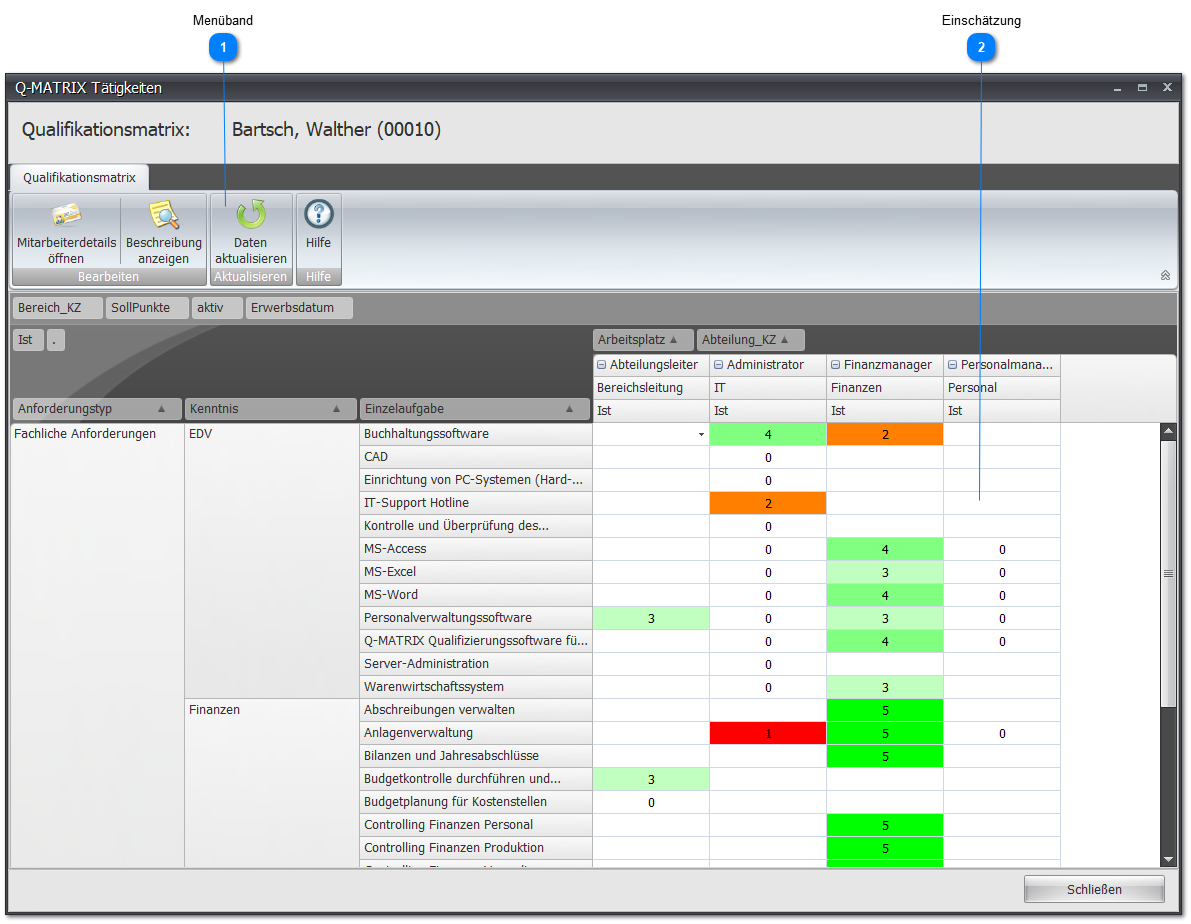
The assessment screen for an individual employee lets you assess them across all the individual tasks their workplace requires of them.
 Ribbon
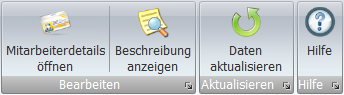
Show description shows you the description of the selected individual task.
You select an individual task by clicking the corresponding assessment field.
 Assessment
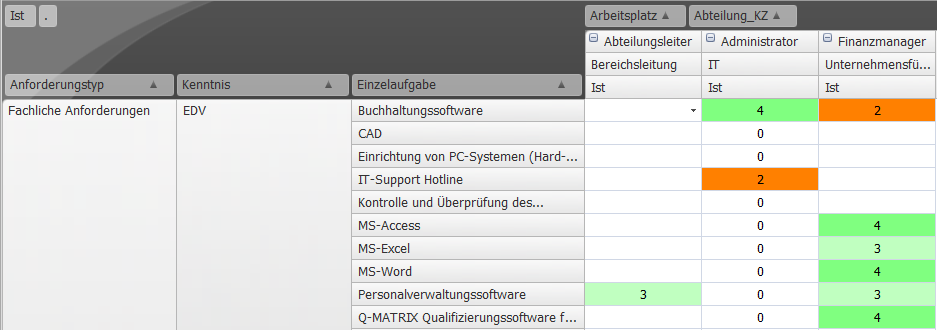
Here you can assess/rate your employees in the various individual tasks assigned to them via their workplace or workplaces.
Clicking  opens the drop-down menu, which lets you choose a qualification level.
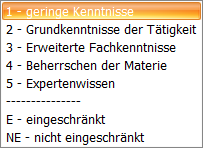
The restricted (E) and unrestricted (NE) fields let you indicate, for example, physical limitations (for physically demanding work).
As soon as restricted (E) is used, this assessment/rating is not included in the calculations.
Such fields are shown with a grey background so this is also immediately visible at a glance.
As an alternative to the drop-down menu, after selecting a field you can also use your keyboard to enter the assessment/rating.
This becomes important if you want to leave an individual task unrated.
Entering a 0 as the assessment/rating for an individual task leaves that individual task unrated in the qualification matrix and in the reports.