



Email Delivery
Opens a tabular overview listing all pending notifications.
A future update is intended to make it possible to automatically send the emails listed here in the background.
Currently, this function (automatic sending) is not yet available, and a manual selection for sending must be made here.
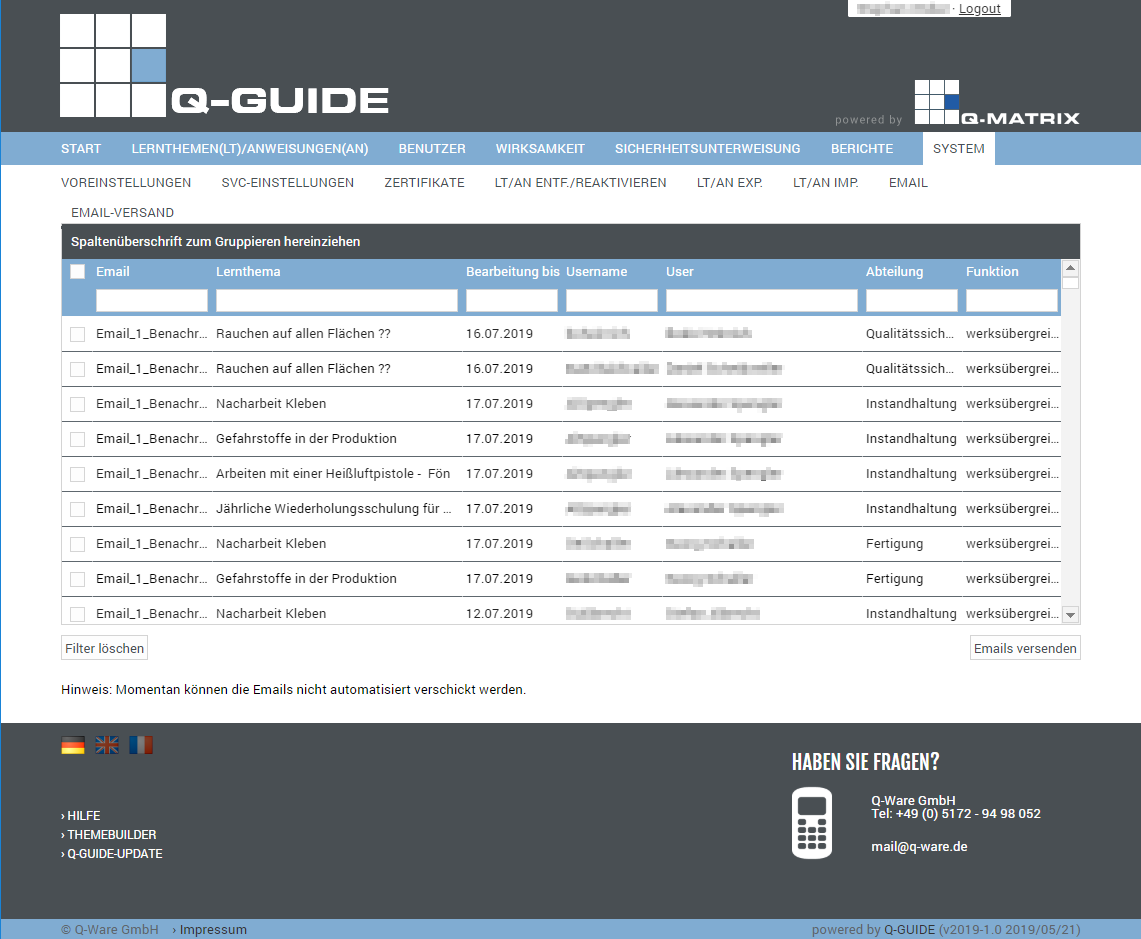
You can view the following information:
| Selection | In this column, you can specify whether an action should be performed for this user and the associated learning topic. Simply click this icon ( ), and the row is selected ( ), and the row is selected ( ). The selected row is also highlighted with a light blue background to indicate the selection. ). The selected row is also highlighted with a light blue background to indicate the selection. |
| Shows you which email notification is to be sent to the user according to the preferences | |
| Learning Topic | Shows you the title of the affected learning topic / instruction |
| Due By | Shows you by when the user has to complete the learning topic |
| Username | Shows you which user this concerns |
| User | Shows you the user's first and last name |
| Department | Shows you the user's department |
| Function | Shows you the user's function |
You can use these functions:
| Clear Filter | Clears all filters / settings for the data selection, and after clicking this button, all available records are displayed. |
| Send Emails | Upon confirming Execute Action, the emails you have selected are sent to the corresponding users. For every N emails, you receive information that N emails have now been sent. You can also cancel or interrupt further sending in this dialog.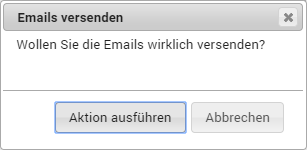 |